Short answer: The best free online video editor in 2026 is Microsoft Clipchamp. It exports up to 1080p with no watermark on the free plan. Canva is my pick for template-based social videos, and Adobe Express is great for quick Reels. The other seven work too, but their free plans add a watermark or cap quality.
You do not need expensive software to make good videos anymore. A browser and a decent internet connection are enough for most YouTube intros, Reels, ads and explainer videos.
If you want to edit video online free, with no download and nothing to install, every video editor below runs in a web browser.
The problem is that “free” means very different things. One tool gives you clean 1080p exports. Another stamps a logo on every video. A third caps you at a few minutes a month. In this guide, I break down exactly what each free plan gives you in 2026, so you can pick the right one in five minutes.
Quick Comparison: Best Free Online Video Editors (2026)
| Editor | Free export quality | Watermark on free plan | Key free limit | Paid plan from | Best for |
|---|---|---|---|---|---|
| Microsoft Clipchamp | Up to 1080p | No | Premium stock and 4K need Microsoft 365 | Microsoft 365 Personal | Most people |
| Canva | Up to 1080p, up to 30 min | No (only on Pro elements) | 4K is Pro only | ₹4,000/year (Pro) | Social posts and templates |
| Adobe Express | High-res MP4 | No | 4K and premium assets are paid | See Adobe India pricing | Quick Reels and ads |
| Kapwing | 720p | Yes | Exports up to 4 min, 250 MB uploads | See Kapwing pricing | Memes and subtitles |
| VEED | Limited | Yes | Watermark removed on paid plans | ₹490/month (billed yearly) | Talking-head videos |
| Flixier | 720p | Yes | 10 min of export per month, 2 GB storage | ₹813/seat/month | Fast cloud editing |
| Clideo | Up to 720p | Yes | 500 MB uploads, 14-day storage | US$9/month (billed yearly) | One-off quick fixes |
| WeVideo | 480p | Expect one (removing it is a paid feature) | 5 min of publishing per month, 1 GB storage | US$4.99/month (billed yearly) | Schools and simple projects |
| Descript | 720p | Watermark-free export is paid | 60 media minutes per month | US$16/month (billed yearly) | Editing by editing the transcript |
| Animoto | 720p | Yes | 50 licensed music tracks on free | ₹299/month (billed yearly) | Slideshows and promo videos |
Sources: each company’s official pricing or help pages, checked October 2026.
Advantages of Using a Free Online Video Editor
Before we get to the list, here is why I think most beginners should start online, not with heavy desktop software.
1. Nothing to Install
You open a website and start editing. That matters if you use an office laptop, a Chromebook or a shared computer where you cannot install software.
2. Works on Low-End Computers
Cloud editors do a lot of the heavy lifting on their own servers. Your laptop does not need a powerful graphics card to trim a clip or add captions.
3. Built-In Stock, Music and Templates
Most online editors come with free stock footage, music and templates. You can make a decent video even if you have no footage of your own.
4. Easy Teamwork
Tools like Canva let several people edit the same project in real time. Great for small teams, agencies and clients who want to leave comments.
Who Should Use a Free Online Video Editor?
- Beginners who want to learn editing without spending money.
- Social media managers who make Reels, Shorts and Stories every day.
- Small business owners who need quick ads, product videos and promos.
- Students and teachers who make presentations and class projects.
- Bloggers and YouTubers who need intros, outros and simple edits.
- Marketers who want to test video ideas fast before paying a pro editor.
If you edit long films or heavy 4K footage, a desktop editor like DaVinci Resolve will serve you better. I cover that at the end.
How I Picked These Free Online Video Editors
I judged every tool on the same eight points. These are the things that actually decide whether a free plan is usable.
1. Export Quality
Can you export in 1080p for free, or are you stuck at 720p? For YouTube and Reels in 2026, 1080p is the minimum I would accept.
2. Watermark
A watermark on your video looks unprofessional. I note clearly which free plans add one.
3. Time and Storage Limits
Some free plans limit video length, export minutes per month or upload size. I list these limits from each company’s own help or pricing pages.
4. Ease of Use
A beginner should be able to make a first video in under 30 minutes.
5. Editing Tools
Trimming, splitting, text, transitions, speed control and audio tools are the basics. Auto captions are now a must-have.
6. AI Features
Background removal, text-to-speech, silence removal and auto subtitles save hours. I note what is free and what is paid.
7. Stock Library
A good free library of footage, music and sound effects saves you money.
8. Price When You Upgrade
If you outgrow the free plan, the upgrade should be fair. I list Indian rupee prices wherever the company shows them.
10 Best Free Online Video Editors in 2026
Here are my ten picks, in order. I start with the editors that give you the most for free.
1. Microsoft Clipchamp
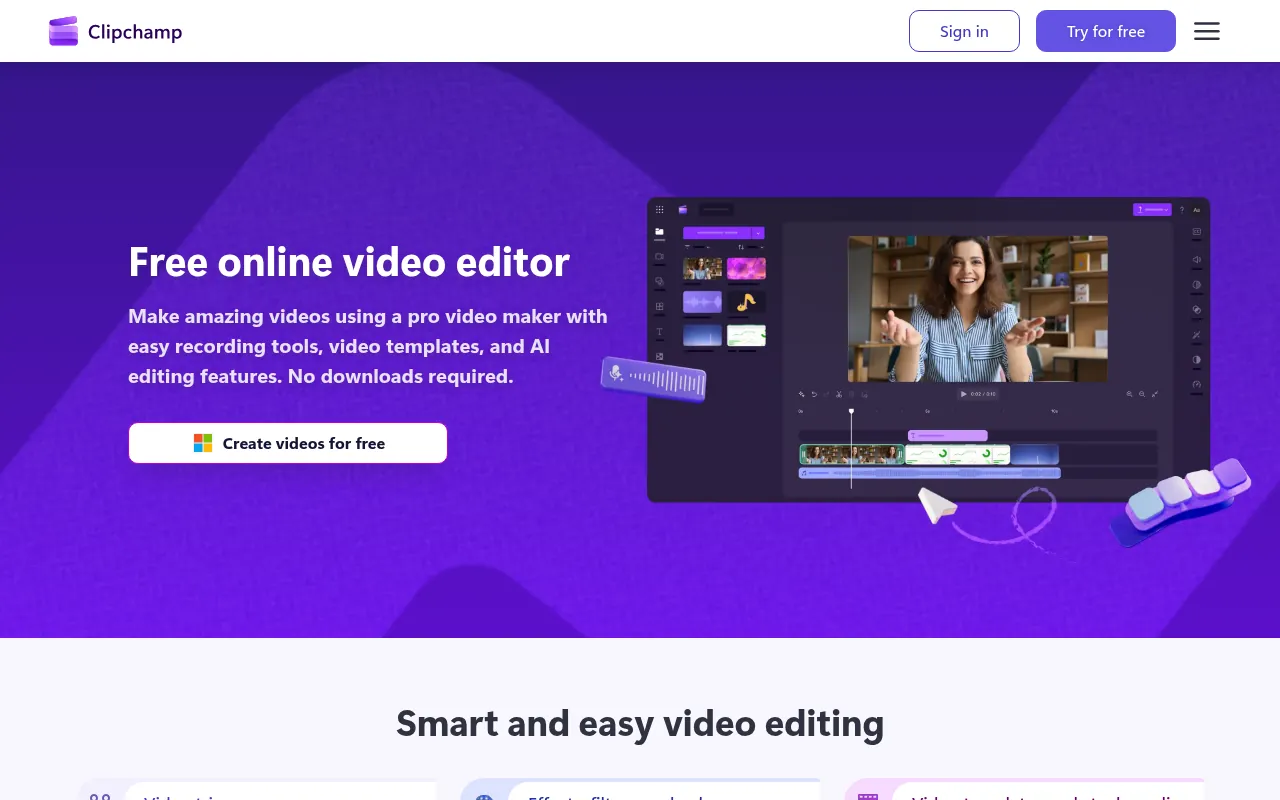
My take: Clipchamp is the best free online video editor for most people in 2026. You get clean 1080p exports with no watermark, which is rare at this price point.
Clipchamp is owned by Microsoft. It runs in your browser and also comes as an app on Windows. If you have Windows 11, you probably already have it installed.
| Clipchamp at a glance | Details |
|---|---|
| Free export | Up to 1080p |
| Watermark | None |
| Works on | Microsoft Edge and Google Chrome, plus the Windows app |
| Paid option | Premium features come with Microsoft 365 Personal or Family |
| Best for | YouTube videos, social clips, slideshows, screen recordings |
Key Features of Clipchamp
Clean 1080p exports. Microsoft confirms that free exports go up to 1080p with no watermark. 4K export is a premium feature.
Auto captions. Clipchamp can create subtitles from your speech automatically. You can then edit the words and the style.
Text to speech. Type a script and pick an AI voice. Very handy for faceless YouTube channels and explainer videos.
Screen and camera recorder. Record your screen, your webcam or both, right inside the editor. Great for tutorials and course videos.
Templates. Start from a ready-made template for YouTube, Instagram or TikTok and swap in your own clips.
Stock media. You get a library of free stock video, images and music. Premium stock is marked, and you must upgrade or remove it before export.
Simple timeline. Drag and drop clips, trim them, split them and add transitions. If you have used any editor before, you will feel at home.
Pros
- No watermark on free exports
- 1080p on the free plan
- Auto captions and text to speech
- Built into Windows 11
Cons
- 4K export needs a paid Microsoft 365 plan
- Premium stock blocks export if you forget to remove it
- Works best in Edge or Chrome only
How to Make a Video in Clipchamp
- Open Clipchamp and sign in with a Microsoft account.
- Click “Create a new video”.
- Drag your clips into the media panel, then onto the timeline.
- Trim, add text, captions and music.
- Click Export and choose 1080p.
Who should use Clipchamp: Windows users, YouTubers, teachers and anyone who wants clean free exports without learning a pro tool.
2. Canva
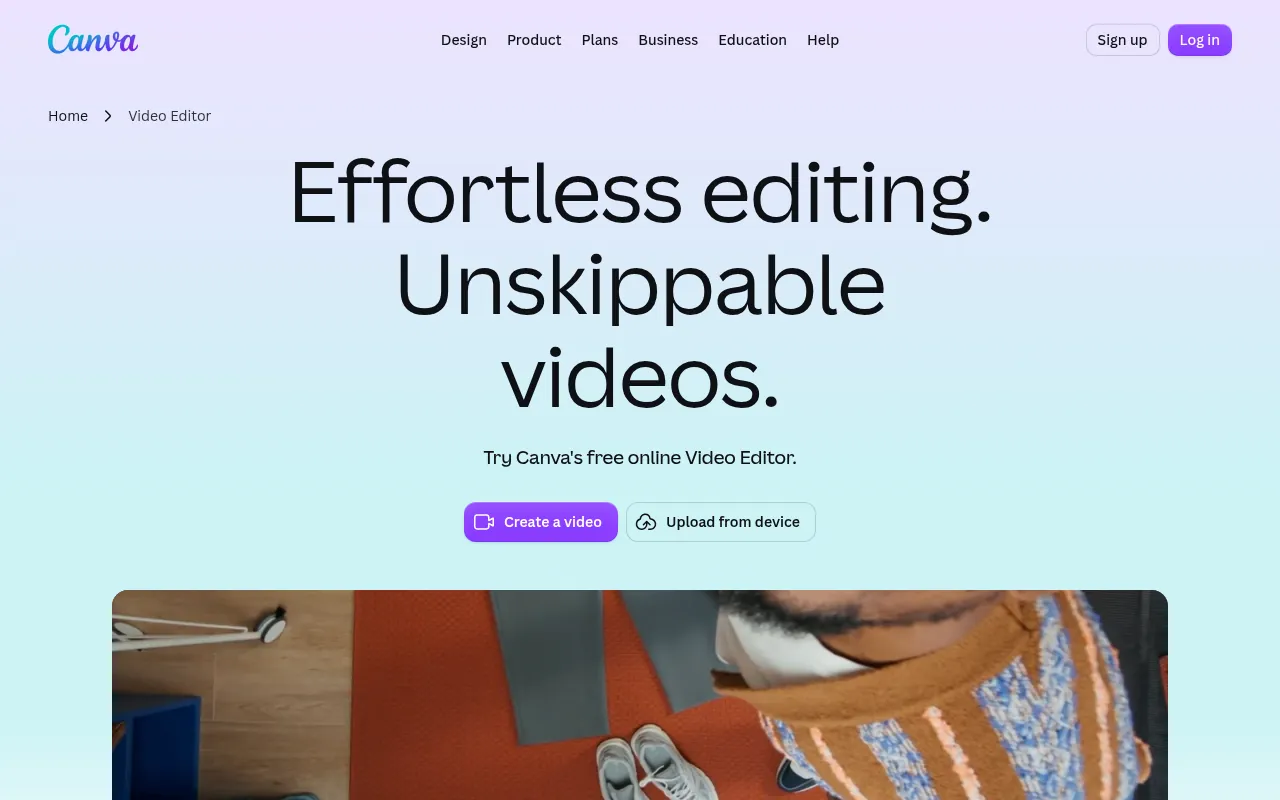
My take: If you already use Canva for thumbnails and posts, use it for video too. It is the fastest way to make good-looking social videos from a template.
Canva started as a design tool, but its video editor is now solid. You can design a thumbnail, a Reel and a YouTube intro in one place, with the same brand fonts and colours.
| Canva at a glance | Details |
|---|---|
| Free export | MP4 up to 1080p, up to 30 minutes |
| Watermark | None, unless you use Pro elements |
| Works on | Browser, Windows, Mac, Android, iPhone |
| Paid plans in India | Pro Lite ₹1,590/year, Pro ₹4,000/year, Business ₹6,800/year per person |
| Best for | Reels, Stories, ads and branded videos |
Key Features of Canva
Huge template library. Thousands of video templates for YouTube, Instagram, LinkedIn and ads. Pick one, swap your clips, done.
Drag-and-drop timeline. Trim, split, crop and change speed with simple controls. It is beginner-friendly.
Captions tool. Generate captions automatically, then edit and style them.
Real-time collaboration. Several people can work on the same video at once, which is great for teams and clients.
Screen recording. Record yourself and your screen directly in Canva.
Pro tools. Background remover, Magic Switch (instant resize) and Brand Kit are part of the paid plans.
Pros
- Easiest editor for beginners
- Free 1080p exports up to 30 minutes
- Same tool for videos, thumbnails and posts
- Indian rupee pricing is clear and affordable
Cons
- 4K export is Pro only
- Pro elements show a watermark on free accounts
- Not ideal for long, complex edits
How to Make a Video in Canva
- Search for “Video” or “Instagram Reel” on the Canva home page.
- Pick a template or start blank.
- Upload your clips and drop them on the timeline.
- Add text, music and captions.
- Click Share, then Download, and pick MP4.
Who should use Canva: Social media managers, small businesses and creators who want every design asset and video in one place.
3. Adobe Express
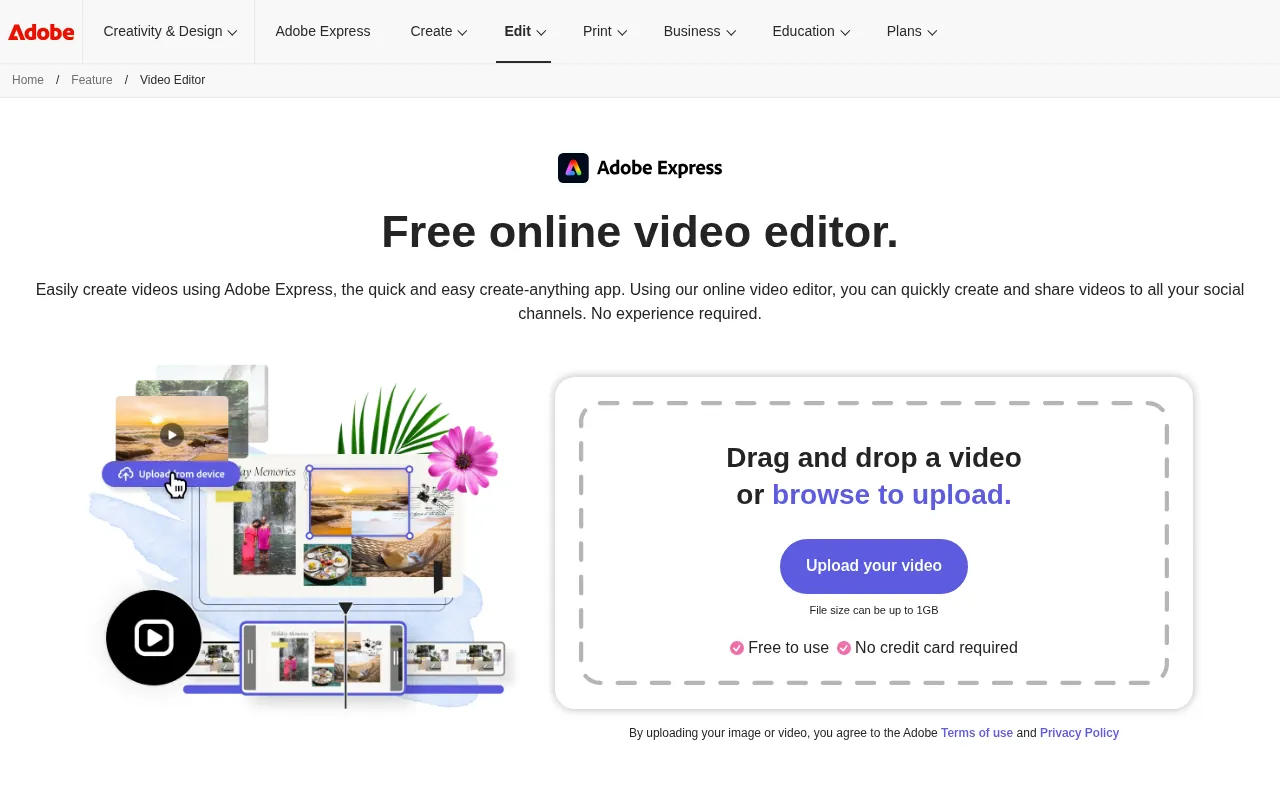
My take: Adobe Express is the best free choice for quick Reels and short ads. It feels like a lighter Canva with Adobe’s quality stock and audio tools.
Adobe Express is Adobe’s free, browser-based design and video tool. It also has mobile apps.
| Adobe Express at a glance | Details |
|---|---|
| Free export | High-resolution MP4, no credit card needed |
| Watermark | None on the free plan |
| Works on | Browser, Android, iPhone |
| Paid option | Adobe Express Premium (see Adobe’s India pricing page) |
| India offer | Airtel customers can claim 12 months of Premium free (see Adobe’s Airtel FAQ) |
| Best for | Reels, Shorts, short ads and promos |
Key Features of Adobe Express
Templates for every platform. Thousands of professionally made templates for social media, ads and events.
Cut, crop and trim. The basic edits are simple and fast.
Background noise removal. Clean up noisy audio in one click, which makes phone recordings sound much better.
Royalty-free soundtracks. Pick from Adobe Stock music tracks and drop them into your video.
Auto-save. Your project saves as you work, so you do not lose progress if the tab closes.
Quick actions. One-click tools to resize, convert, merge or trim a video without opening the full editor.
Pros
- Free MP4 exports with no watermark
- Adobe-quality templates and stock
- Free 12-month Premium deal for Airtel users
- Good mobile apps
Cons
- 4K and premium assets need Premium
- Fewer advanced timeline controls than Clipchamp
- Some templates are locked to Premium
How to Make a Video in Adobe Express
- Go to Adobe Express and sign in free.
- Click the plus icon and pick “Video”.
- Choose a template or start from scratch.
- Add clips, text, music and effects.
- Click Download and save as MP4.
Who should use Adobe Express: Reels creators, small brands and Airtel users who can unlock Premium free for a year.
4. Kapwing
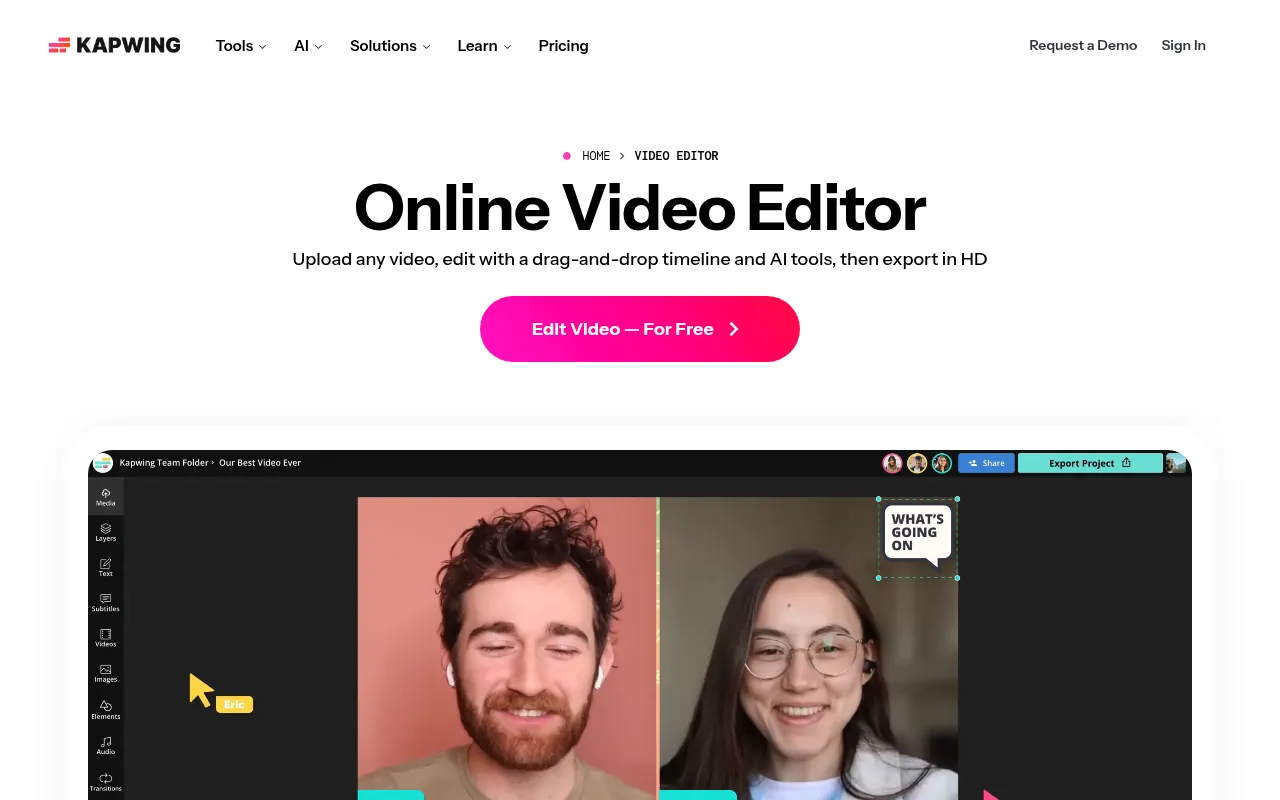
My take: Kapwing is a strong online editor with great subtitle and meme tools. But the free plan is a test drive, not a daily driver, because of the watermark and 720p cap.
Kapwing is a collaborative online editor used by creators and marketing teams. It is especially good for subtitles, resizing and quick social clips.
| Kapwing at a glance | Details |
|---|---|
| Free export | 720p (SD), projects up to 4 minutes |
| Watermark | Yes, on the free plan |
| Upload limit (free) | 250 MB per file |
| Paid plans | 1080p, exports up to 120 minutes, 6 GB uploads, no watermark |
| Best for | Subtitled clips, memes, resizing for every platform |
Key Features of Kapwing
Automatic subtitles. Generate subtitles fast and style them for Reels and Shorts.
Resize for any platform. Turn one video into square, vertical and landscape versions.
Smart editing tools. AI tools help with things like trimming silences and cleaning audio.
Team workspace. Share projects, leave comments and edit together.
Meme and GIF tools. Kapwing is still one of the best tools for quick memes and GIFs.
Pros
- Excellent subtitle tools
- Great for teams
- Easy resizing for every platform
Cons
- Watermark on free exports
- Free exports capped at 720p and 4 minutes
- 250 MB upload cap on the free plan
How to Make a Video in Kapwing
- Sign in to Kapwing with Google or email.
- Click “New project” and upload a clip under 250 MB.
- Add subtitles from the Subtitles tab and style them.
- Resize the canvas for Reels, Shorts or YouTube.
- Export. On the free plan, the file will be 720p with a watermark.
Who should use Kapwing: Teams that make lots of subtitled clips and memes and are ready to pay for clean exports.
5. VEED
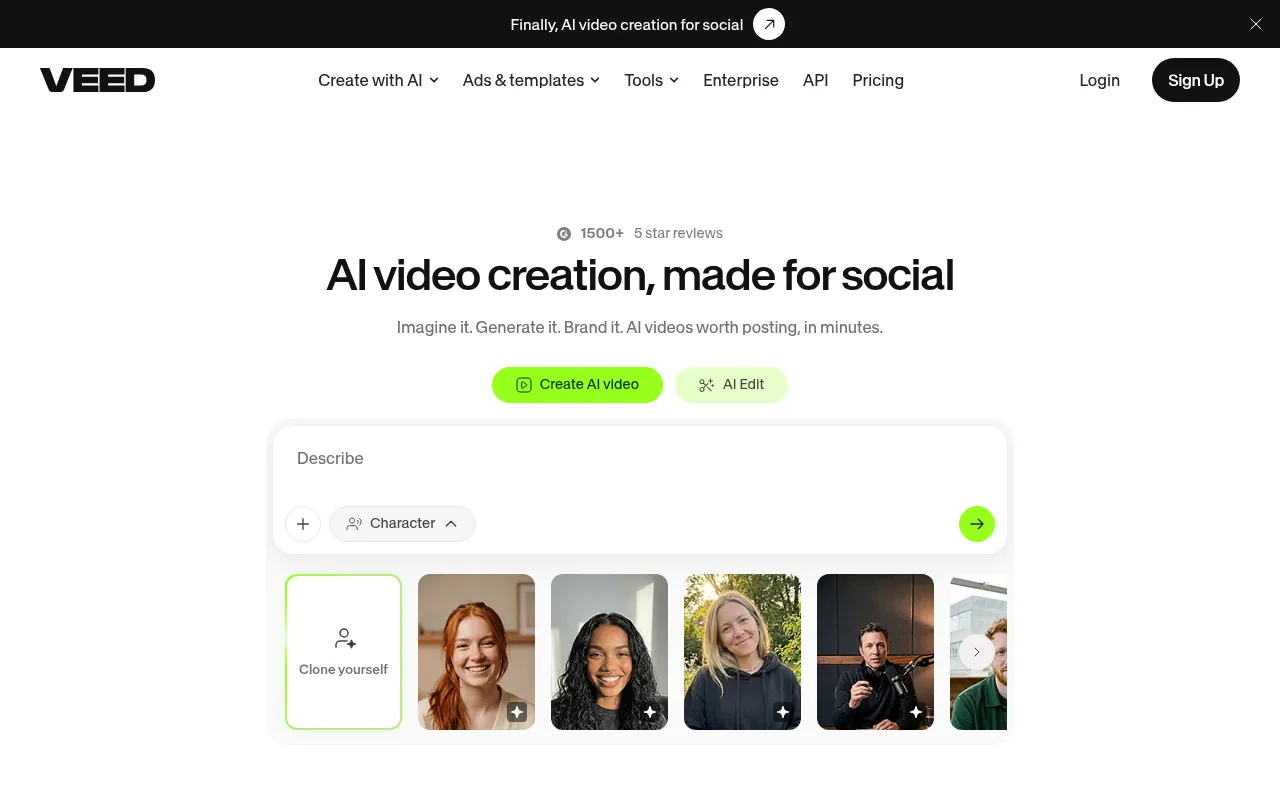
My take: VEED is built for talking-head videos, podcasts clips and subtitles. I would use the free plan only to test it, since it adds a watermark.
VEED is a browser-based editor with strong AI tools for subtitles, translations and voice. It is popular with coaches, course creators and podcasters.
| VEED at a glance | Details |
|---|---|
| Free plan | Yes, with a VEED watermark |
| Paid plans in India | Creator ₹490/user/month (billed yearly as ₹5,874), Pro ₹1,068/user/month (billed yearly as ₹12,818) |
| Paid perks | No watermark, unlimited auto subtitles, full stock catalogue, AI tools |
| Works on | Browser |
| Best for | Talking-head videos, podcast clips, translated subtitles |
Key Features of VEED
Auto subtitles. Strong subtitle tools, with translation on higher plans.
AI voice and avatars. Paid plans include AI voice and AI video tools.
Screen and webcam recorder. Record a presentation or tutorial in the browser.
Brand kits. Save your fonts, colours and logos on paid plans.
Templates. Ready-made layouts for social clips and ads.
Pros
- Excellent subtitles and translation
- Clear Indian rupee pricing
- Good recorder built in
Cons
- Watermark on the free plan
- Best features are on paid plans
- Can feel slow with long uploads
How to Make a Video in VEED
- Open VEED and create a free account.
- Upload your video or record your screen and webcam.
- Click Subtitles and generate them automatically.
- Add text, music and a progress bar.
- Export. Upgrade to remove the watermark.
Who should use VEED: Coaches, podcasters and course creators who publish talking-head videos and need subtitles in many languages.
6. Flixier
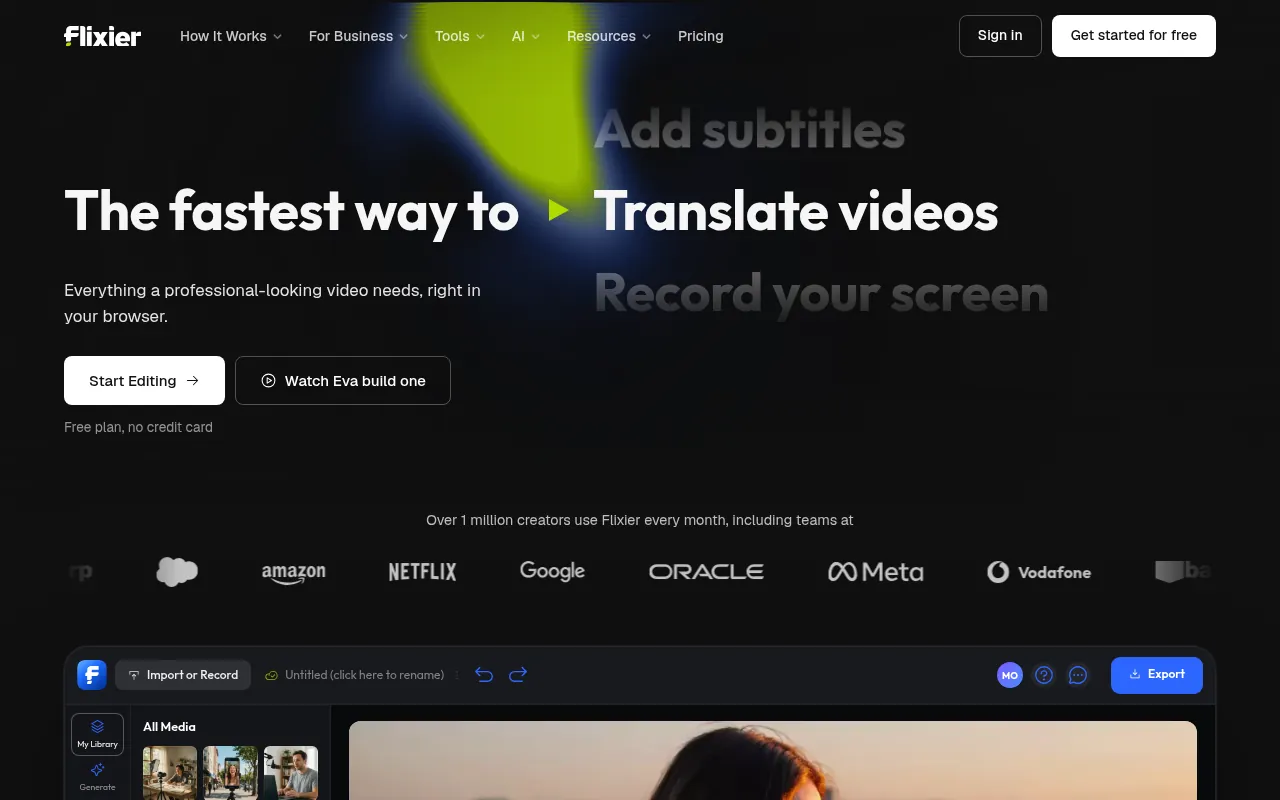
My take: Flixier is fast because it does the processing in the cloud. The free plan is tight, though, so treat it as a trial.
Flixier is a cloud video editor that works well even on slow computers. Its free plan is useful for short projects.
| Flixier at a glance | Details |
|---|---|
| Free export | 720p, 10 minutes of export per month |
| Watermark | Yes, on the free plan |
| Free storage | 2 GB, 3-day project history |
| Paid plans in India | Starter ₹813/seat/month, Creator ₹1,669/seat/month (as listed on Flixier’s pricing page; check billing period) |
| Best for | Quick cloud edits on low-end laptops |
Key Features of Flixier
Cloud rendering. Exports are processed on Flixier’s servers, so your computer stays free.
Webcam and screen recorder. Record directly in the editor.
Motion text. Animated titles and lower thirds.
AI assistant. An AI helper called Eva can help with edits on paid plans.
Subtitles. Free plan includes 5 minutes of subtitles per month.
Pros
- Fast cloud exports
- Runs well on old laptops
- Simple interface
Cons
- Watermark and 720p on free
- Only 10 minutes of export per month free
- Short project history on free
How to Make a Video in Flixier
- Sign up free and create a new project.
- Import clips from your computer, cloud storage or a link.
- Trim on the timeline and add motion text.
- Add subtitles (5 minutes per month on free).
- Export. The cloud does the rendering.
Who should use Flixier: People with slow laptops who need quick edits and can live with a watermark until they pay.
7. Clideo
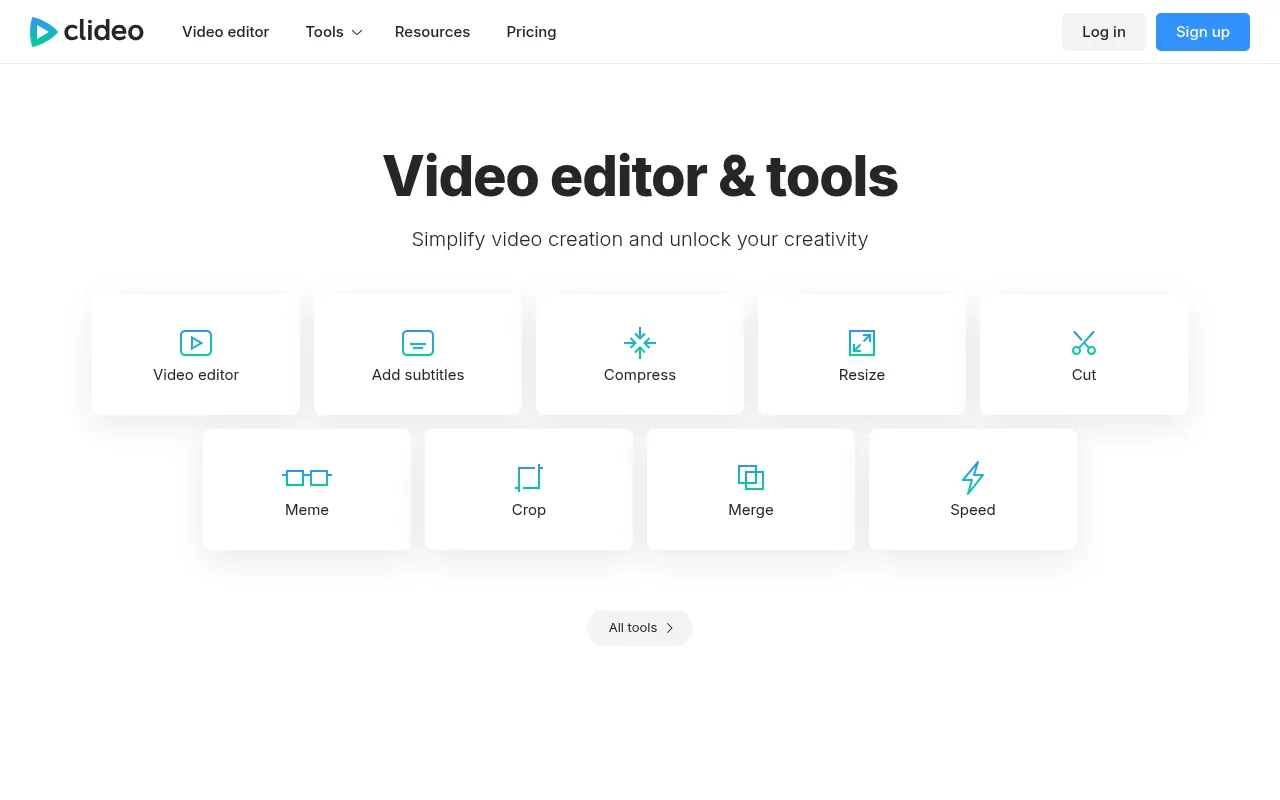
My take: Clideo is a toolbox more than a full editor. It is handy for one-off fixes like compressing, merging or cropping a video, but the free plan adds a watermark.
Clideo is a browser-based set of simple video tools. You pick a task, upload the file, and download the result.
| Clideo at a glance | Details |
|---|---|
| Free export | Up to 720p |
| Watermark | Yes, on the free plan |
| Free limits | 500 MB uploads, 14-day storage, 10 credits per month for AI tools |
| Paid plan | Pro at US$9/month billed yearly (US$108), no watermark, 4K |
| Best for | Quick single tasks: compress, merge, crop, resize |
Key Features of Clideo
One-task tools. Separate tools for merging, compressing, cropping, resizing and adding music.
Basic compression. Shrink a big file so you can send it on WhatsApp or email.
Auto subtitles and translation. Uses monthly credits, so the free plan only covers a little.
Simple editor. A basic timeline for small edits when you need more than one task.
Pros
- Very easy for single tasks
- No software to install
- Works on phones and computers
Cons
- Watermark and 720p on free
- Only 10 AI credits a month on free
- Not a real replacement for a full editor
Who should use Clideo: Anyone who needs to fix one file quickly, like compressing a video for WhatsApp, and does not need full editing.
8. WeVideo
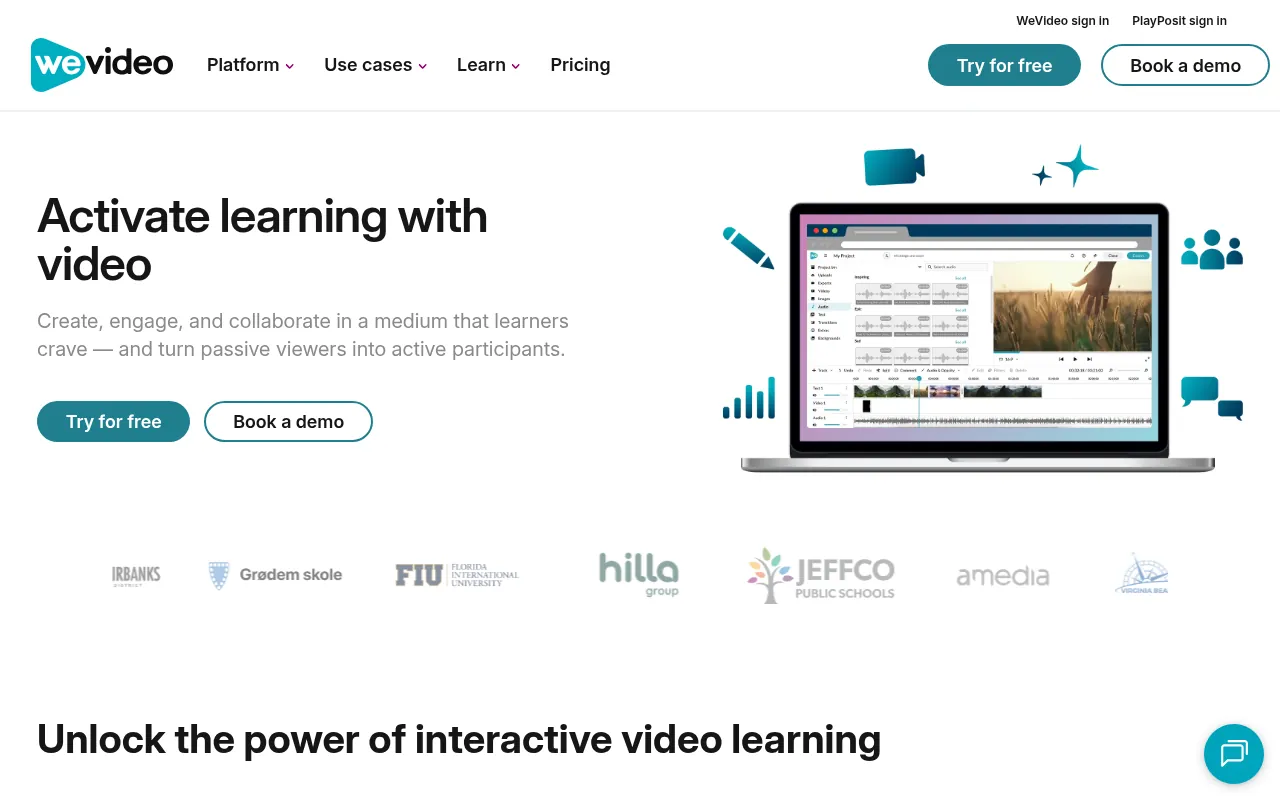
My take: WeVideo is a proper timeline editor in the browser, and schools love it. But the free plan is the weakest on this list for creators, so treat it as a trial.
WeVideo is a cloud video editor used a lot in schools, colleges and businesses. It has a clean multi-track timeline, green screen and screen recording.
| WeVideo at a glance | Details |
|---|---|
| Free export | Up to 480p |
| Free limits | 5 minutes of publishing per month, 1 GB cloud storage |
| Watermark | “No WeVideo watermark” is listed as a paid-plan feature, so expect one on free |
| Paid plans | Power US$4.99/month billed yearly (US$59.88): 30 min/month, 720p. Unlimited US$7.99/month billed yearly (US$95.88): unlimited publishing, 4K |
| Best for | Students, teachers and simple class or office projects |
Key Features of WeVideo
Multi-track timeline. Layer video, images, text and audio like a desktop editor.
Green screen. Swap backgrounds behind a subject shot on a green or blue screen.
Screen and webcam recording. Record lessons and walkthroughs inside the editor.
Voiceover. Record narration directly on the timeline.
Motion titles and templates. Animated text and ready layouts on paid plans.
Pros
- Real timeline editing in a browser
- Popular in education, with school plans
- Cheap entry paid plan
Cons
- Free exports are only 480p
- Just 5 minutes of publishing a month on free
- Watermark removal needs a paid plan
How to Make a Video in WeVideo
- Sign up for a free WeVideo account.
- Create a new video project and upload clips.
- Drag clips to the timeline, trim and add text.
- Add music or a voiceover.
- Publish (counts toward your 5 free minutes per month).
Who should use WeVideo: Students and teachers who get WeVideo through school, and anyone ready to pay a small fee for a simple cloud timeline.
9. Descript
My take: Descript changed how I think about editing talking videos. You edit the transcript like a Word document, and the video follows. For podcasts and talking heads, nothing on this list is faster.
Descript is a text-based video and audio editor. It transcribes your recording, and when you delete a sentence from the text, it disappears from the video.
| Descript at a glance | Details |
|---|---|
| Free plan | US$0, no credit card needed |
| Free limits | 60 media minutes per month, export up to 720p |
| Watermark | Watermark-free export is listed for paid plans |
| Paid plans | Hobbyist US$16/person/month billed yearly (US$24 monthly): 10 media hours, 1080p, watermark-free. Creator US$24 billed yearly (US$35 monthly): 30 media hours, 4K |
| Best for | Podcasts, interviews, tutorials and talking-head videos |
Key Features of Descript
Edit by text. Delete words in the transcript to cut them from the video.
Filler word removal. Remove “um”, “uh” and repeated words in a few clicks (AI credits apply).
Studio Sound. AI audio cleanup that makes room recordings sound closer to a studio.
Screen recorder. Record your screen and camera for tutorials.
Clips for social. Turn a long video into short clips for Reels and Shorts.
AI co-editor. Descript’s assistant, Underlord, helps with edits on paid plans.
Pros
- Fastest way to edit talking videos
- Strong AI audio cleanup
- Free plan needs no credit card
Cons
- Only 60 media minutes a month on free
- Free exports at 720p
- Most AI features use credits
How to Make a Video in Descript
- Create a free Descript account.
- Upload a video or record one in Descript.
- Wait for the transcript, then delete the parts you do not want.
- Clean the audio and add captions.
- Export the video.
Who should use Descript: Podcasters, coaches and course creators who record a lot of speech and want to cut editing time.
10. Animoto
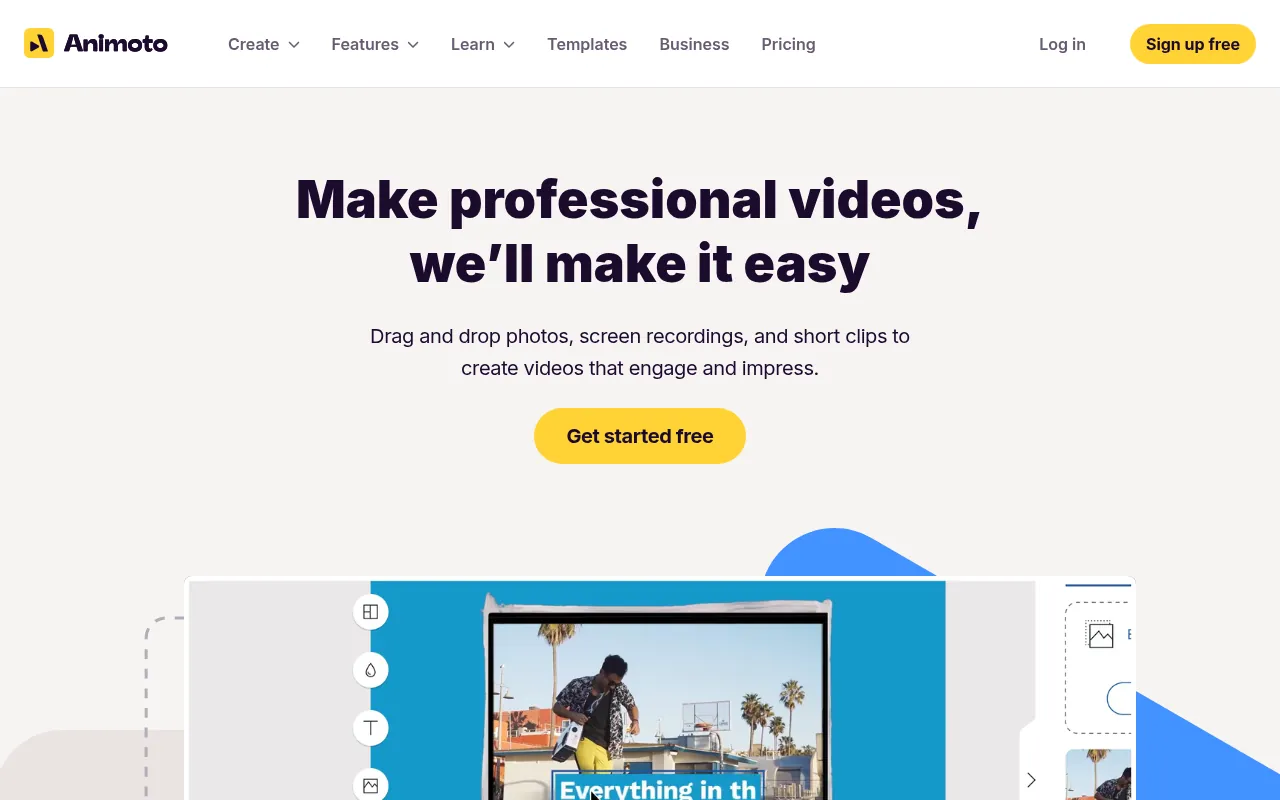
My take: Animoto is the simplest tool here for slideshows and promo videos. Indian pricing in rupees makes the paid plan easy to judge.
Animoto is a drag-and-drop video maker built around templates. You add photos, clips and text, and it handles the layout and timing.
| Animoto at a glance | Details |
|---|---|
| Free export | 720p, with an Animoto watermark |
| Free features | Unlimited video creation, screen and webcam recording, 50 licensed music tracks |
| Paid plans in India | Basic ₹299/month billed yearly (1080p, no watermark), Professional ₹559/month billed yearly, Professional Plus ₹1,499/month billed yearly (4K) |
| Works on | Browser |
| Best for | Slideshows, product promos, event and real estate videos |
Key Features of Animoto
Template-first editing. Pick a template, drop in photos and clips, and the layout adjusts.
Licensed music. 50 licensed tracks on free, and 3,000 on Professional.
Screen and webcam recording. Record directly into your project.
Brand settings. Add your logo and colours on Professional plans.
Stock library. Professional plans include over a million licensed stock assets.
Pros
- Very easy for beginners
- Clear INR pricing
- Licensed music included
Cons
- Watermark on free videos
- Free exports at 720p
- Less control than a timeline editor
How to Make a Video in Animoto
- Sign up free on Animoto.
- Choose a template or a blank storyboard.
- Add photos, clips and text blocks.
- Pick a music track from the licensed library.
- Produce the video and download or share it.
Who should use Animoto: Small businesses, photographers and real estate agents who make slideshow-style promos and want a simple paid plan in rupees.
Best Free Online Video Editor by Use Case
| What you want to make | My pick | Why |
|---|---|---|
| YouTube videos | Clipchamp | Free 1080p, no watermark, captions |
| Instagram Reels and Shorts | Canva or Adobe Express | Vertical templates, free exports |
| Tutorials and course videos | Clipchamp | Screen and webcam recorder |
| Faceless videos with AI voice | Clipchamp | Free text to speech |
| Subtitled talking-head clips | VEED (paid) | Best subtitle tools |
| Memes and GIFs | Kapwing | Fast meme and GIF tools |
| Compress or merge a file | Clideo | Simple single-task tools |
| Editing on an old laptop | Flixier | Cloud rendering |
| Podcasts and interviews | Descript | Edit the video by editing the text |
| School projects | WeVideo | Simple timeline, common in schools |
| Photo slideshows and promos | Animoto | Template-first, licensed music |
If you want one video editor for social media across YouTube, Reels and Shorts, Clipchamp and Canva cover almost everything. And if you just want the best web based video editor overall, my answer is still Clipchamp.
Looking for a special effects app rather than a full editor? On a phone, KineMaster gives you layers and chroma key (green screen). I cover it in my CapCut in India guide.
What About illusto?
illusto is a cloud-based online video editor from VideoVerse, a company with teams in India and the USA. Its listing on AppSumo mentions templates, voiceover, a large stock library and an AI image generator. There is no illusto download to install, since it runs in the browser at illusto.com. I left it out of my top 10 because its free plan limits change often, so check the official illusto.com pricing page before you commit.
How to Choose in 60 Seconds
Answer these five questions, and you will know which editor to open.
- Do you need zero watermark today? Pick Clipchamp, Canva or Adobe Express.
- Are you making vertical Reels and Shorts? Pick Canva or Adobe Express.
- Are you recording your screen or making tutorials? Pick Clipchamp.
- Do you mostly edit podcasts or talking heads? Try Descript.
- Is subtitling your main job? Try Kapwing or VEED, and budget for a paid plan.
If you still cannot decide, start with Clipchamp. It has the fewest catches on the free plan.
Make Your First YouTube Video Free in 30 Minutes
Here is a simple workflow I suggest to beginners. It works in Clipchamp, Canva or Adobe Express.
Minutes 0 to 5: Plan. Write a hook, three main points and a call to action. Keep the script under 300 words for a 2-minute video.
Minutes 5 to 10: Record. Record yourself on your phone in good window light, or record your screen. Speak in short sentences.
Minutes 10 to 20: Edit. Import the clips. Cut the pauses and mistakes. Add your title text in the first 3 seconds.
Minutes 20 to 25: Captions and music. Generate auto captions and fix any wrong words. Add soft background music from the free library at low volume.
Minutes 25 to 30: Export and upload. Export at 1080p. Make a thumbnail in Canva. Upload with a clear title and description.
Do this once a week for a month, and you will get noticeably faster.
Video Size Cheat Sheet for 2026
Set the right canvas before you edit. These are the standard sizes most creators use.
| Platform | Aspect ratio | Common resolution |
|---|---|---|
| YouTube (standard) | 16:9 | 1920 x 1080 |
| YouTube Shorts | 9:16 | 1080 x 1920 |
| Instagram Reels | 9:16 | 1080 x 1920 |
| Instagram feed post | 4:5 | 1080 x 1350 |
| Facebook and Instagram Stories | 9:16 | 1080 x 1920 |
| LinkedIn feed video | 1:1 or 16:9 | 1080 x 1080 or 1920 x 1080 |
Tip: always check each platform’s latest upload guidelines, because recommended sizes can change.
Video Editing Terms Every Beginner Should Know
Timeline: The strip at the bottom where you arrange clips in order.
Trim: Cut the start or end off a clip.
Split: Cut one clip into two at the playhead.
Transition: The effect between two clips, like a fade or a slide.
Aspect ratio: The shape of your video, such as 16:9 or 9:16.
Resolution: The number of pixels in the video. 1080p is Full HD, 4K is four times sharper.
Frame rate: How many images play per second. 30 fps is standard for social media.
B-roll: Extra footage you place over your main clip to keep it interesting.
Auto captions: Subtitles created automatically from speech.
Watermark: A logo the editor adds to your video on some free plans.
Export: Turning your project into a final video file, usually MP4.
Free vs Paid: When Should You Upgrade?
Here is my simple rule. Stay free until the free plan costs you time or quality.
| Upgrade when you need… | Cheapest good option in India |
|---|---|
| 4K exports | Canva Pro (₹4,000/year) |
| No watermark plus pro subtitles | VEED Creator (₹490/month billed yearly) |
| Premium stock and brand kit | Canva Pro or Microsoft 365 for Clipchamp |
| Team collaboration | Canva Business or Kapwing paid plans |
| Premium Adobe assets | Adobe Express Premium (free for 12 months for Airtel users) |
| Watermark-free slideshows | Animoto Basic (₹299/month billed yearly) |
| Fast podcast and talking-head edits | Descript Hobbyist (US$16/month billed yearly) |
If you only post 2 or 3 videos a week, Clipchamp or Canva free is enough. If video is your business, Canva Pro gives you the best value in India.
How to Get Watermark-Free Videos Legally
You do not need cracked software or shady “watermark remover” sites. Here are the clean ways to export without a logo.
- Use a free plan with no watermark. Clipchamp, Canva and Adobe Express all export without a watermark on their free plans.
- Avoid premium assets. In Canva and Clipchamp, the watermark or export block only appears when you use paid stock, fonts or effects. Swap them for free ones.
- Use a free trial for one big project. Canva Pro, VEED and others offer trials. Finish the project, export, and cancel if you do not need it.
- Check telecom bundles. In India, Airtel customers can claim Adobe Express Premium free for 12 months.
- Pay for one month. If a client project needs Kapwing or VEED features, one month of a paid plan is often cheaper than your time.
Common Mistakes Beginners Make With Online Editors
Uploading huge raw files. Phone footage can be several GB. Compress or trim it first, especially on Kapwing (250 MB free limit) or Clideo (500 MB).
Forgetting about premium elements. You design the whole video, then find you cannot export. In Canva and Clipchamp, look for the crown or premium tag before you add an element.
Exporting at the wrong size. Set the canvas to 9:16 for Reels and Shorts and 16:9 for YouTube before you start editing, not after.
Using copyrighted music. Use the editor’s free library or properly licensed tracks. A copyright claim can mute or block your video.
Relying only on cloud storage. Free plans have storage and history limits. Flixier keeps project history for only 3 days on free, and Clideo stores files for 14 days. Save your final files locally.
Mobile Apps for These Editors
| Editor | Browser | Windows | Android | iPhone |
|---|---|---|---|---|
| Clipchamp | Yes (Edge, Chrome) | Yes | Check Microsoft’s site for current mobile availability | Check Microsoft’s site |
| Canva | Yes | Yes | Yes | Yes |
| Adobe Express | Yes | Via browser | Yes | Yes |
| Kapwing | Yes | Via browser | Via browser | Via browser |
| VEED | Yes | Via browser | Via browser | Via browser |
| Flixier | Yes | Via browser | Via browser | Via browser |
| Clideo | Yes | Via browser | Via browser | Via browser |
| WeVideo | Yes | Via browser | Check app store | Check app store |
| Descript | Yes | Yes (desktop app) | Via browser | Via browser |
| Animoto | Yes | Via browser | Via browser | Via browser |
Online Editor vs Desktop Editor: Which One?
Online editors are great for speed. Desktop editors are great for power. Pick based on your work, not on hype.
| You should pick… | If you… |
|---|---|
| An online editor | Make short social videos, work on many devices, or have a basic laptop |
| A desktop editor | Edit long YouTube videos, work in 4K, or need pro colour grading |
My free desktop pick is DaVinci Resolve. It is far more powerful than any browser tool, but it needs a strong computer and some patience.
A newer option is the “no upload” browser editor. These tools run inside your browser and keep your files on your device, so there are no upload limits. They are worth a look if privacy matters to you, but most are new and lighter on features, so test them before a big project.
A few of these work as a free online video editor without login, which is handy on a shared or office computer.
Best Editing App for PC (Free)
If you searched for the best editing app for PC, here is my short answer. For free editing software on a PC, DaVinci Resolve is the most powerful, and Clipchamp is the easiest. Clipchamp also works as an online video editor for PC in Edge or Chrome, so you can start without installing anything. Both are free video editing software that export without a watermark.
What If Your Laptop Has Only 4GB RAM?
Then skip heavy desktop software. Blackmagic lists 16 GB of system memory as the minimum for DaVinci Resolve 21 on Windows (Blackmagic Design). The best video editing software for 4GB RAM is usually a browser editor. Flixier renders exports on its own servers, and Clipchamp is light enough for short projects.
Timeline Editing vs Text-Based Editing
Most editors on this list use a timeline. You see your clips as blocks and cut them with your mouse. Descript works differently. It turns your speech into text, and you edit the words.
| Timeline editing | Text-based editing | |
|---|---|---|
| How you cut | Drag and split clips | Delete words in a transcript |
| Best for | B-roll, music videos, Reels with effects | Podcasts, interviews, tutorials |
| Learning curve | Medium | Very low if you can use a word processor |
| Example tools | Clipchamp, Canva, WeVideo, Kapwing | Descript |
My advice: if more than half of your video is someone talking, try text-based editing once. If your videos are mostly visuals and music, stay with a timeline editor.
Editing on Slow or Mobile Internet
Online editors upload your footage before you can edit it. On a weak connection, that can take longer than the edit itself. A few habits help a lot.
Trim on your phone first. Cut the obvious waste before you upload. Smaller files upload faster.
Use Wi-Fi for big uploads. Mobile data works, but large 4K phone clips can eat your daily data pack quickly.
Record at 1080p, not 4K. For Reels and most YouTube videos, 1080p is enough and the files are far smaller.
Pick cloud-rendering tools. Flixier and other cloud editors do the export on their servers, so your laptop and connection only handle the preview.
Keep a local copy. If an upload fails halfway, you still have the original.
Old Picks You Should Skip in 2026
Some top-ranking articles still recommend tools that are gone. Avoid these.
- Adobe Premiere Rush: Adobe stopped new downloads on September 30, 2025, and ends it fully on September 30, 2026. Adobe now offers a free Premiere app for mobile instead.
- HitFilm Express and HitFilm: Artlist discontinued HitFilm in January 2025.
If you are in India and miss CapCut, read my guide on CapCut in India for the current status and legal alternatives.
Tips to Make Better Videos With a Free Editor
- Hook in the first 3 seconds. Use a bold line or a strong visual. My free hook generator can help.
- Write a short script first. It saves editing time. Try my YouTube script generator.
- Always add captions. Many people watch with the sound off.
- Export at 1080p. Anything lower looks soft on modern phones.
- Keep your raw files. Free plans have storage limits. Back up your footage.
Want the numbers behind short video? See my video marketing statistics and video SEO statistics.
Why Should You Trust Me?
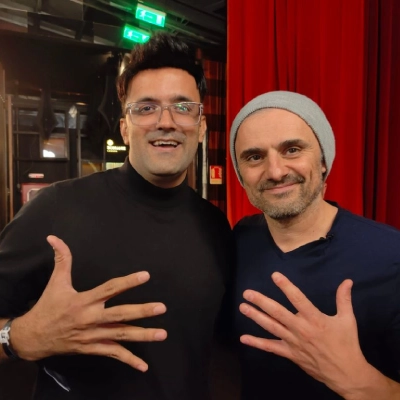
I am Jitendra Vaswani. I have spent 12 years in search and digital marketing. I founded Digiexe, a digital marketing agency, and AffiliateBooster. I am also an author and an international speaker.
Video is a core part of how I market my brands and my podcast. I look at these tools the way a business owner does: what you get for free, what it costs to upgrade, and whether it saves real time. Every limit and price in this guide comes from the company’s official pricing or help page, checked in October 2026.
Conclusion
For most people, Microsoft Clipchamp is the best free online video editor in 2026. You get 1080p exports with no watermark, auto captions and text to speech, all for free.
Pick Canva if you live in templates and want one tool for every design. Pick Adobe Express for quick Reels and short ads, especially if you are an Airtel user. Pick Descript if you mostly edit talking videos or podcasts. Use Kapwing, VEED, Flixier, WeVideo or Animoto when you need their special tools and are ready to pay, because their free plans add a watermark or cap quality.
Start with one tool, make five videos, and only then decide whether you need to pay. That is the fastest way to grow without wasting money.
FAQ
What is the best free online video editor with no watermark?
Microsoft Clipchamp is my top pick. Its free plan exports up to 1080p with no watermark. Canva and Adobe Express also export without a watermark, as long as you avoid premium elements.
Is Clipchamp really free?
Yes. Clipchamp’s free plan lets you edit and export up to 1080p with no watermark. Premium stock, 4K exports and some brand tools need a Microsoft 365 Personal or Family plan.
Can I edit videos online for free without signing up?
Most major editors, including Clipchamp, Canva, Adobe Express and Kapwing, need a free account. Some newer browser-only editors work without an account, but they usually have fewer features.
Which free online video editor is best for YouTube?
Clipchamp is best for YouTube because of its 1080p free exports, auto captions and screen recorder. Canva is a close second if you want templates for intros and Shorts.
Which online video editor is best for Instagram Reels?
Canva and Adobe Express are best for Reels, thanks to their vertical templates and trendy text styles. Both export without a watermark on the free plan if you use free assets.
Can I export 4K video for free online?
Not with the main tools on this list. Clipchamp, Canva and Adobe Express keep 4K exports for paid plans. If you need free 4K, use a desktop editor like DaVinci Resolve.
Is Canva’s video editor free in India?
Yes. Canva’s free plan works in India and lets you download videos up to 1080p. If you want 4K and premium content, Canva Pro costs ₹4,000 per year for one person on Canva’s India pricing page.
Are online video editors safe to use?
The big names on this list are run by established companies like Microsoft, Adobe and Canva. Still, avoid uploading sensitive videos to tools you do not know. Read the privacy policy before you upload client work.
How do I edit a video online for free?
Open a free browser editor like Clipchamp and sign in with a free account. Upload your clips, trim them on the timeline, add text, music and captions, then export at 1080p. The step-by-step guide under each tool above shows the exact clicks.
Which online video editor has the best free AI tools?
For most people, Clipchamp. Its free plan includes auto captions and text to speech. If you mostly edit talking videos, Descript is the better AI pick, because you edit the transcript like a document.

Jitendra Vaswani is a well-known expert in SEO and AI-driven digital marketing. He has spoken at international events and founded Digiexe, a digital marketing agency, and AffiliateBooster, WordPress plugin designed specifically for affiliate marketers. With over 10 years of experience, Jitendra has helped many businesses succeed online. His bestselling book, Inside A Hustler’s Brain: In Pursuit of Financial Freedom, with over 20,000 copies sold globally, underscores his influence and commitment to empowering digital marketers.