Best screen recorders, the short answer: OBS Studio is the best free screen recorder for most people in 2026. It is free, open source, has no watermark and no time limit, and runs on Windows, Mac and Linux. If you want something simpler, use the recorder already built into your device: Xbox Game Bar or Snipping Tool on Windows, Shift-Command-5 on a Mac, and the Screen Record tile on Android and iPhone. For quick video messages with a share link, Loom and Cap are the easiest picks, and Clipchamp is the best free online option with no watermark.
I record my screen almost every week. Client SEO audits, walkthroughs for my team, quick answers to readers, and short clips for social media. Over the years I have used a lot of screen recording software, and most “best screen recorder” lists I read make the same mistake. They rank tools on features, but they hide the limits that actually matter: watermarks, time caps, video caps and paid exports.
So in this guide I focus on exactly those limits. Every limit and price below comes from the tool’s official website or app store listing, checked in October 2026. I am not giving you made-up benchmark numbers. I am giving you the facts you need to pick the right recorder in two minutes, plus my honest opinion on who each one suits.
Best Screen Recorders: Quick Comparison Table
| Screen recorder | Best for | Platform | Free plan limit | Watermark on free plan | Paid from |
|---|---|---|---|---|---|
| OBS Studio | Best free screen recorder overall | Windows, Mac, Linux | No time limit | No | Free |
| ShareX | Windows power users, GIFs | Windows | No time limit | No | Free |
| Xbox Game Bar | Quick clips on Windows | Windows | Records one app window at a time | No | Free (built in) |
| Snipping Tool | Simple Windows 11 recordings | Windows 11 | Basic recording, no editor | No | Free (built in) |
| macOS Screenshot / QuickTime | Mac users | macOS | No time limit | No | Free (built in) |
| Loom | Async video messages | Web, desktop, mobile | 25 videos, 5 min each | No | US$18 per user/month |
| Cap | Open-source Loom alternative | Mac, Windows | Free for personal use; share links up to 5 min | No | US$8.16/month (annual) |
| Clipchamp | Free online recording | Browser (Windows, Mac) | 30-minute sessions, unlimited retakes | No | Free; paid plans add features |
| Screencastify | Teachers and students | Chrome | 10 videos, 30 min each | Check before export | US$7 per user/month (annual) |
| Screenity | Free Chrome extension | Chrome | Extension free; editor and share links paid | No | US$10/month |
| Bandicam | Gaming and tutorials on PC | Windows, Mac | Short clips on the free version | See current free terms | Paid licence |
| Camtasia | Polished tutorials and courses | Windows, Mac | Full editor free to try | Yes, until you pay | Paid plans |
| Built-in Android recorder | Android phones | Android 11+ | No watermark | No | Free (built in) |
| iPhone Screen Recording | iPhone and iPad | iOS, iPadOS | No watermark | No | Free (built in) |
| AZ Screen Recorder | Extra controls on Android | Android | Free with ads | No | Optional in-app purchases |
Sources: each tool’s official website, pricing page, help page or app store listing (October 2026). Prices are in US dollars as shown on the official pages and exclude GST.
What Is a Screen Recorder?
A screen recorder is software that captures what is on your screen as a video. Most screen recording apps also capture your microphone, your system audio and your webcam at the same time, so you can talk over a tutorial or show your face in a corner bubble.
People use screen recorders for very different jobs:
- Tutorials and courses: showing how to use software step by step.
- Work updates: a 3-minute video instead of a 30-minute meeting.
- Bug reports: showing a developer exactly what went wrong.
- Gaming: recording and streaming gameplay.
- Online classes: recording lectures to review later.
- Content creation: YouTube videos, reels and course material.
The right tool depends on which of these jobs you do most. A gamer and a teacher need very different screen recording software, and that is why there is no single best screen recorder for everyone.
How I Picked These Screen Recorders
I did not run lab tests for this article, so you will not find invented frame-rate charts here. Instead, I judged every recorder on things you can check yourself on the official pages:
- Watermark: does the free version stamp a logo on your video?
- Time and video limits: how long can one recording be, and how many can you make?
- Platforms: Windows, Mac, Linux, Chrome, Android or iPhone.
- Audio and webcam: can it record system sound, your mic and your camera?
- Sharing: do you get a share link, or only a file?
- Price: what you pay when you outgrow the free plan.
- Privacy: does the recording stay on your device or go to someone’s cloud?
Then I added my own opinion from years of recording client walkthroughs and team videos. Where a tool’s free terms change often, I say so and point you to the official page instead of guessing.
Best Free Screen Recorders for PC (Windows, Mac, Linux)
1) OBS Studio: Best Free Screen Recorder Overall
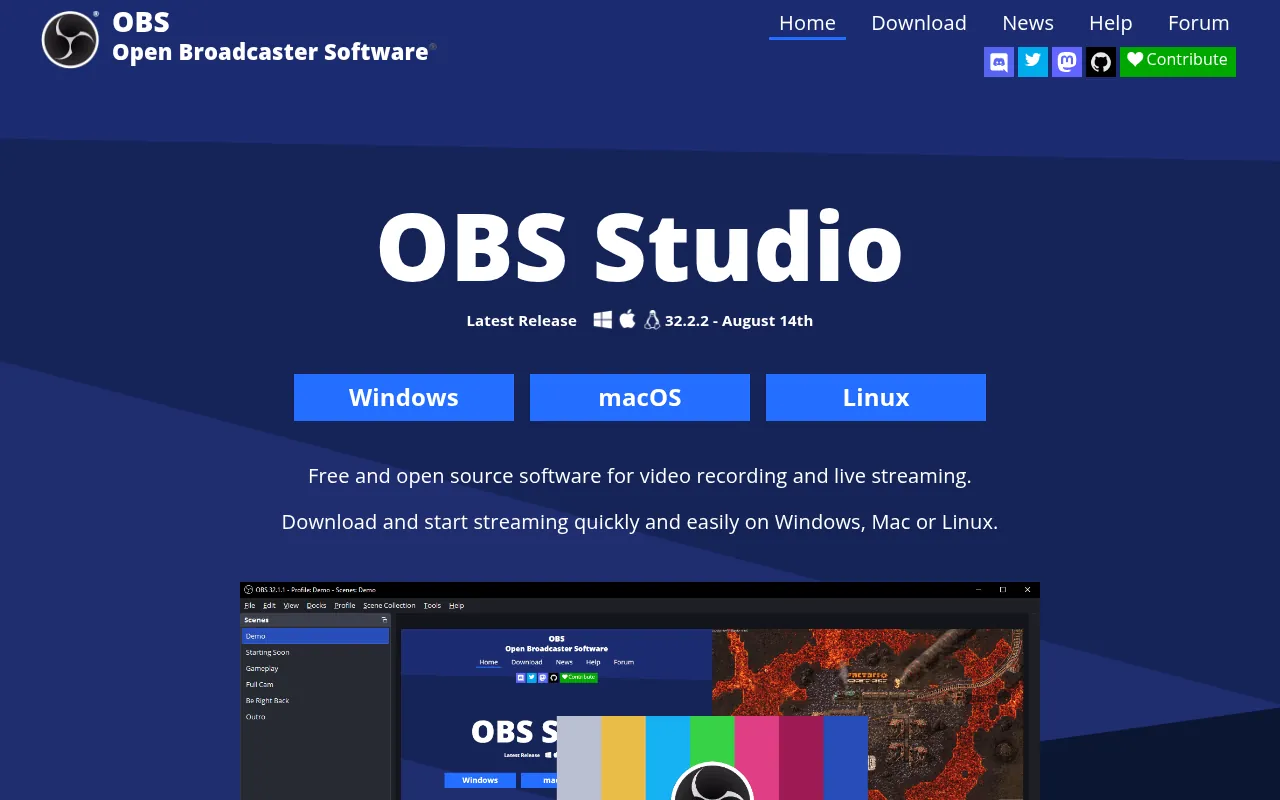
OBS Studio is my first recommendation whenever someone asks me for the best free screen recorder. It is free and open source software for video recording and live streaming, and it has no watermark, no time limit and no paid tier hiding the good features.
The official site lists version 32.2.2 (released August 14) as the latest release. It supports Windows 10 and 11, macOS 13 or newer, and Linux. That makes it one of the few serious recorders that works on all three desktop systems.
What makes OBS powerful is its scene system. You build “scenes” from sources like your full screen, a single window, your webcam, an image, text or a browser window, and switch between them with hotkeys. The audio mixer has per-source filters such as noise suppression and a noise gate, which is very useful if you record with a cheap mic in a noisy Indian city flat like I often do.
Why I like it: – No watermark and no recording time limit. – Records screen, webcam, mic and system audio together. – Hotkeys for nearly every action, including start and stop recording. – Also handles live streaming to YouTube and other platforms.
What to watch out for: – The first setup takes time. You need to add a source before anything records. – There is no built-in video editor, so you will trim clips in another app.
My verdict: if you are willing to spend 20 minutes learning it, OBS Studio is the best screen recorder for PC, full stop. For editing afterwards, pair it with one of the best free online video editors.
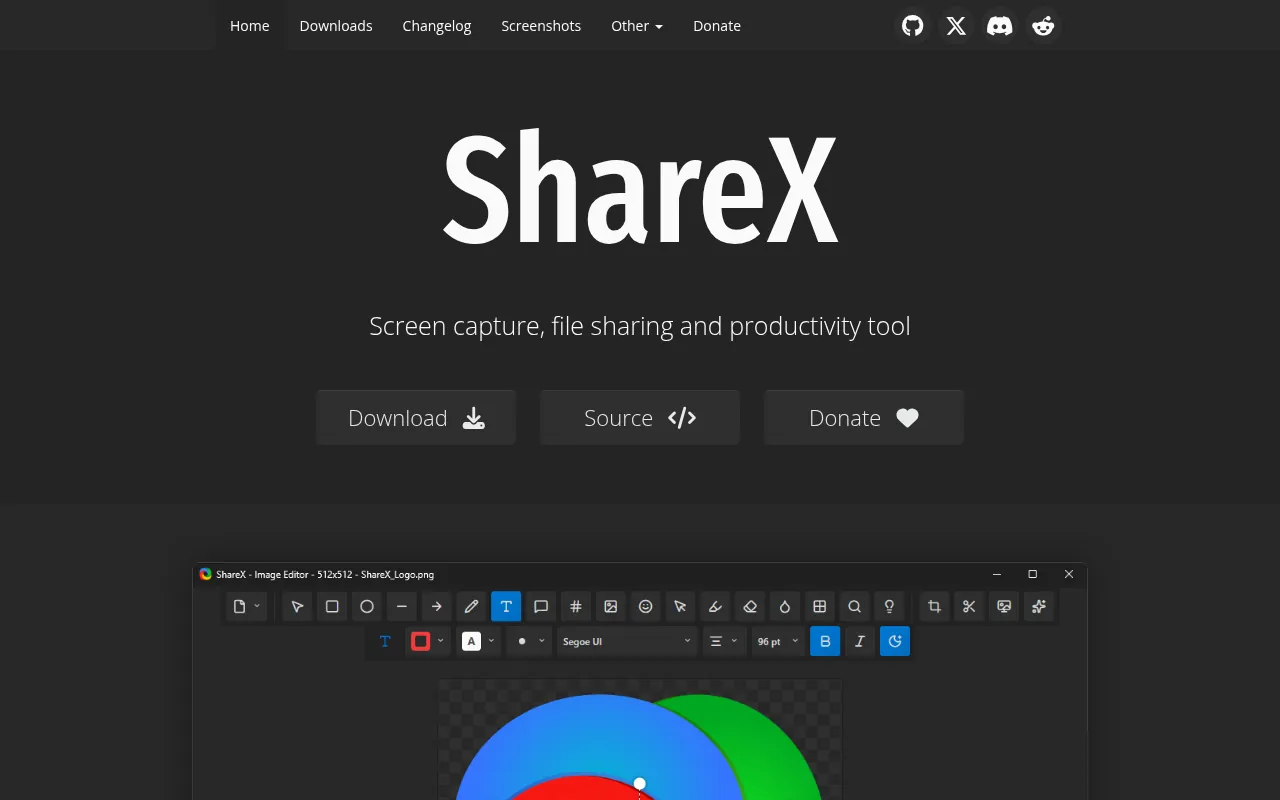
ShareX is a free and open source screen capture tool for Windows. It is mainly known as a screenshot app, but it also records video and GIFs, and it does it with no ads, no watermark and no time limit. The official site says it has been in active development for over 18 years, with more than 33 million downloads.
Where ShareX shines is workflow. You can capture a region, a window, a scrolling page or a full monitor, then run automatic “after capture” tasks: copy to clipboard, save to a folder, upload to a destination, or even run text recognition (OCR). For quick bug reports and how-to GIFs, it is faster than OBS.
Why I like it: extremely lightweight, completely free, and great for short GIFs you can drop into a support ticket or a blog post.
What to watch out for: Windows only, and the menus can feel crowded at first. For long tutorials with a webcam, OBS is better.
3) Xbox Game Bar: Best Built-In Recorder for Windows
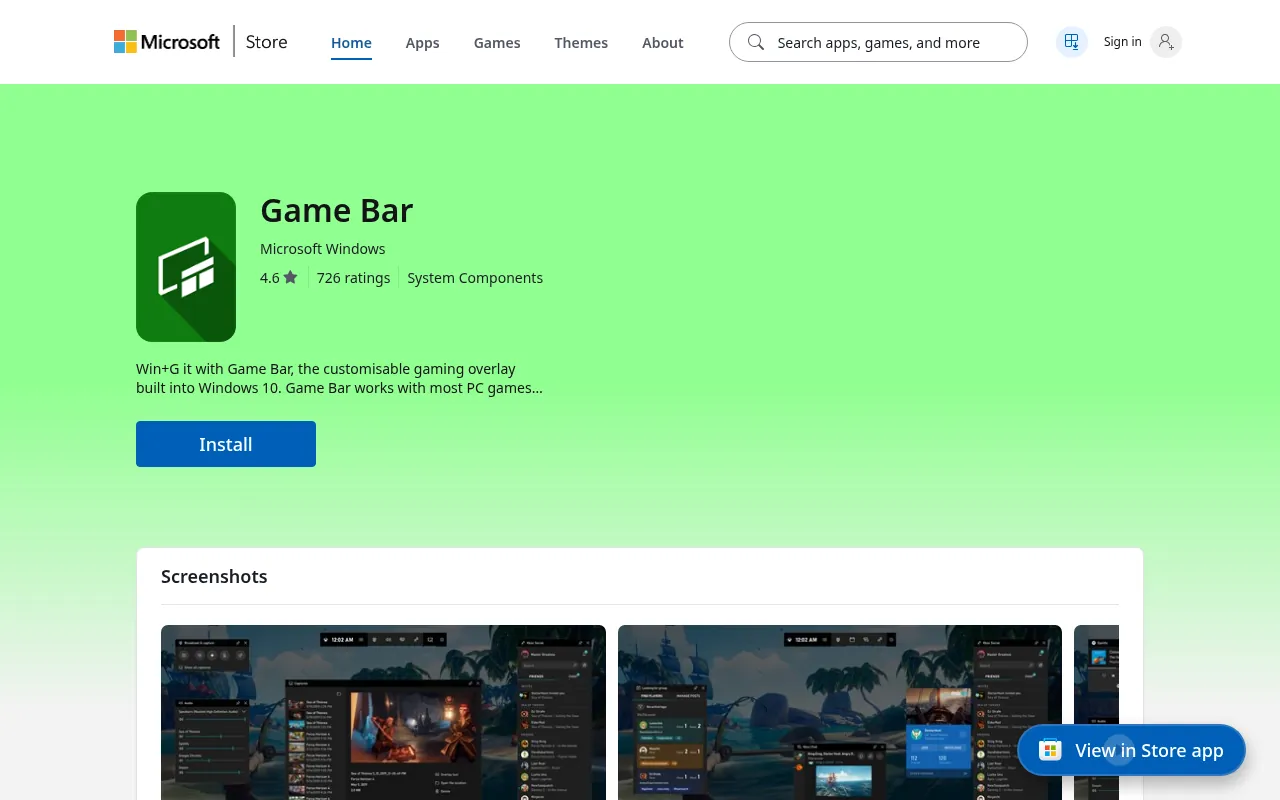
If you are on Windows 10 or 11, you already have a screen recorder installed. Xbox Game Bar opens with Windows key + G, and you can start recording the active app with Windows key + Alt + R.
It was built for gaming clips, but it works for most apps too. The catch is that it records one app window at a time. It does not capture the desktop or File Explorer, and you cannot switch windows mid-recording. For quick clips of a single program, though, it is free, has no watermark and needs no setup.
My verdict: perfect for a fast, one-off recording. Not good for tutorials that jump between apps.
4) Snipping Tool: Simplest Option on Windows 11
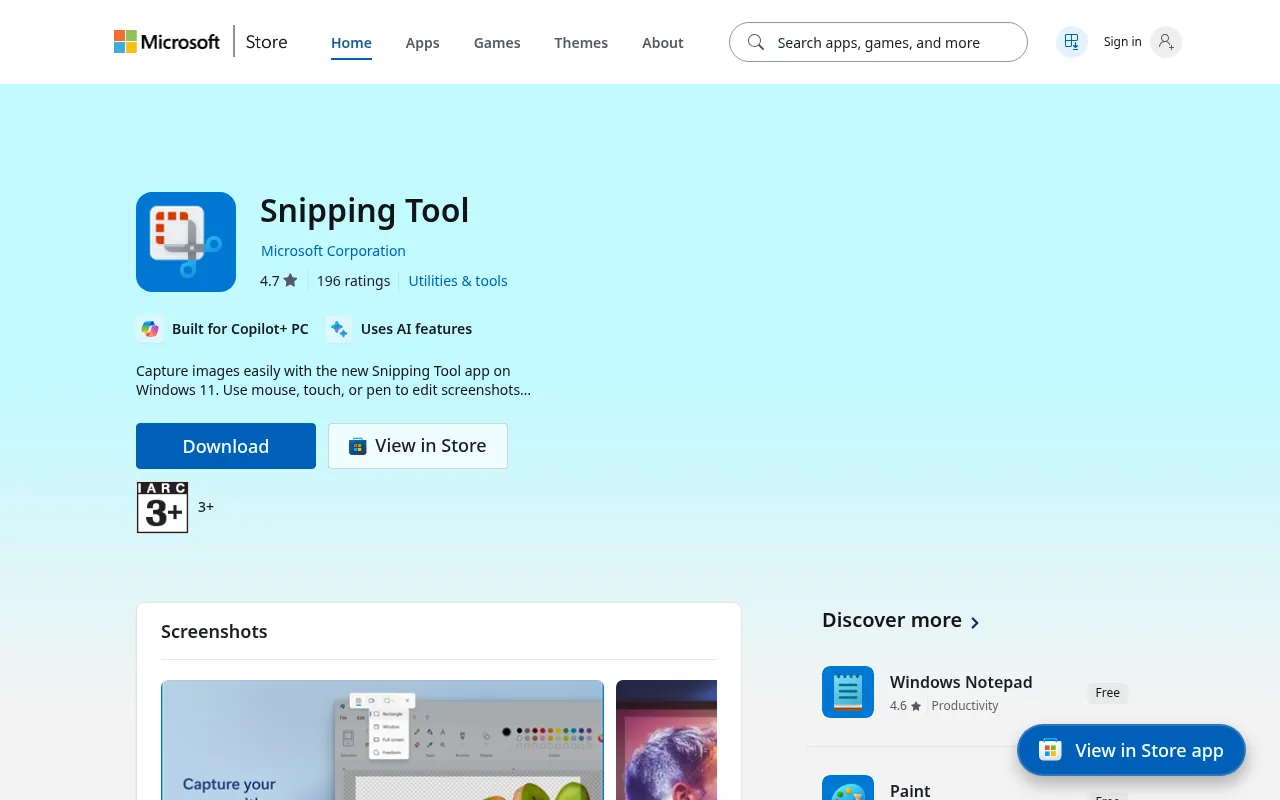
The Windows 11 Snipping Tool now records video as well as screenshots. Open it, switch to the video camera icon, drag a box over the area you want, and press Start. It saves a clean video with no watermark.
I use it when I need to record a small part of the screen for a teammate in under a minute. It has no editor and limited settings, but for simple tasks it is the quickest free screen recorder on Windows 11.
5) macOS Screenshot Toolbar and QuickTime: Best Free Recorder for Mac
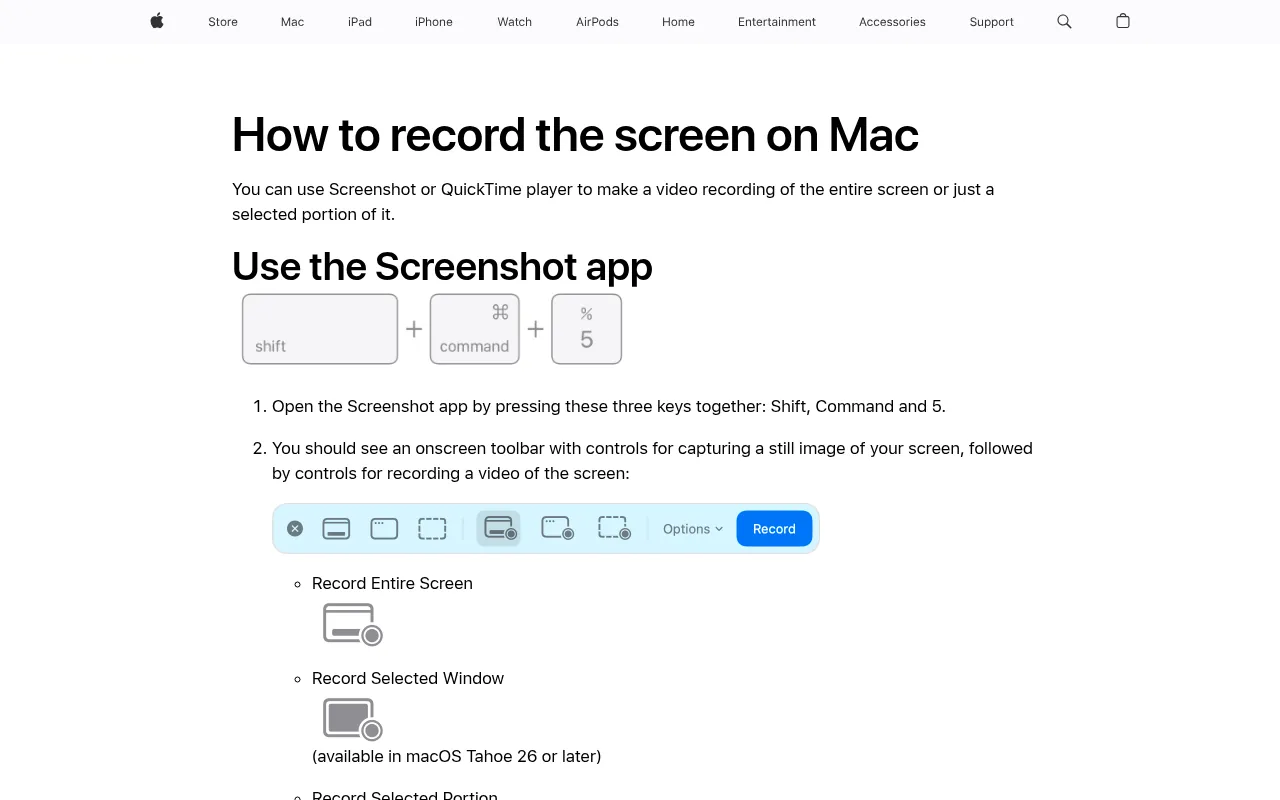
Mac users do not need to download anything. Apple’s support page explains two built-in ways to record. Press Shift + Command + 5 to open the Screenshot toolbar, then choose to record the entire screen or a selected portion. Or open QuickTime Player and choose File > New Screen Recording (Control + Command + N).
Both are free, have no watermark and no time limit. You can record your mic from the Options menu. The main gap is system audio, which needs extra setup on many Macs, and there is no webcam overlay beyond opening a camera window yourself.
My verdict: the best screen recorder for Mac if your needs are simple. For polished Mac recordings with automatic zooms, look at Cap below.
6) Bandicam: Good for Gaming and Lectures on PC
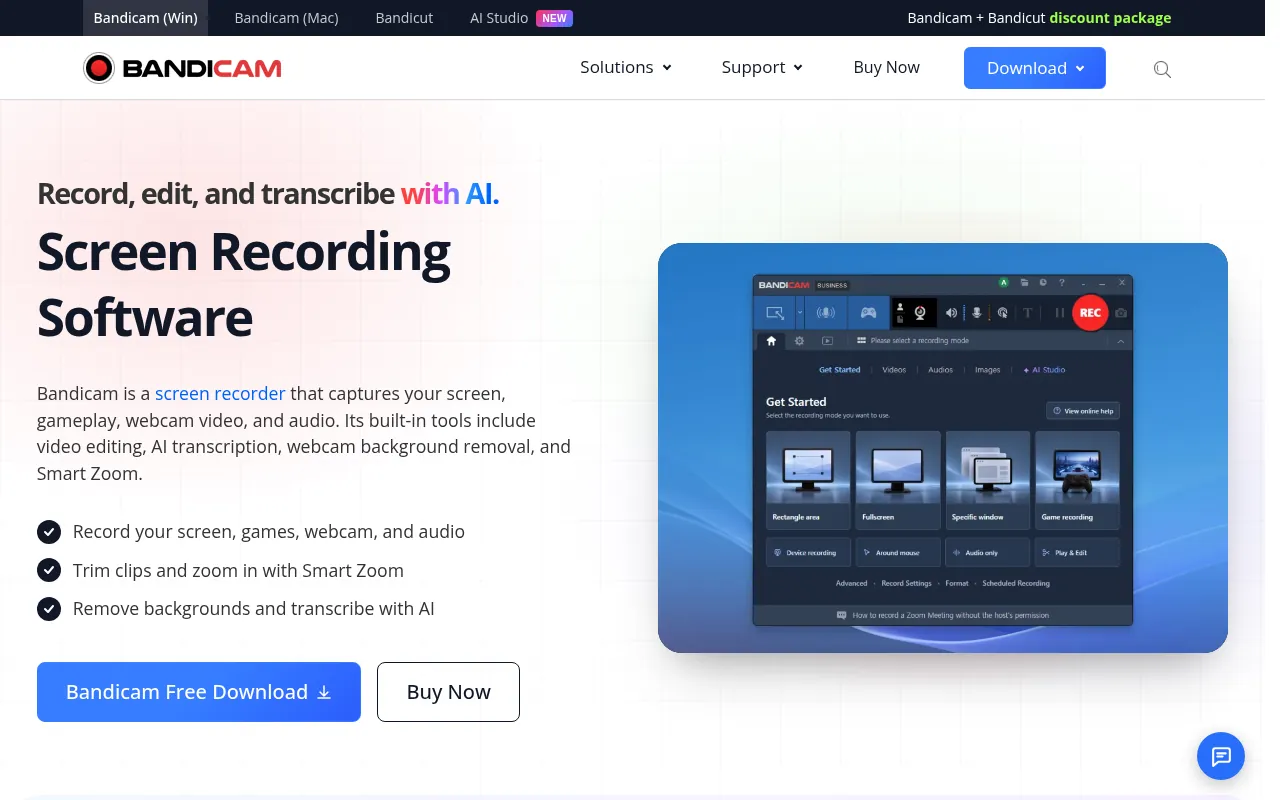
Bandicam has been around as a dedicated recorder for more than a decade. Its official site describes three recording areas: screen recording, game recording with DirectX, OpenGL and Vulkan capture, and device recording. It also has scheduled recording, a webcam overlay, drawing on screen while you record, and AI transcription.
Bandicam’s free version has always come with limits. Its own blog currently says the free version records watermark-free MP4 clips capped at 5 minutes each, with no signup. Free terms like this change between versions, so check the download page before you rely on it for long lectures.
My verdict: a good paid option for gamers and teachers on Windows who want something easier than OBS. If you only need free, OBS does more.
7) Camtasia: Best for Polished Tutorials and Courses
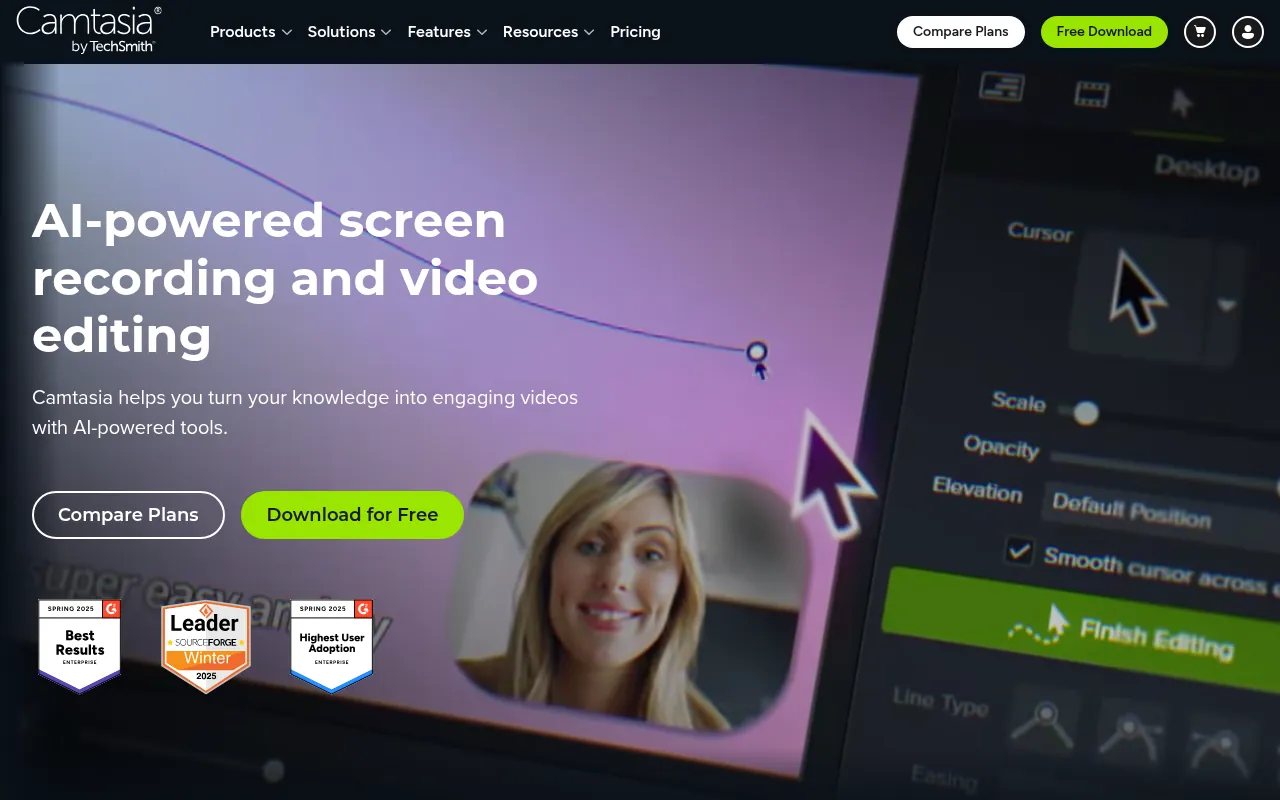
Camtasia from TechSmith is screen recording plus a full video editor. It records your screen, camera, system audio and mic on separate tracks, so you can fix things later. It also lets you edit by editing the transcript text, add cursor effects and callouts, and create captions.
The free version is really a trial of the full editor. Camtasia’s FAQ says you can use every editing feature for free, but exported videos carry a watermark until you buy a paid Essentials, Create or Pro plan.
My verdict: if you sell courses or make software training videos for clients, Camtasia saves real editing time. For anyone else, it is too expensive compared with free options.
Best Screen Recorders for Video Messages and Sharing
8) Loom: Best for Quick Async Video Messages
Loom made “record and send a link” normal at work. You hit record, talk through your screen, stop, and the share link is ready. Viewers can comment and react without downloading anything.
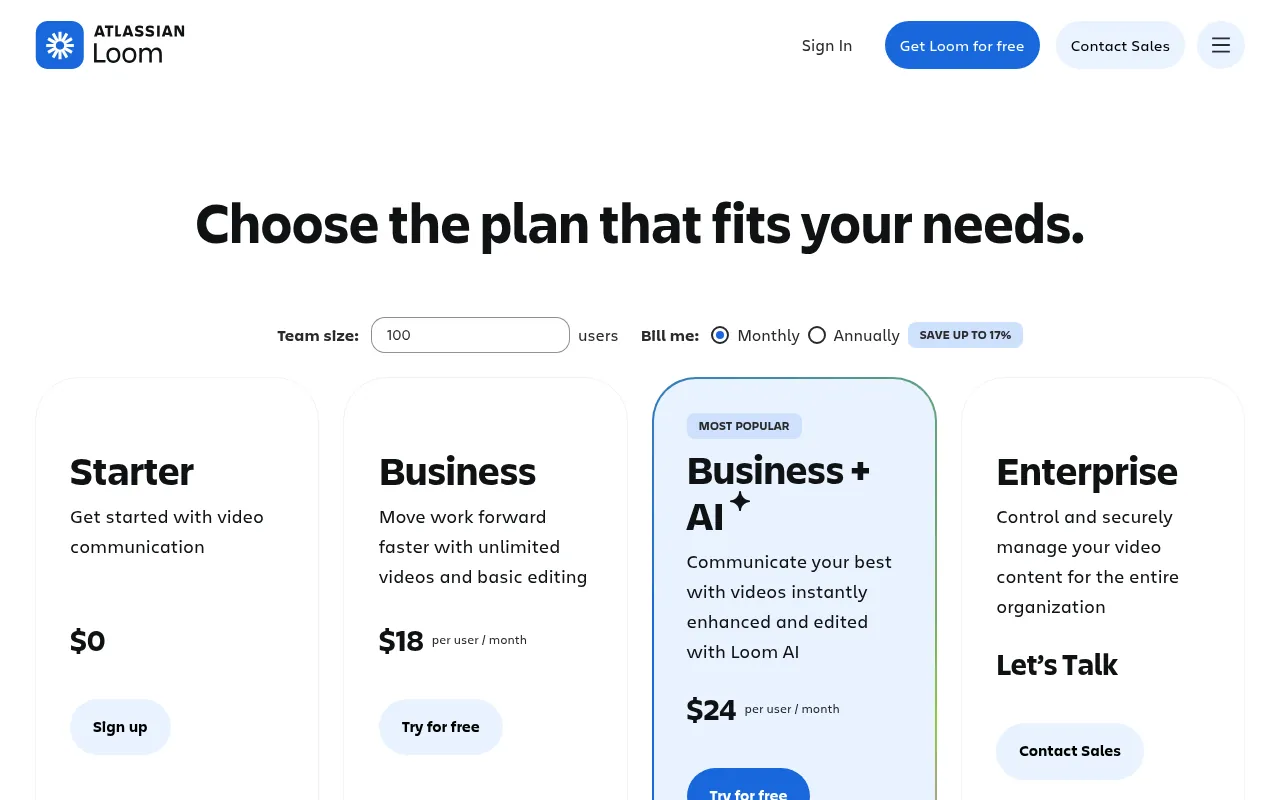
Loom’s free Starter plan gives you up to 25 videos per person and 5-minute screen recordings, plus transcriptions in 50+ languages. The Business plan, listed at US$18 per user per month, removes the video and time caps, adds basic editing, removes Loom branding and lets you download videos. Business + AI at US$24 adds AI editing and auto-generated notes.
Why I like it: nothing beats Loom for speed when you send a quick update to a client or teammate.
What to watch out for: the 25-video cap fills up fast. You will need to delete old videos or pay.
9) Cap: Best Open-Source Loom Alternative
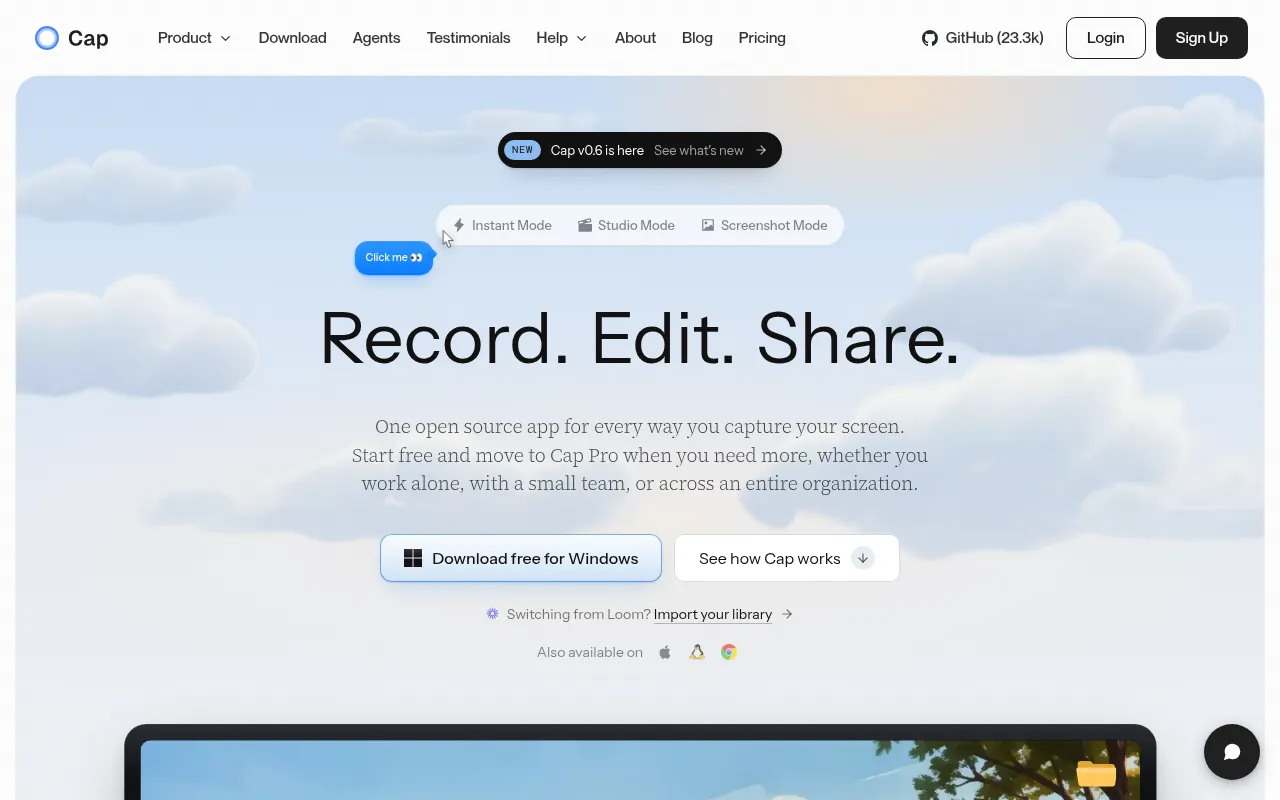
Cap is the tool I have been watching most closely this year. It is an open-source screen recorder for Mac and Windows with three modes: Instant Mode (record and get a share link immediately), Studio Mode (record locally in high quality and edit) and Screenshot Mode.
According to Cap’s site, the app is free for personal use. Studio Mode records locally without a time limit, while free cloud share links are limited to 5 minutes each. Commercial use needs a paid plan: a desktop licence at US$58 one-time (or US$29 a year), or Cap Pro at US$12 a month, which drops to US$8.16 a month on annual billing.
My verdict: if you like Loom’s workflow but want to own your recordings and pay less, Cap is the best screen recorder app to try in 2026. It even has a Loom importer.
10) Clipchamp: Best Free Online Screen Recorder
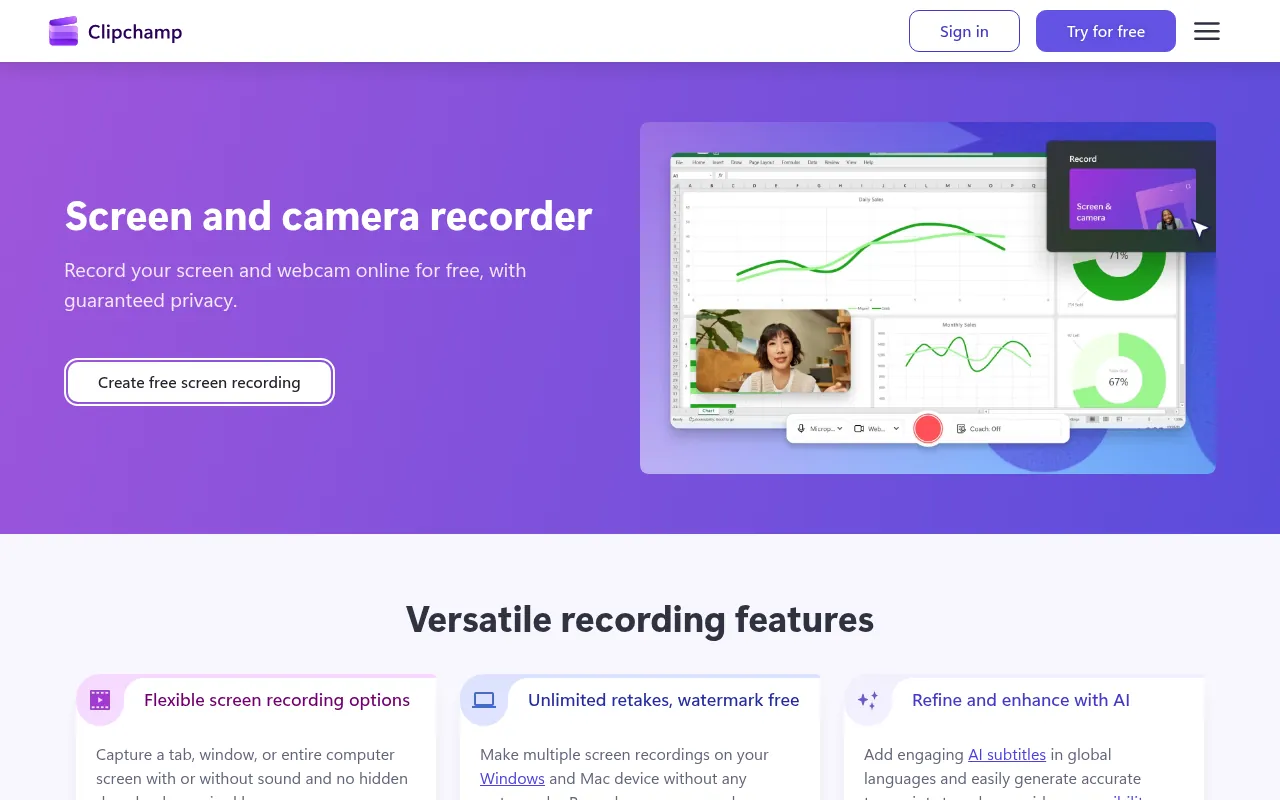
Clipchamp is Microsoft’s browser-based video editor, and it includes a free screen and camera recorder. You can capture a tab, a window or the whole screen, with or without sound, and record your webcam at the same time.
Clipchamp’s page says recordings are watermark free, with 30-minute sessions that you can repeat as many times as you like. Once you stop, the recording drops straight onto the editing timeline, where you can trim it and add AI subtitles.
My verdict: the best option if you cannot install software (for example on an office laptop) and you also want to edit the video in the same place. If you searched for a site like “freescreen recording.com” because you want a free online recorder without installing anything, Clipchamp is the safer, well-known choice.
Best Screen Recording Chrome Extensions
11) Screencastify: Best for Teachers and Students
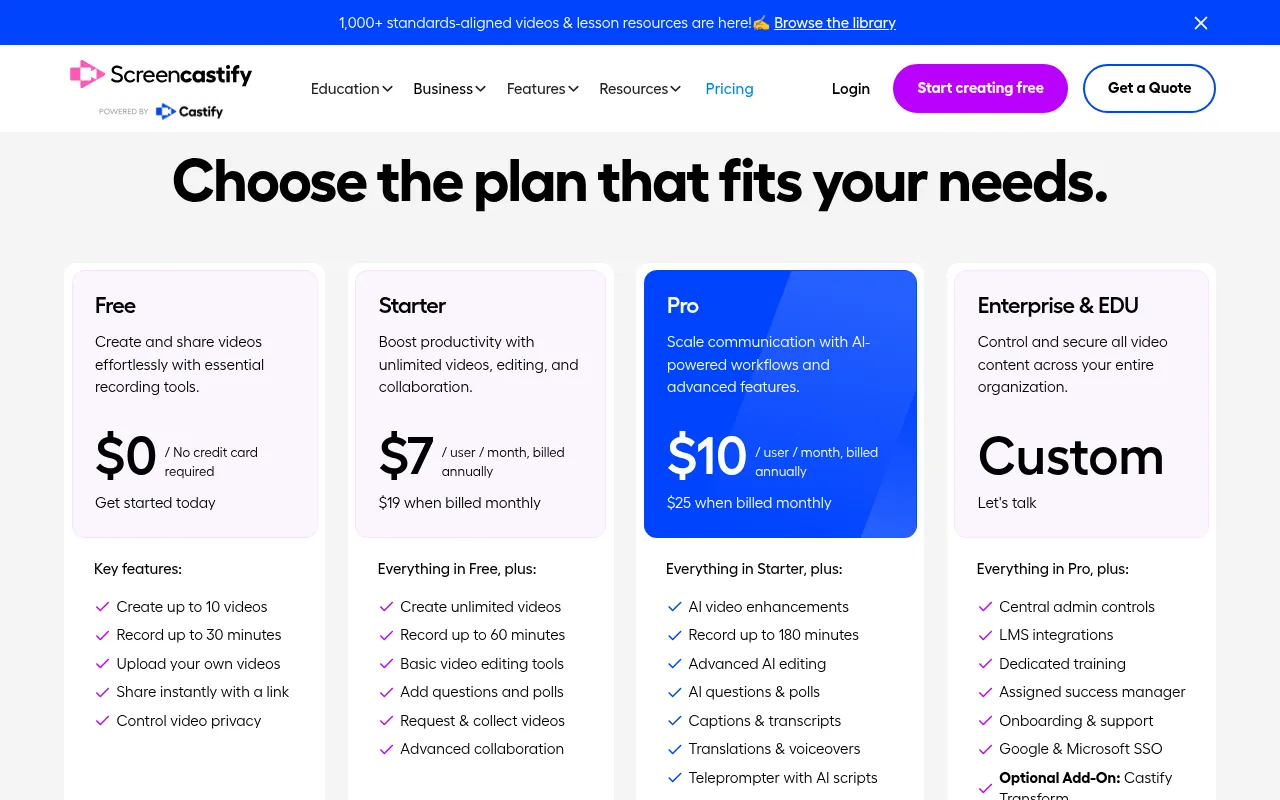
Screencastify is a Chrome extension popular in schools. Its free plan, with no credit card needed, lets you create up to 10 videos and record up to 30 minutes each, upload your own videos and share with a link.
The Starter plan costs US$7 per user per month billed annually (US$19 monthly) and unlocks unlimited videos, 60-minute recordings and basic editing. Pro at US$10 per user per month (annual) goes up to 180-minute recordings and adds captions, translations and AI editing.
My verdict: great for classroom videos and Google Classroom users. The 10-video cap makes the free plan a trial for everyone else.
12) Screenity: Best Free Chrome Extension
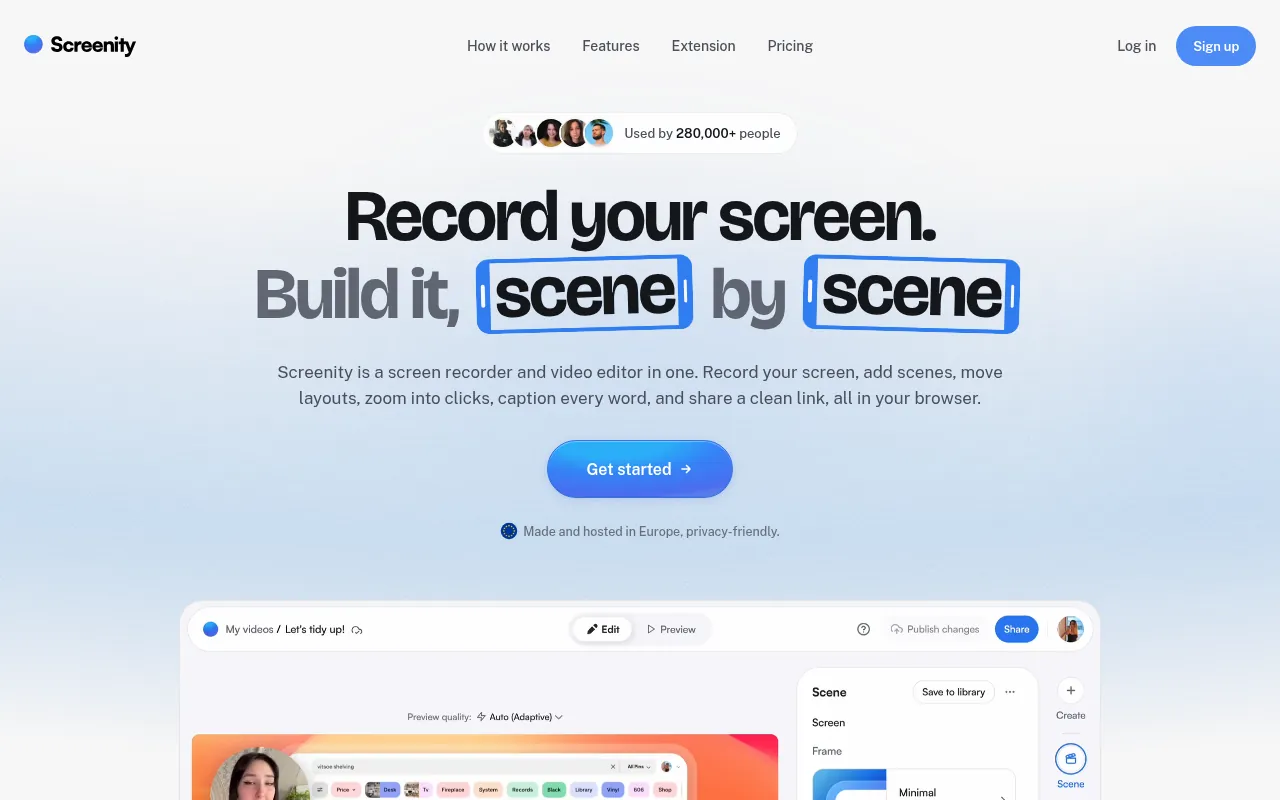
Screenity started as a free, open-source Chrome extension and is still one of the best free screen recording extensions. The official FAQ says the extension is free and stays free: it records your screen, camera and mic, with drawing, blur, click highlights and push-to-talk.
The paid part is the hosted editor (scenes, auto-zoom, captions, share links and MP4 export), at US$10 a month or US$120 billed yearly, with a 7-day free trial. Screenity is made and hosted in Europe, which matters if privacy is a concern for you or your clients.
My verdict: if you live in Chrome and want a free recorder with annotation tools, install Screenity. Pay only if you need its editor.
Best Screen Recorder Apps for Mobile
13) Built-In Android Screen Recorder
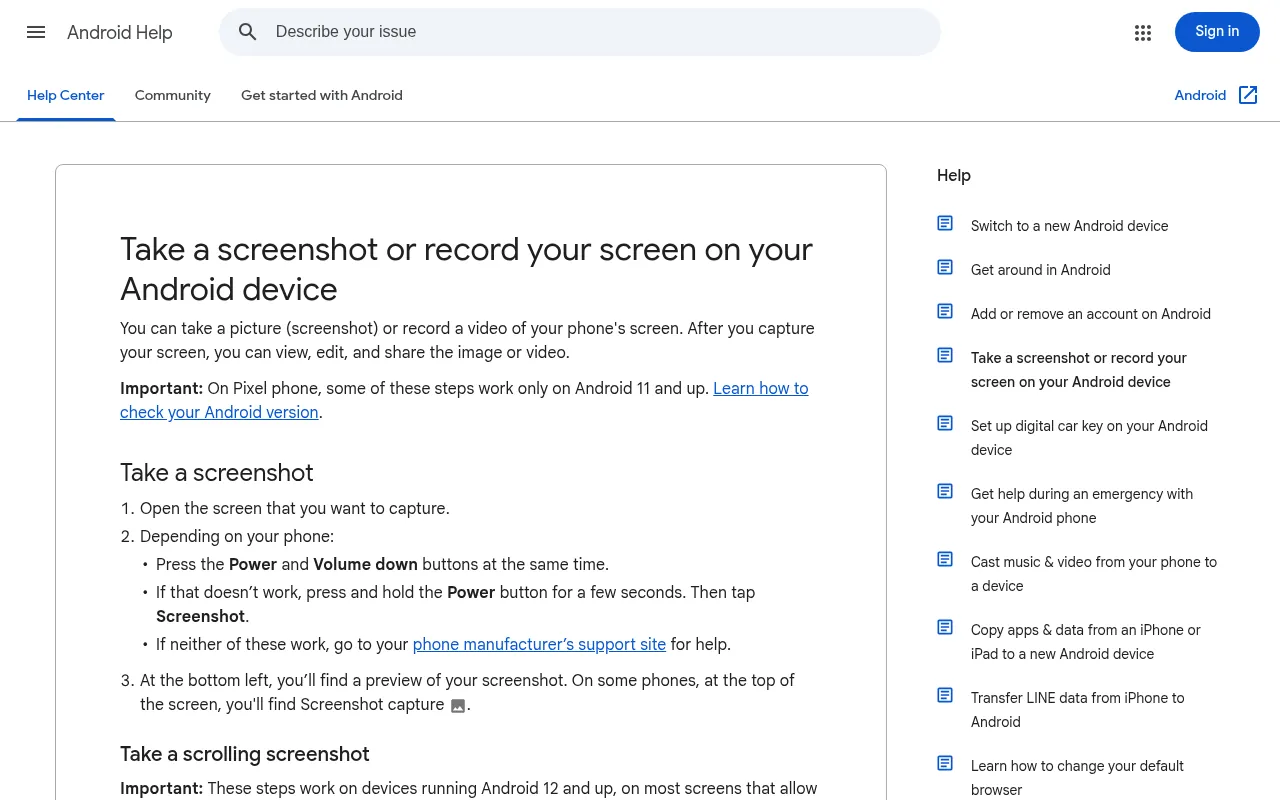
Most Android phones running Android 11 or later have a built-in recorder. Google’s help page explains it: swipe down twice from the top of the screen, tap Screen record (you may need to add it to Quick Settings first), choose what to record and whether to include audio, and tap Start.
It is free, has no watermark and saves straight to your gallery. Phone makers like Samsung, Xiaomi and OnePlus add their own options on top, such as recording internal audio only.
14) iPhone and iPad Screen Recording
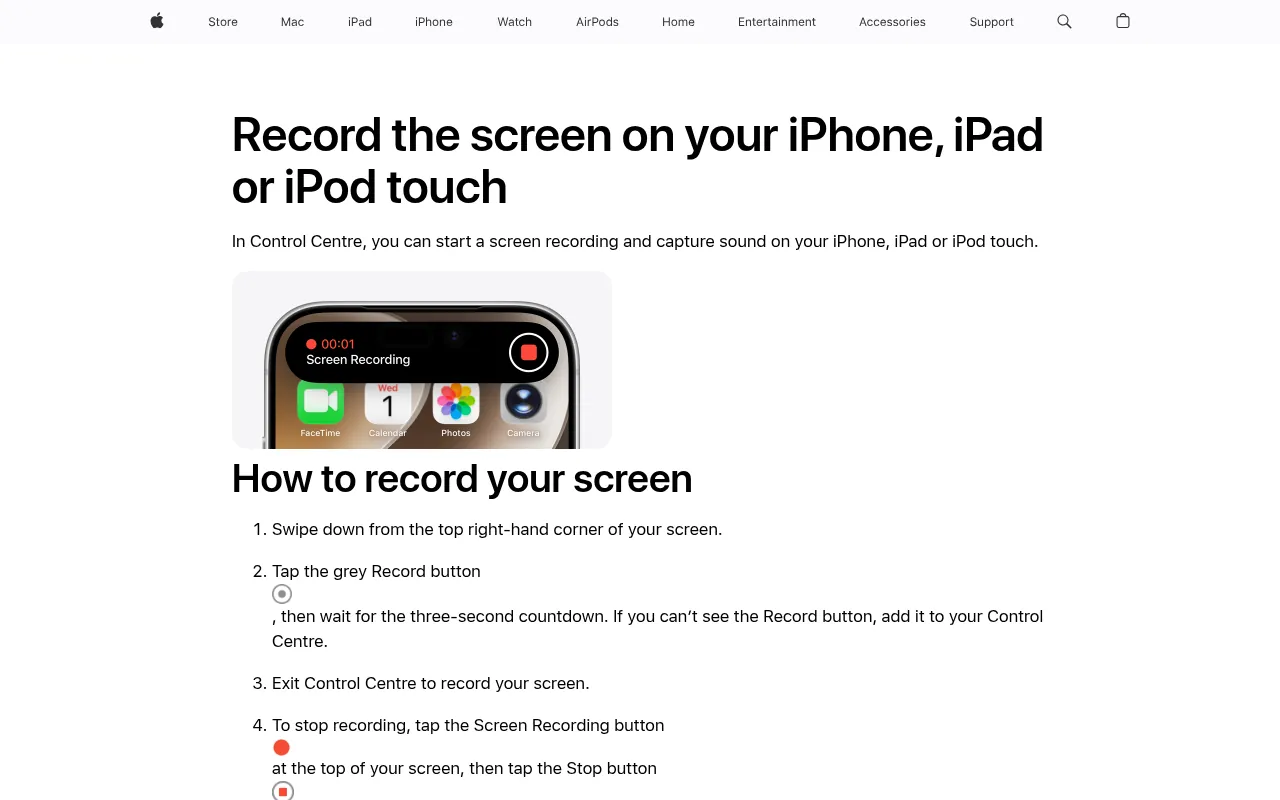
On iPhone and iPad, screen recording lives in Control Centre. Apple’s support page explains how to add the Screen Recording button, then tap it and wait for the three-second countdown. To record your voice, long-press the button and turn on the microphone.
It is the best screen recorder app for iPhone simply because it is built in, free and clean. You will not find a better free option on the App Store for basic recording.
15) AZ Screen Recorder: Best Third-Party Android App
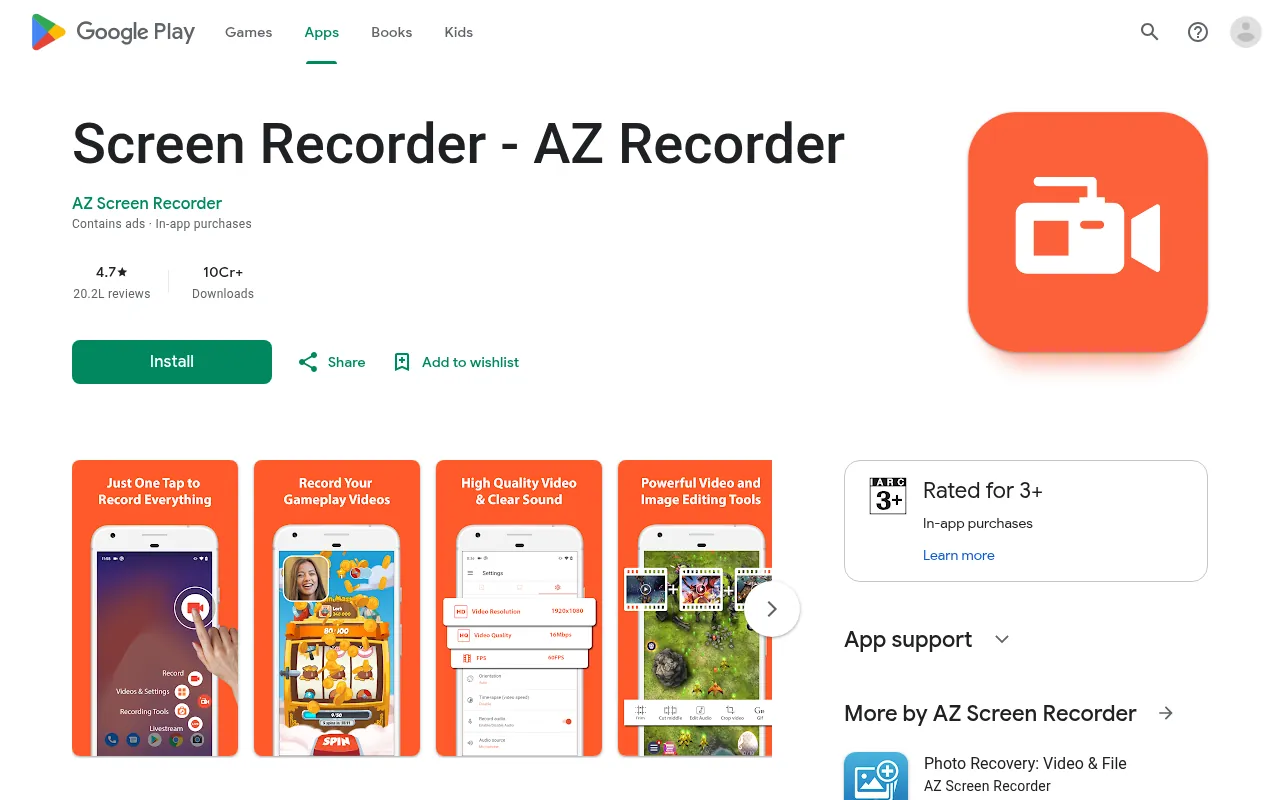
If your phone’s built-in recorder is too basic, AZ Screen Recorder is a popular third-party screen recorder on Google Play. Its listing promises no watermark, and it adds a floating control button, a front-camera overlay, and simple trimming.
The app is free with ads, with optional in-app purchases for extra features. Among the best screen recording apps for Android, it is the one I would install first for gaming clips and app tutorials.
Free vs Paid Screen Recorders: Is Paying Worth It?
For most people, no. The best free screen recorders (OBS Studio, ShareX, the built-in Windows, Mac, Android and iPhone tools, and Clipchamp) already give you watermark-free recordings with no time limit or a generous one.
Paying makes sense in three situations:
- You send many video messages. Loom or Cap Pro save you real time with instant links, comments and viewer stats. The free caps (25 videos or 5-minute links) fill up quickly if you use them daily.
- You make courses or client training videos. Camtasia’s editing tools, captions and cursor effects can cut hours from each video.
- You need commercial rights. Some free plans, like Cap’s, are for personal use only. If you record for clients, read the licence.
Here is how the main free limits compare:
| Tool | Free recording length | Free video count | Watermark |
|---|---|---|---|
| OBS Studio | Unlimited | Unlimited | None |
| ShareX | Unlimited | Unlimited | None |
| Clipchamp | 30 min per session | Unlimited retakes | None |
| Loom | 5 min | 25 videos | None |
| Screencastify | 30 min | 10 videos | Check current terms |
| Cap (personal use) | Unlimited locally; 5 min share links | Unlimited | None |
| Camtasia | Full editor trial | – | Yes on export |
How to Choose the Best Screen Recorder for You
Answer these four questions and your choice is usually obvious:
1. What device are you on? – Windows: OBS Studio for serious work, Xbox Game Bar or Snipping Tool for quick clips, ShareX for GIFs. – Mac: Shift-Command-5 for simple recordings, Cap or OBS for more control. – Chromebook or office laptop: Screenity, Screencastify or Clipchamp in the browser. – Android or iPhone: start with the built-in recorder.
2. Do you need a share link or a file? If you want to send a link that plays in the browser, pick Loom, Cap or Screencastify. If you will upload to YouTube or edit later, pick a recorder that saves a file locally, like OBS.
3. How long are your recordings? For anything over 30 minutes, use OBS, ShareX, the Mac tools or Cap Studio Mode. Loom and Screencastify free plans are built for short videos.
4. Do you need editing? Clipchamp and Camtasia put recording and editing in one place. With OBS, plan to edit in a separate editor. If you are planning the video before you record, my free YouTube script generator helps you outline what to say. If you edit on your phone, my guide to CapCut in India covers the legal alternatives.
Tips for Better Screen Recordings
A good tool is only half the job. These habits make the biggest difference in my own recordings:
- Close notifications. Turn on Do Not Disturb so WhatsApp messages do not pop up mid-tutorial.
- Record at your screen’s native resolution. Scaling down later looks better than recording blurry.
- Use a separate mic if you can. Even a basic USB or lapel mic sounds better than a laptop mic.
- Record in short sections. It is easier to redo a 2-minute section than restart a 20-minute video.
- Hide passwords and personal data. Blur or crop anything sensitive before you share.
- Keep it short. Short, focused videos get watched. My video marketing statistics roundup shows how much viewers prefer quick, clear videos.
Is Screen Recording Legal?
Recording your own screen for tutorials, work or personal use is generally fine. Be careful with three things: recording other people in video calls without telling them, recording paid or copyrighted content (like streaming movies), and recording confidential client data. When in doubt, ask for consent and keep recordings private.
Why Should You Trust Me?
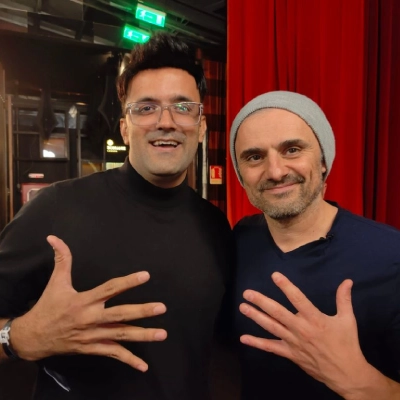
I am Jitendra Vaswani, an SEO consultant with 12 years in search. I founded the digital marketing agency Digiexe and AffiliateBooster, and I am an author and international speaker.
Screen recording is part of my daily work: client audit walkthroughs, training videos for my team and quick explainer clips. For this guide, every limit and price comes from the tool’s official website, help page or app store listing (October 2026). Where free terms change often, I have said so instead of guessing, and I have not invented any test results.
FAQs
What is the best screen recorder for PC?
OBS Studio is the best screen recorder for PC. It is free, open source, has no watermark or time limit, and works on Windows, Mac and Linux. If you want something simpler on Windows, use Xbox Game Bar (Windows + Alt + R) or the Snipping Tool.
Which screen recorder has no watermark for free?
OBS Studio, ShareX, Clipchamp, Screenity’s free extension, Cap for personal use, the built-in Windows, Mac, Android and iPhone recorders, and AZ Screen Recorder all record without a watermark. Camtasia adds a watermark until you pay.
What is the best screen recorder app for Android and iPhone?
The built-in recorder is the best screen recorder app for most phones. On Android 11+, use the Screen record tile in Quick Settings. On iPhone, add Screen Recording to Control Centre. AZ Screen Recorder is a good free extra for Android.
Does Windows 10 have a built-in screen recorder?
Yes. Windows 10 and 11 include Xbox Game Bar. Press Windows + G to open it, or Windows + Alt + R to start recording the active app. It records one app window at a time, not the desktop.
What is the best free screen recorder for Mac?
The built-in Screenshot toolbar (Shift + Command + 5) and QuickTime Player are the best free options for Mac, with no watermark and no time limit. For more features, try Cap or OBS Studio.
How long can you record on Loom for free?
Loom’s free Starter plan allows screen recordings of up to 5 minutes each and up to 25 videos per person. The Business plan removes both limits.
What are the best screen recording apps for YouTube videos?
For YouTube, use OBS Studio to record and a separate editor to cut, or Camtasia if you want recording and editing in one paid app. Clipchamp is a good free option if your videos are under 30 minutes per take.
Final Verdict: Which Screen Recorder Should You Use?
After years of recording my screen for clients and my team, my recommendation is simple:
- Best overall: OBS Studio. Free, no watermark, no limits, every desktop platform.
- Best for quick clips: whatever is built into your device. Game Bar or Snipping Tool on Windows, Shift-Command-5 on Mac, Screen Record on Android and iPhone.
- Best for video messages: Loom for teams, Cap if you want open source and a lower price.
- Best online option: Clipchamp, with 30-minute watermark-free sessions and a built-in editor.
- Best for courses: Camtasia, if editing time matters more than money.
Start free. Most people never need to pay for a screen recorder. Once your recording is ready, check out my guide to video SEO statistics to help your videos get found.

Jitendra Vaswani is a globally recognized expert in SEO and AI-driven digital marketing. He has spoken at leading international events and is the founder of Digiexe, a results-driven digital marketing agency; Venuelabs, a platform that helps brands amplify their voice with expert PR and marketing solutions; and AffiliateBooster, an affiliate marketing news site. With over a decade of hands-on experience, Jitendra has empowered countless businesses to thrive online. His bestselling book, Inside A Hustler’s Brain: In Pursuit of Financial Freedom, has sold more than 20,000 copies worldwide, reflecting his influence and dedication to helping digital marketers achieve success. Follow Jitendra on Instagram, X/Twitter, Facebook, and LinkedIn.