Best Chrome extensions for productivity, the short answer: For most people in 2026, start with a small stack: uBlock Origin Lite (cleaner pages), Todoist (task capture), Bitwarden (passwords), Grammarly (writing), and OneTab (tab overload). Add Momentum or Forest if focus is your main leak, Loom if you send async video updates, and Clockify if you bill time. The best productivity Chrome extensions are not the longest list. They are the five to seven tools you actually leave pinned.
I live in Chrome for SEO audits, client emails, research tabs and content reviews. Most “best chrome extensions” roundups dump 40 installs and ignore Manifest V3 safety, permissions and the fact that too many extensions slow the browser. This guide stays practical. Every product note below is based on the extension’s official site or Chrome Web Store listing, checked in October 2026. I am not inventing performance scores. I am telling you what each tool is for, what is free, and who should skip it.
Best Chrome Extensions for Productivity: Quick Comparison Table
| Extension | Best for | Free plan | Paid extras | Category |
|---|---|---|---|---|
| Grammarly | Writing quality and tone | Free Grammarly extension | Grammarly Pro / Business | Writing |
| Text Blaze | Snippets and templates | Free tier | Paid Text Blaze plans | Writing |
| Todoist | Tasks from any page | Free Todoist | Todoist Pro / Business | Tasks |
| Clockify | Time tracking | Free forever core | Paid Clockify plans | Time |
| Momentum | Calm new tab + daily focus | Free Momentum | Momentum Plus | Focus |
| Forest | Gamified focus | Limited free / app model | Paid unlocks | Focus |
| uBlock Origin Lite | Ads and trackers (MV3) | Free | N/A | Distraction |
| Unhook | Cleaner YouTube | Free | N/A | Distraction |
| OneTab | Collapse tab piles | Free | Optional paid sync/features | Tabs |
| Bitwarden | Passwords | Free Bitwarden | Premium / Families / Business | Security |
| Loom | Async video updates | Free Loom tier | Business plans | Communication |
| Calendly | Meeting scheduling | Free Calendly | Paid Calendly plans | Scheduling |
| Glasp | Highlight and save learning | Free tier | Paid Glasp features | Research |
| Raindrop.io | Bookmark manager | Free Raindrop | Pro | Research |
| Save to Notion / Notion Web Clipper | Clip pages to Notion | Free with Notion | Notion paid plans | Research |
| Speechify | Listen to pages | Free tier | Speechify Premium | Reading |
| Video Speed Controller | Faster course videos | Free | N/A | Learning |
| PrintFriendly | Clean print / PDF of articles | Free | N/A | Reading |
| Dark Reader | Dark mode everywhere | Free + optional support | Optional payment | Comfort |
Sources: each extension’s official website or Chrome Web Store listing (October 2026). Ratings, user counts and plan names change. Confirm on the official page before you rely on a free limit.
What Are Chrome Extensions for Productivity?
Chrome extensions are small browser add-ons that change how pages work: blocking ads, capturing tasks, filling passwords, clipping articles or recording your screen. People search for them as “best chrome extensions”, “best chrome extensions for productivity”, “chrome extensions for productivity”, “useful extensions for chrome”, “chrome productivity extensions” and “best google chrome extensions for productivity”.
A productivity extension should remove friction from a job you do every day. If you install twenty tools “just in case”, you will get the opposite of productivity: slower startups, more permission prompts and more attack surface.
How I Picked These Productivity Chrome Extensions
I judged each extension on:
- Job clarity: one clear job, not a kitchen sink.
- Free usefulness: can you get value without paying on day one?
- Trust signals: official site, identifiable publisher, sensible permissions.
- Maintenance: still updated for modern Chrome / Manifest V3 realities.
- Overlap: I prefer one tool per job so your stack stays small.
- Fit for students, freelancers and remote workers who live in the browser.
I also weighed my own SEO and agency workflow: writing, research clipping, meetings, tab chaos and password hygiene matter more to me than novelty tools.
Best Chrome Extensions for Writing
1) Grammarly: Best Writing Assistant Extension
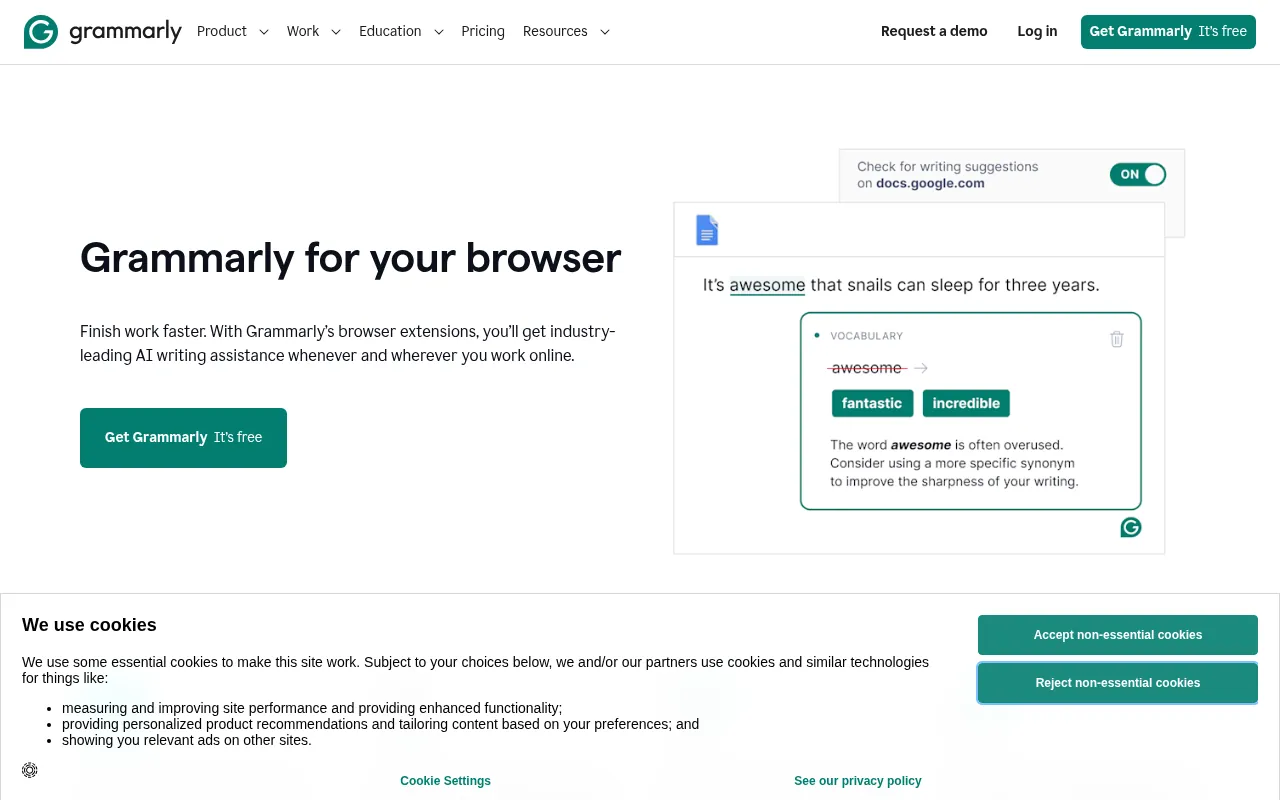
Grammarly is still the default writing extension for most professionals. It catches grammar, clarity and tone issues inside Gmail, Docs, WordPress and many text boxes. The free extension is enough for basic corrections. Paid Grammarly plans unlock advanced rewrites and tone suggestions.
Why I like it: it saves me from sloppy client emails without opening another app.
What to watch out for: do not paste confidential legal or unpublished financial text into any cloud writing assistant if your contract forbids it. Also see pricing notes in my separate India pricing content when you evaluate Pro.
My verdict: best productivity chrome extension for writing quality.
2) Text Blaze: Best for Snippets and Canned Responses
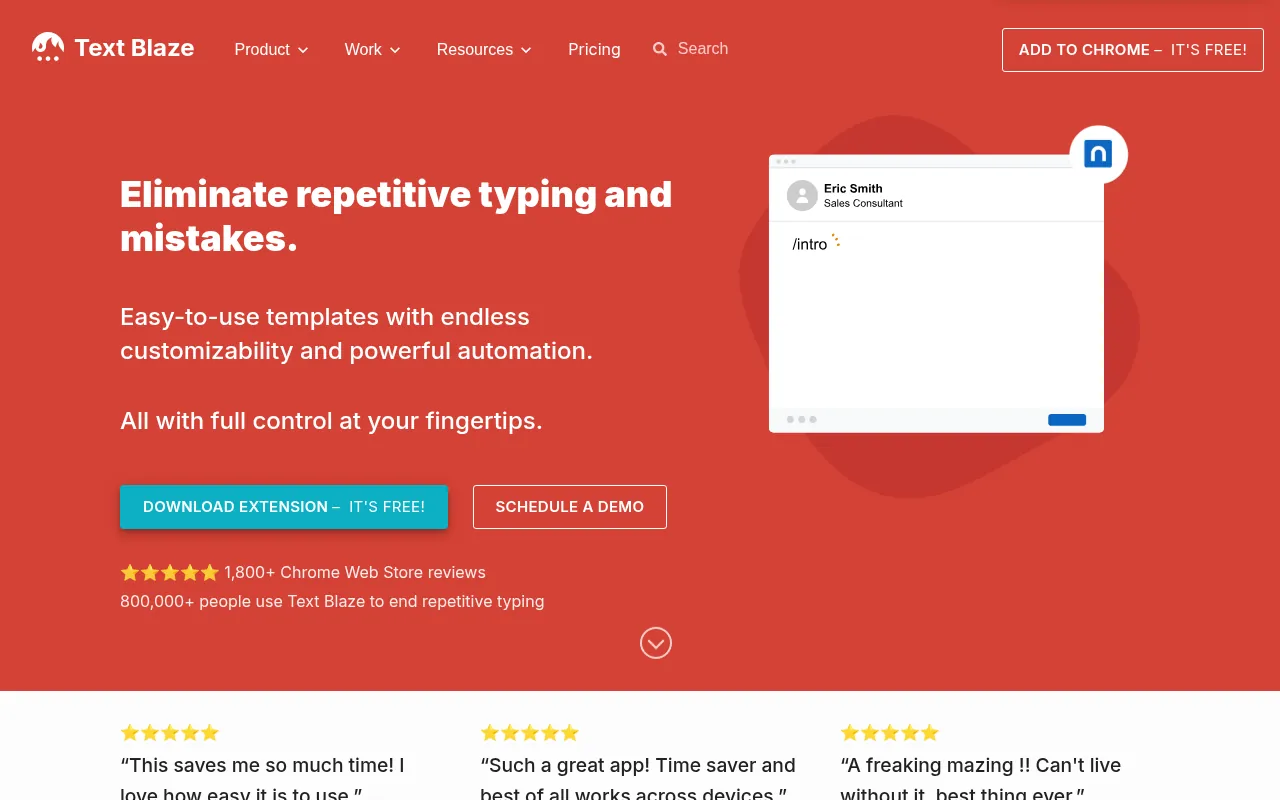
Text Blaze (blaze.today) expands short shortcuts into full replies, proposals and follow-ups. If you type the same paragraphs daily, this is one of the highest-ROI useful extensions for chrome.
Why I like it: turns repetitive support and sales replies into two-keystroke templates.
What to watch out for: free vs paid snippet limits. Keep sensitive data out of shared snippet packs.
My verdict: best chrome productivity extension for people who send the same messages on repeat.
Best Chrome Extensions for Tasks and Time
3) Todoist: Best Task Capture from Any Page
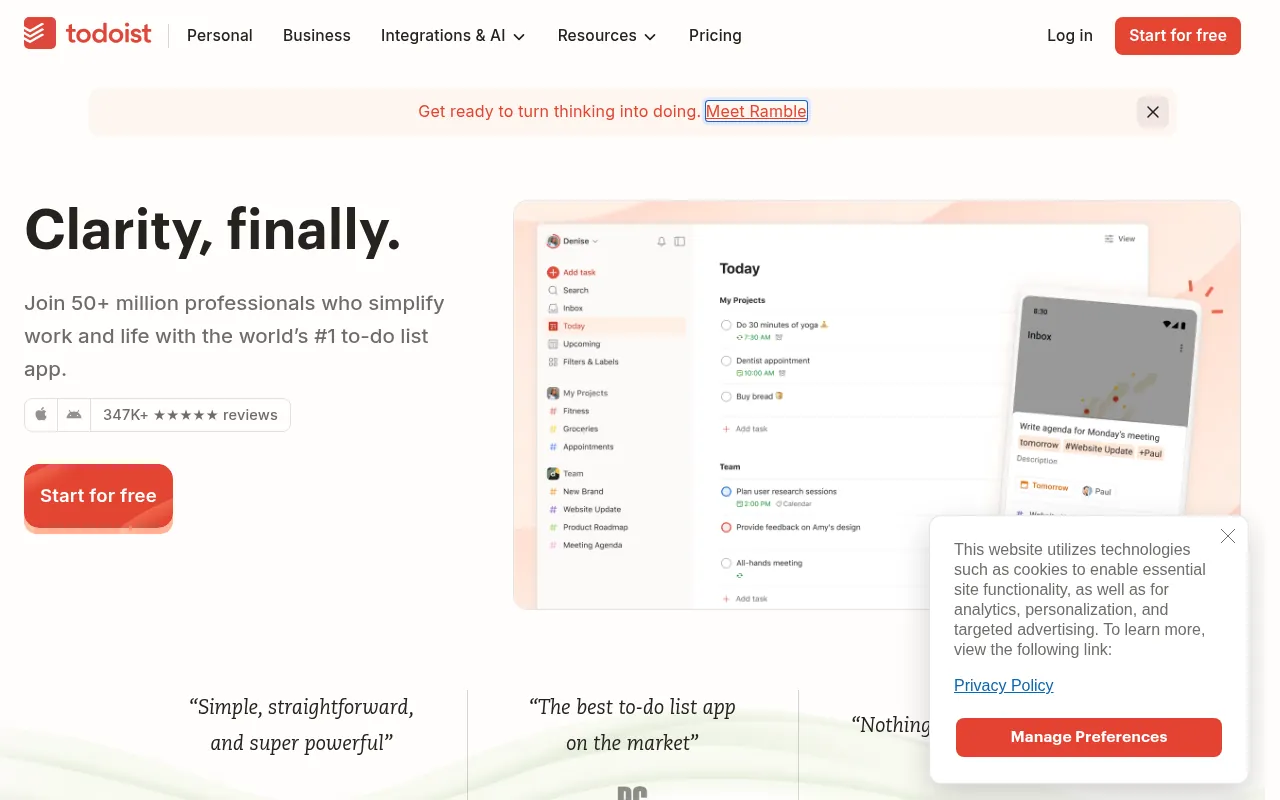
Todoist is my pick for “I will forget this tab”. The Chrome extension lets you turn a page, email or idea into a task with a due date before the thought disappears.
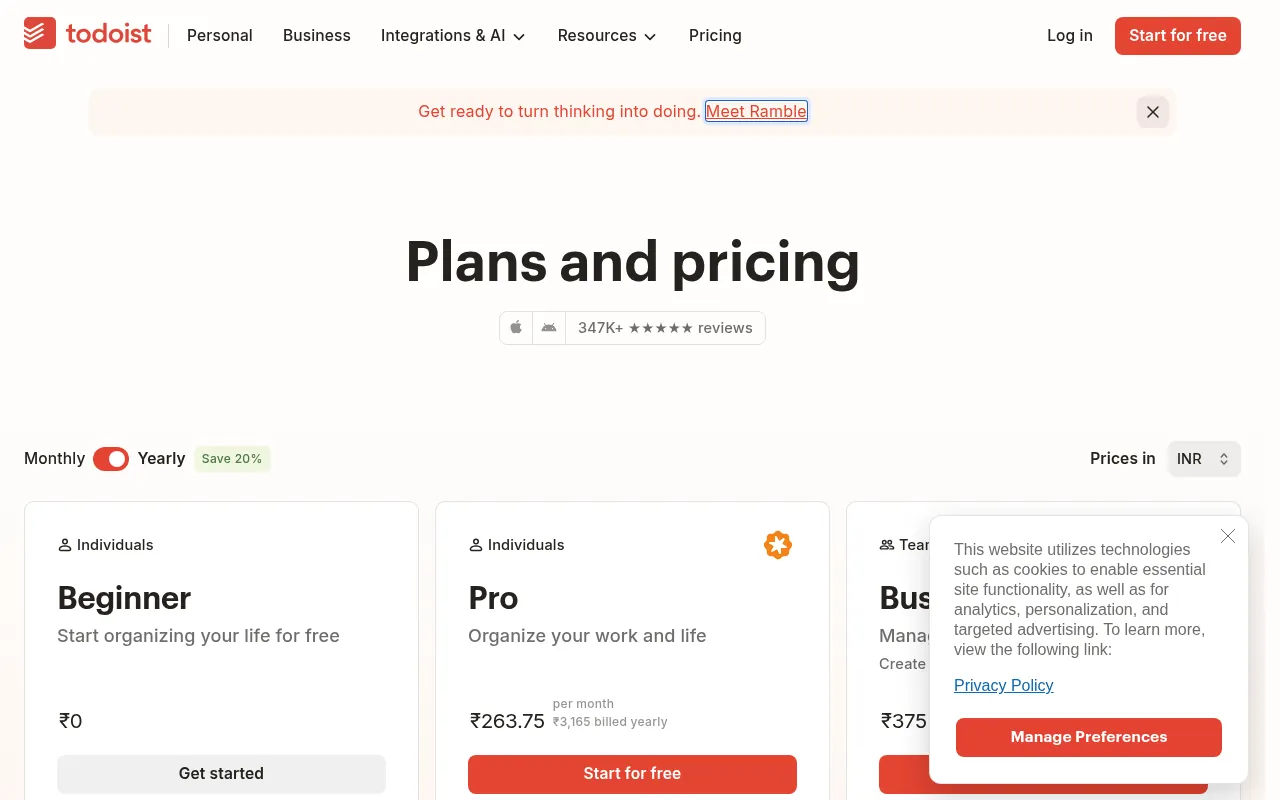
Why I like it: capture speed. Productivity dies in the gap between “I should do this” and “where do I write it down”.
What to watch out for: free project and reminder limits. Pro is worth it only after the free plan feels tight for real work.
My verdict: best chrome extension for productivity if forgotten follow-ups are your main leak.
4) Clockify: Best Free Time Tracker Extension
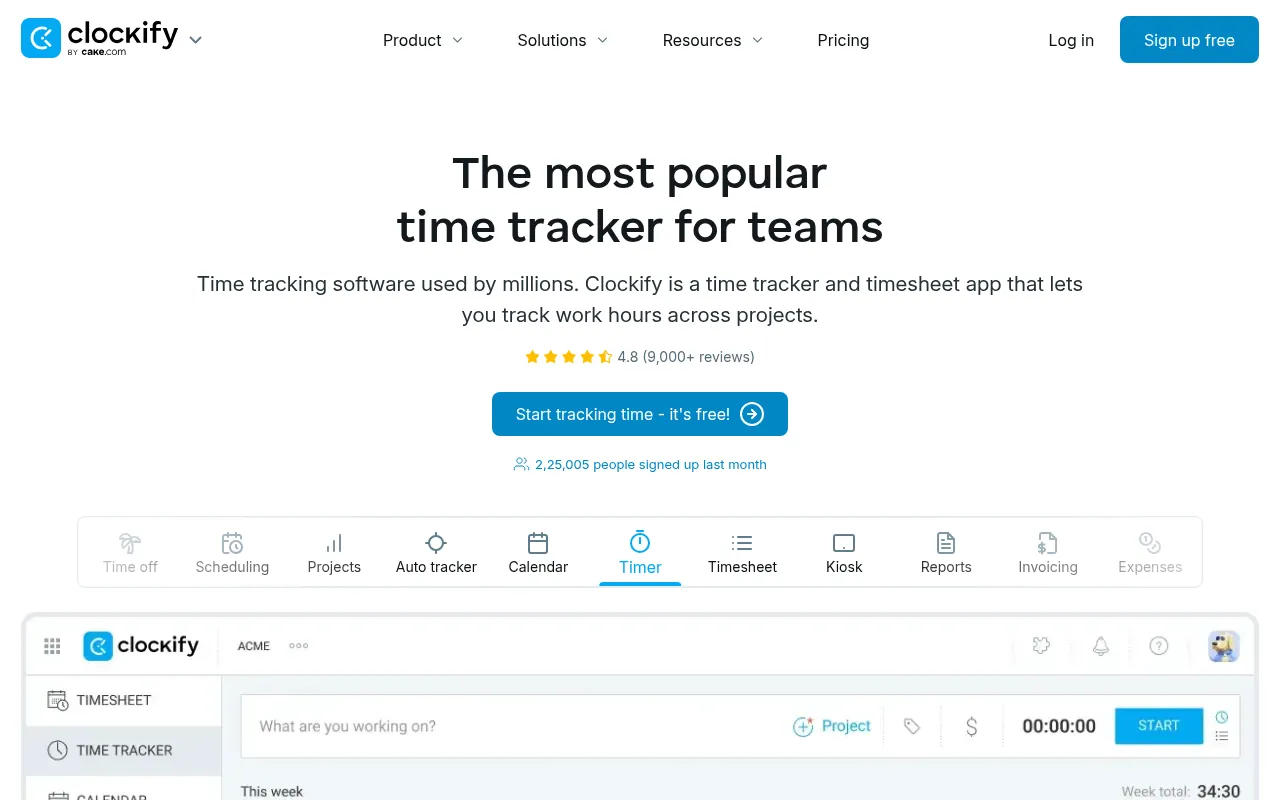
Clockify is the simplest free time tracker for freelancers and agencies who need project timers without a heavy desktop suite. The extension makes start/stop tracking easy while you work in the browser.
Why I like it: free forever core features are genuinely usable.
What to watch out for: teams that need advanced reporting will outgrow free. Confirm current paid plan names on Clockify’s site.
My verdict: best productivity extension when you bill hours or want honest time awareness.
Best Chrome Extensions for Focus and Distraction Control
5) uBlock Origin Lite: Best for Cleaner, Faster Browsing
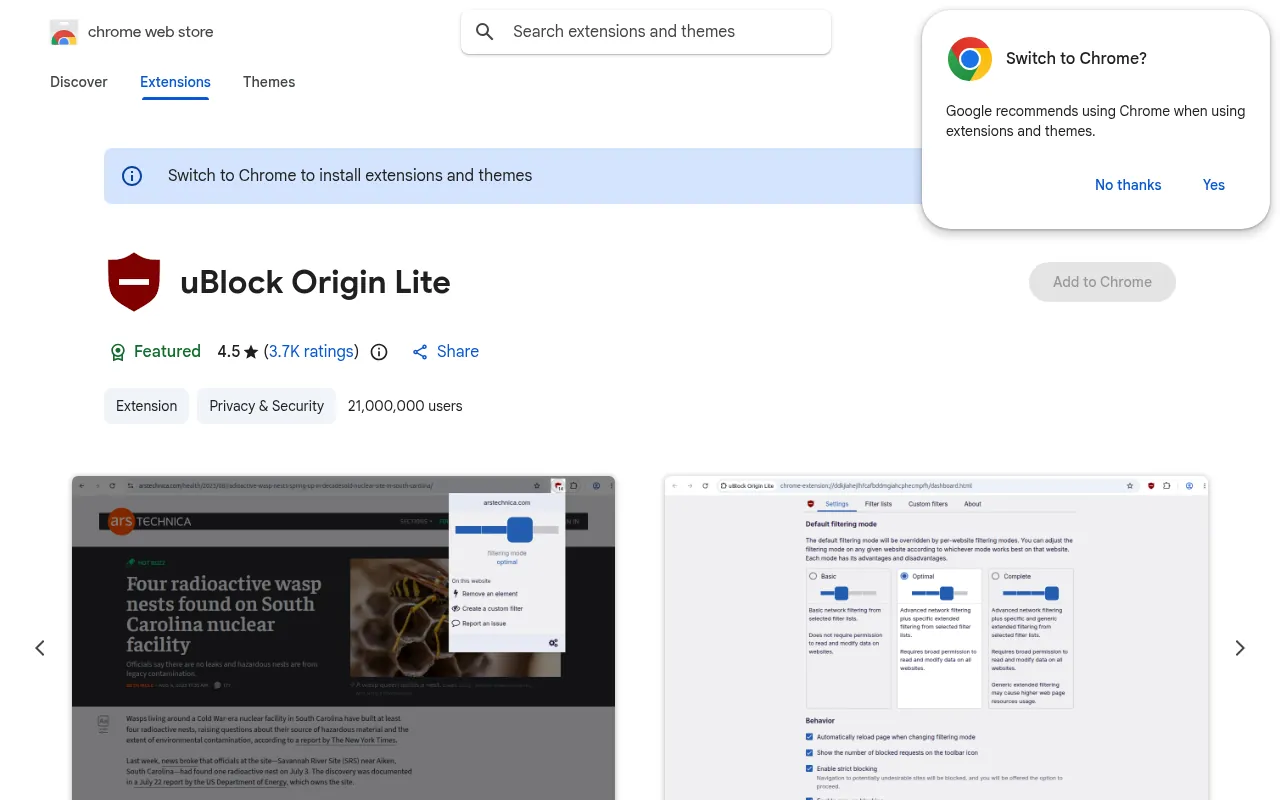
uBlock Origin Lite is the Manifest V3-friendly way many people block ads and trackers in modern Chrome. Cleaner pages are a productivity feature: less junk, fewer accidental clicks, faster reading.
Why I like it: high impact, usually zero cost, minimal babysitting.
What to watch out for: some sites break when trackers are blocked. Use site exceptions instead of disabling the extension globally.
My verdict: install this before almost any other productivity chrome extension.
6) Unhook: Best for Distraction-Free YouTube
Unhook removes the parts of YouTube that keep you scrolling: recommendations, homepage feed distractions and other attention traps depending on settings. Students and creators who need YouTube for research (not rabbit holes) get their time back.
My verdict: essential if YouTube is both a work tool and a time sink.
7) Momentum: Best Calm New Tab for Daily Focus
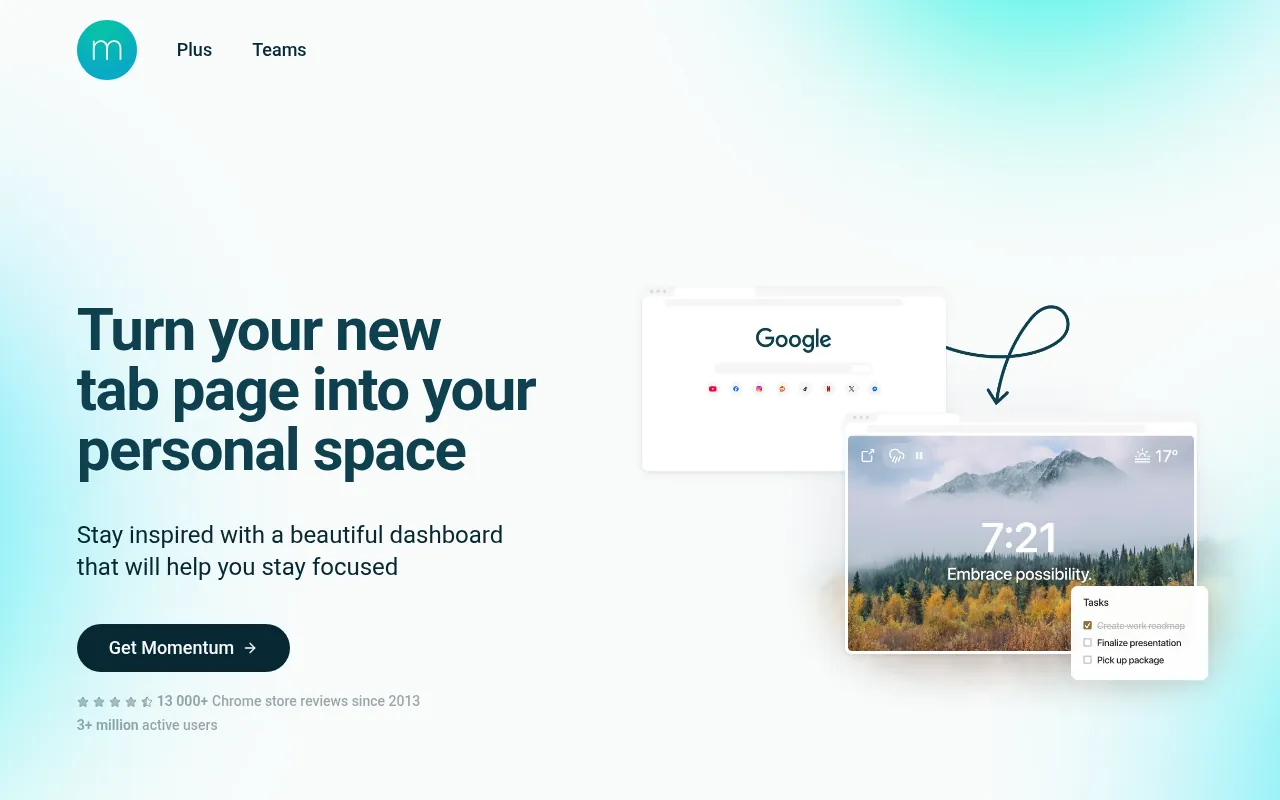
Momentum replaces the new tab page with a photo, clock and one focus line. It sounds soft. It works. Seeing one daily priority every time you open a tab beats a wall of recently closed chaos.
What to watch out for: Momentum Plus adds features. Free is enough for many people.
My verdict: best chrome productivity extension for gentle focus prompts.
8) Forest: Best Gamified Focus Extension / Companion
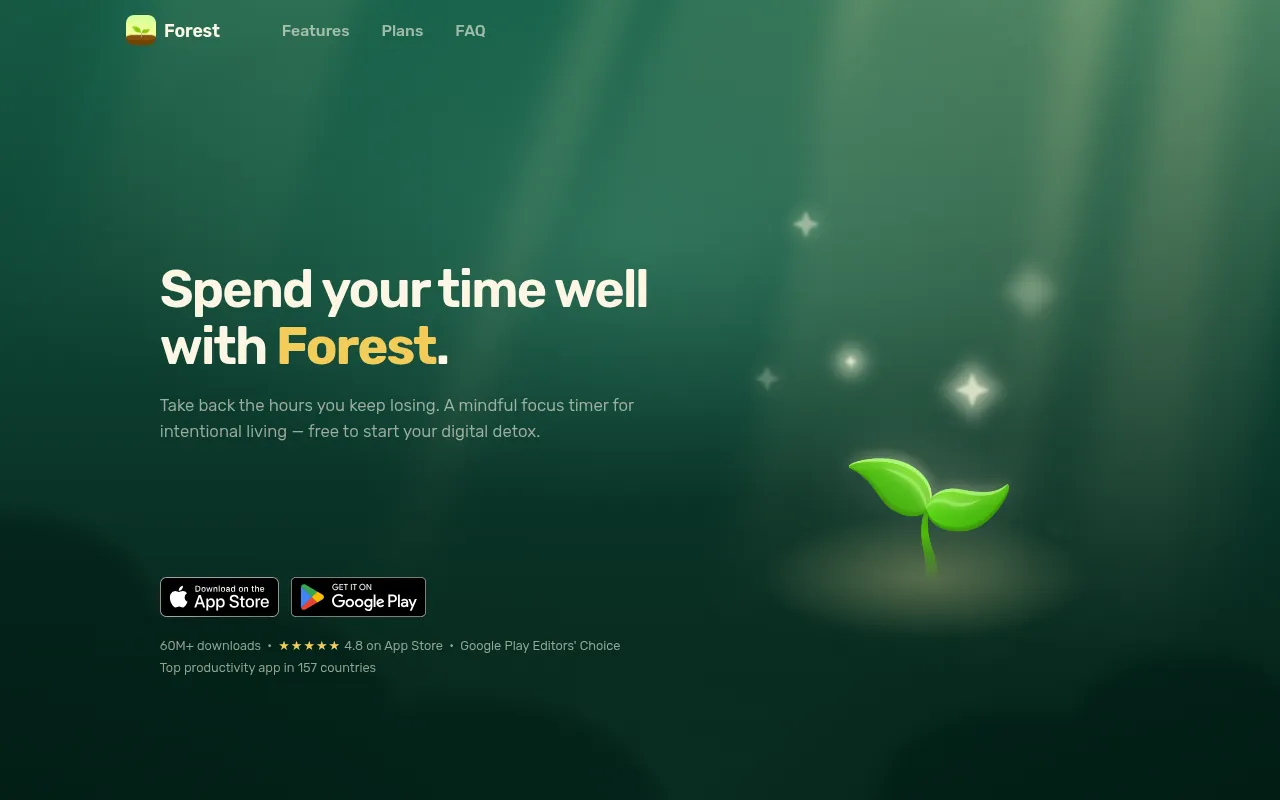
Forest turns focus sessions into a game: stay off distracting sites, grow a tree. If streak mechanics motivate you, it beats raw willpower.
What to watch out for: mobile app + extension ecosystem and paid unlocks. Confirm current pricing on Forest’s official site.
My verdict: best for students who need a playful focus nudge.
Best Chrome Extensions for Tab Management
9) OneTab: Best for Tab Overload
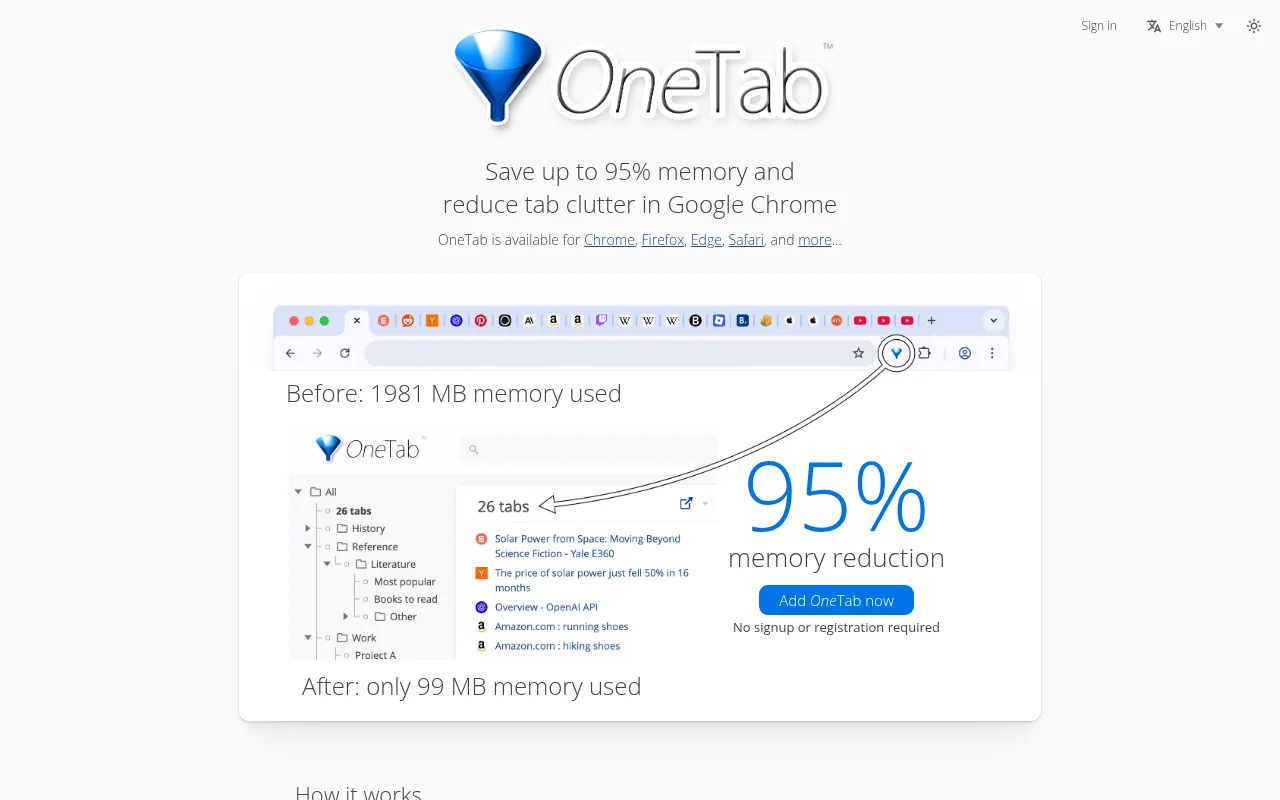
OneTab collapses a pile of tabs into a single list you can restore later. SEO research and content audits create tab explosions. OneTab is the fastest cleanup without losing the trail.
Why I like it: instant mental quiet.
What to watch out for: do not treat OneTab as a backup system for critical work. Export or bookmark anything you cannot afford to lose.
My verdict: best chrome extension for productivity when RAM and focus are dying under 40 tabs.
Best Chrome Extensions for Security and Logins
10) Bitwarden: Best Free Password Manager Extension
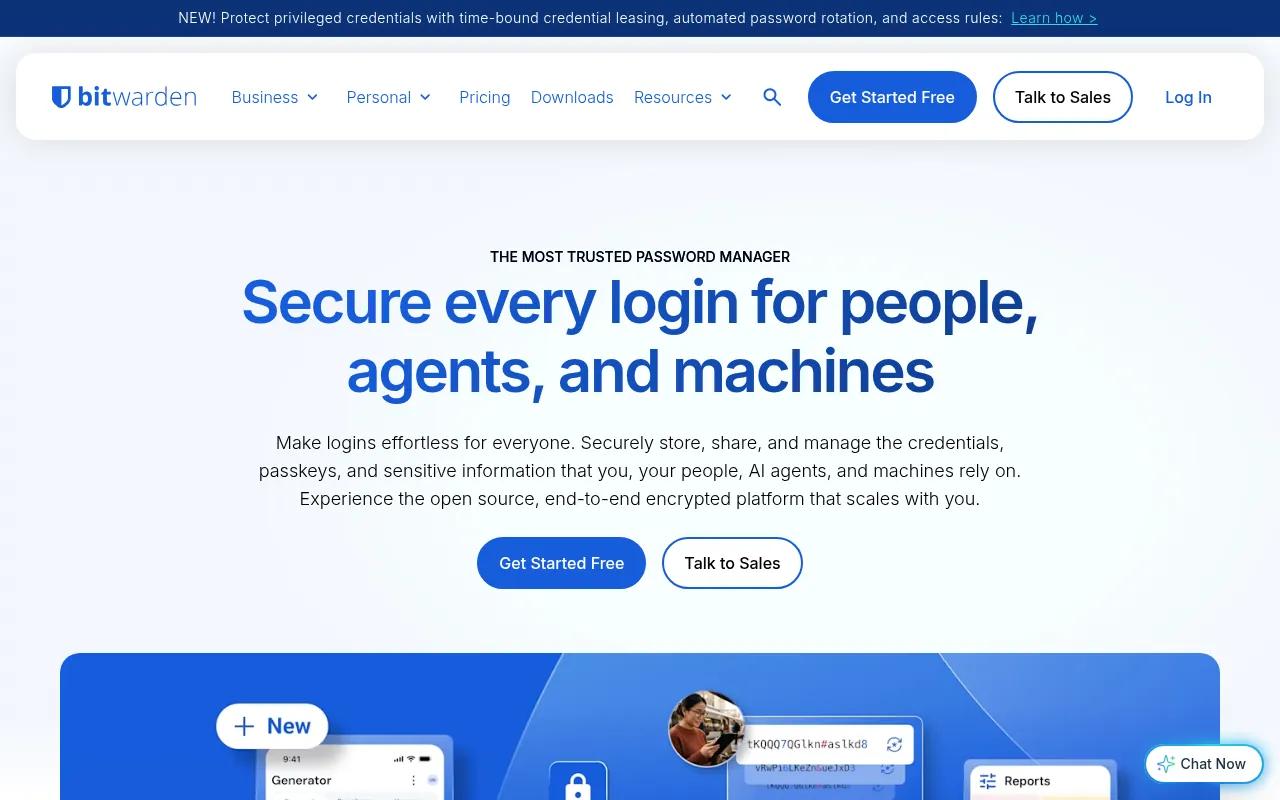
Bitwarden is my default password manager recommendation for most individuals and small teams. The free plan covers core password storage and autofill. Premium adds extras like advanced 2FA options depending on current plan details.
Why I like it: strong free tier, open-source reputation, cross-device apps.
What to watch out for: enable 2FA on the vault itself. A password manager with a weak master password is worse than sticky notes.
My verdict: best productivity chrome extension for login friction and security hygiene.
Best Chrome Extensions for Meetings and Communication
11) Loom: Best Async Video Updates
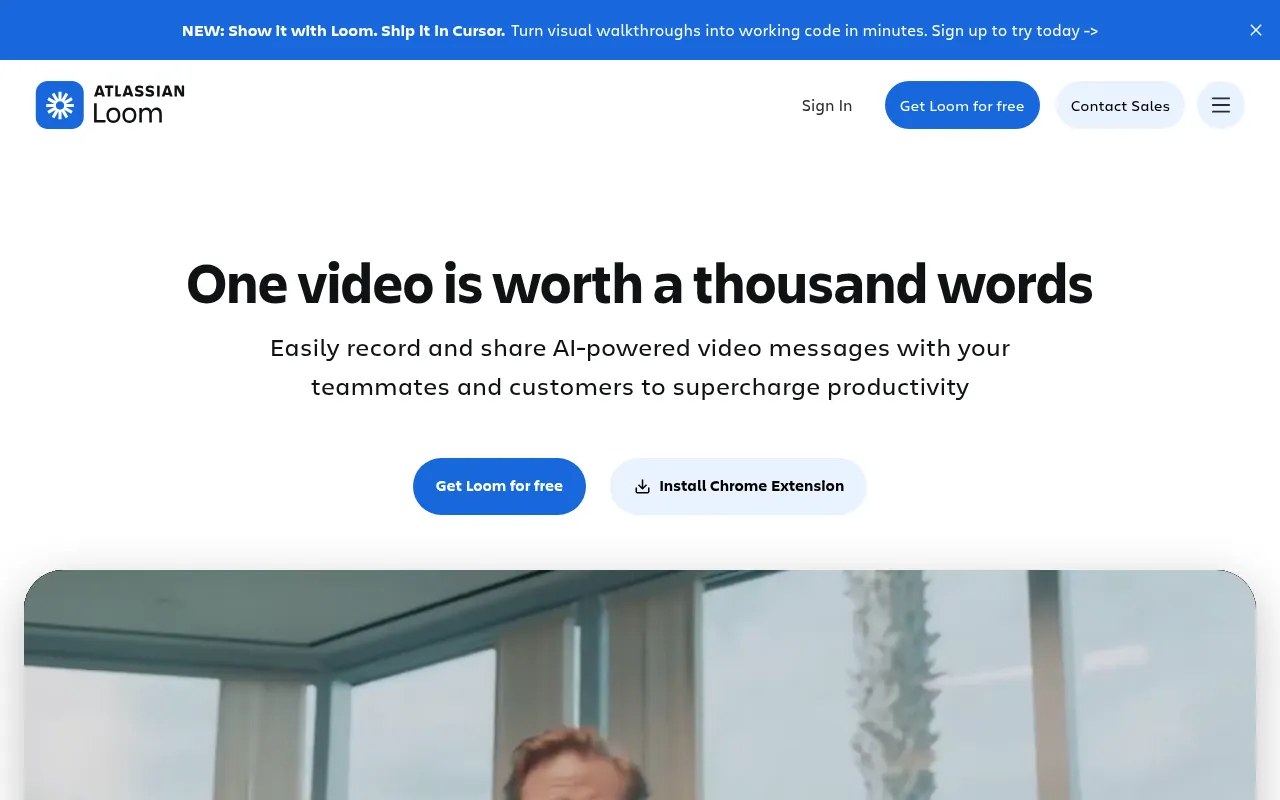
Loom lets you record quick screen + camera videos and share a link instead of scheduling another call. For remote teams, that is real productivity.
What to watch out for: free plan length and meeting-recording limits change. Confirm on Loom’s pricing page.
My verdict: best chrome productivity extension when writing a long explanation would take longer than a two-minute loom.
12) Calendly: Best Meeting Scheduling Extension
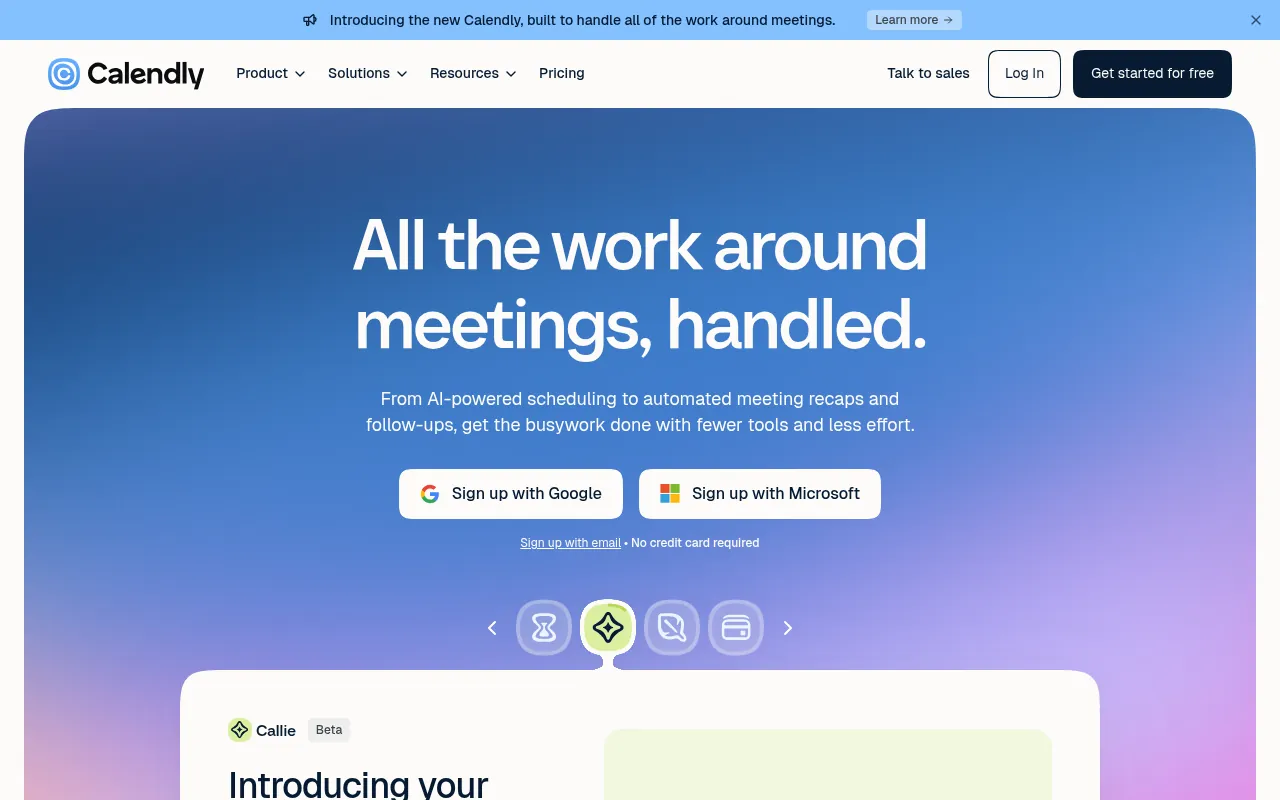
Calendly removes the email tennis of “does Tuesday work”. The Chrome extension helps while you are in Gmail or browsing.
What to watch out for: free vs paid seating and round-robin features. Solo freelancers often stay free longer than agencies.
My verdict: best scheduling extension for consultants and podcasters who book many calls.
Best Chrome Extensions for Research and Knowledge Capture
13) Glasp: Best for Highlighting What You Learn

Glasp lets you highlight pages and keep learning notes as you research. It is ideal for SEO and content people who read ten articles before writing one.
My verdict: best research companion when your notes usually die in screenshots.
14) Raindrop.io: Best Bookmark Manager
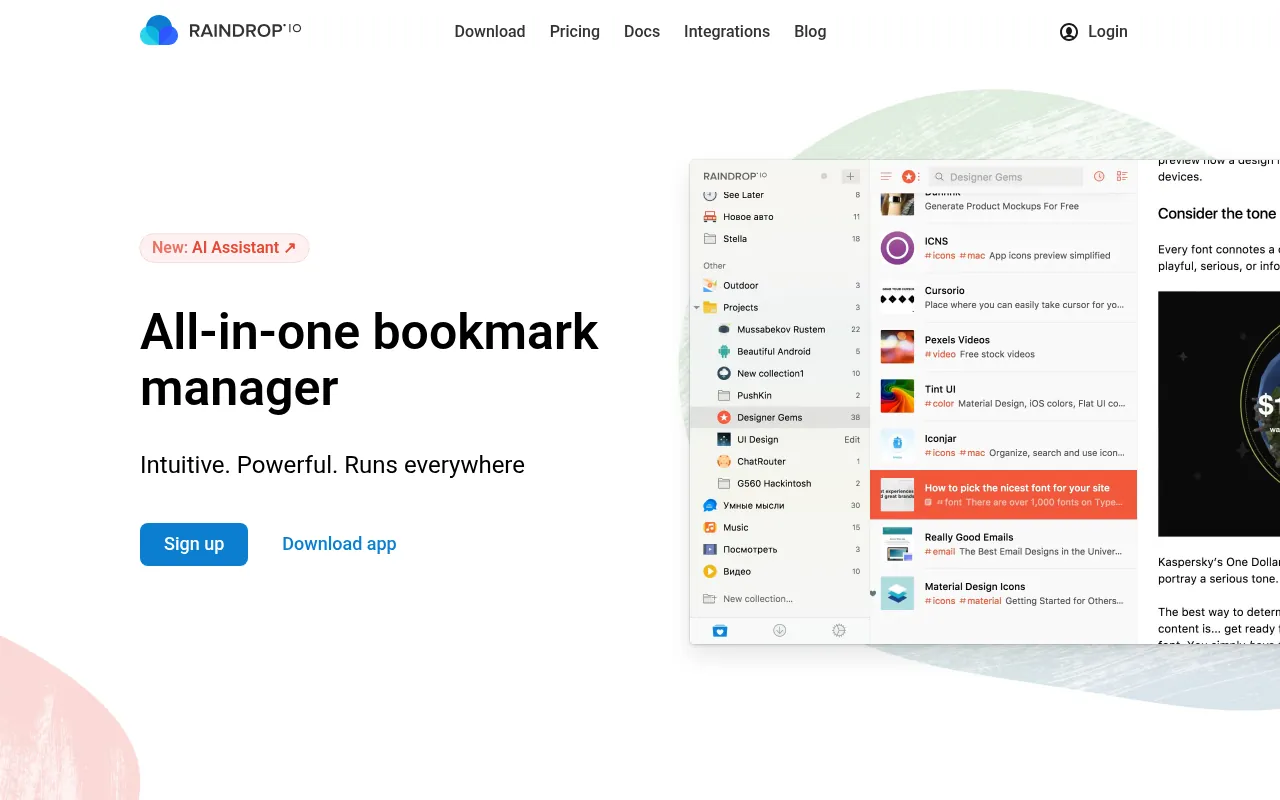
Raindrop.io is a proper bookmark manager with collections, tags and clean search. Browser-native bookmarks get messy fast. Raindrop scales better for research libraries.
What to watch out for: Pro features for power users. Free is enough to start.
15) Notion Web Clipper / Save to Notion: Best for Notion Users
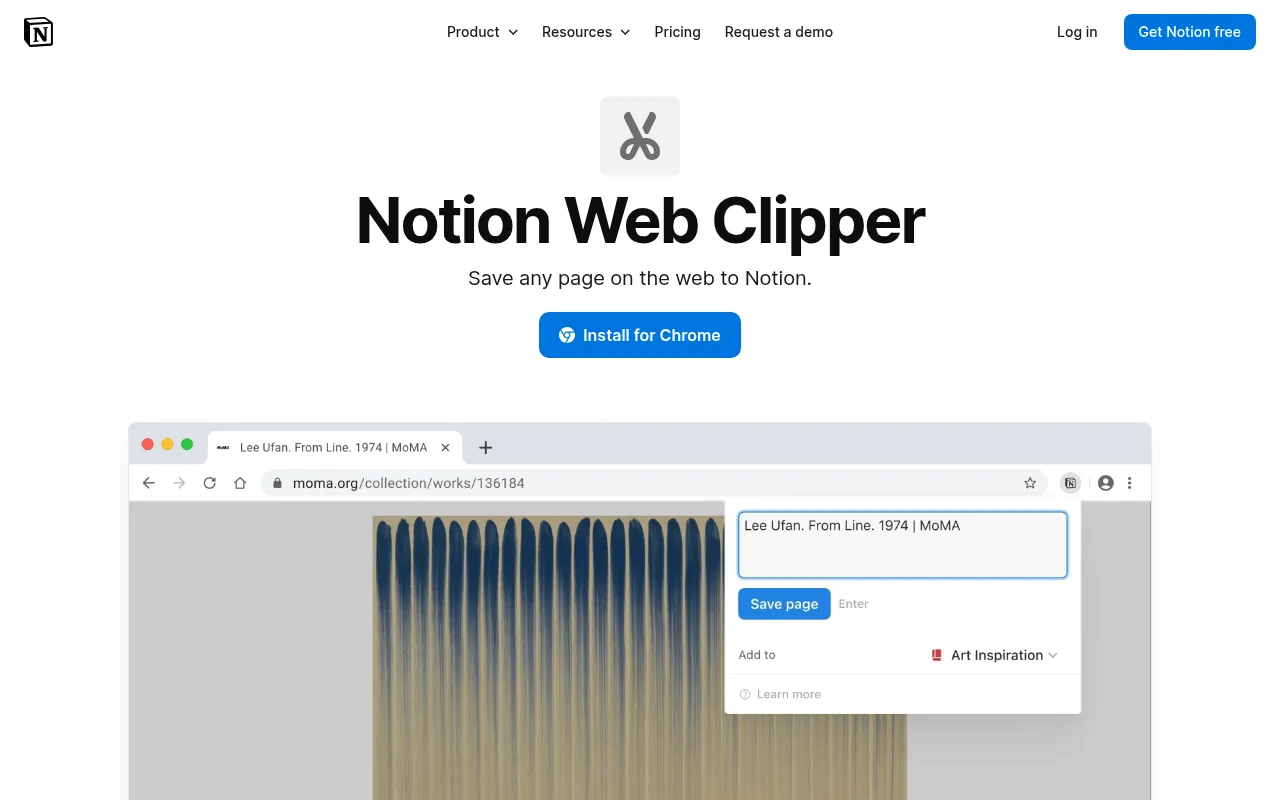
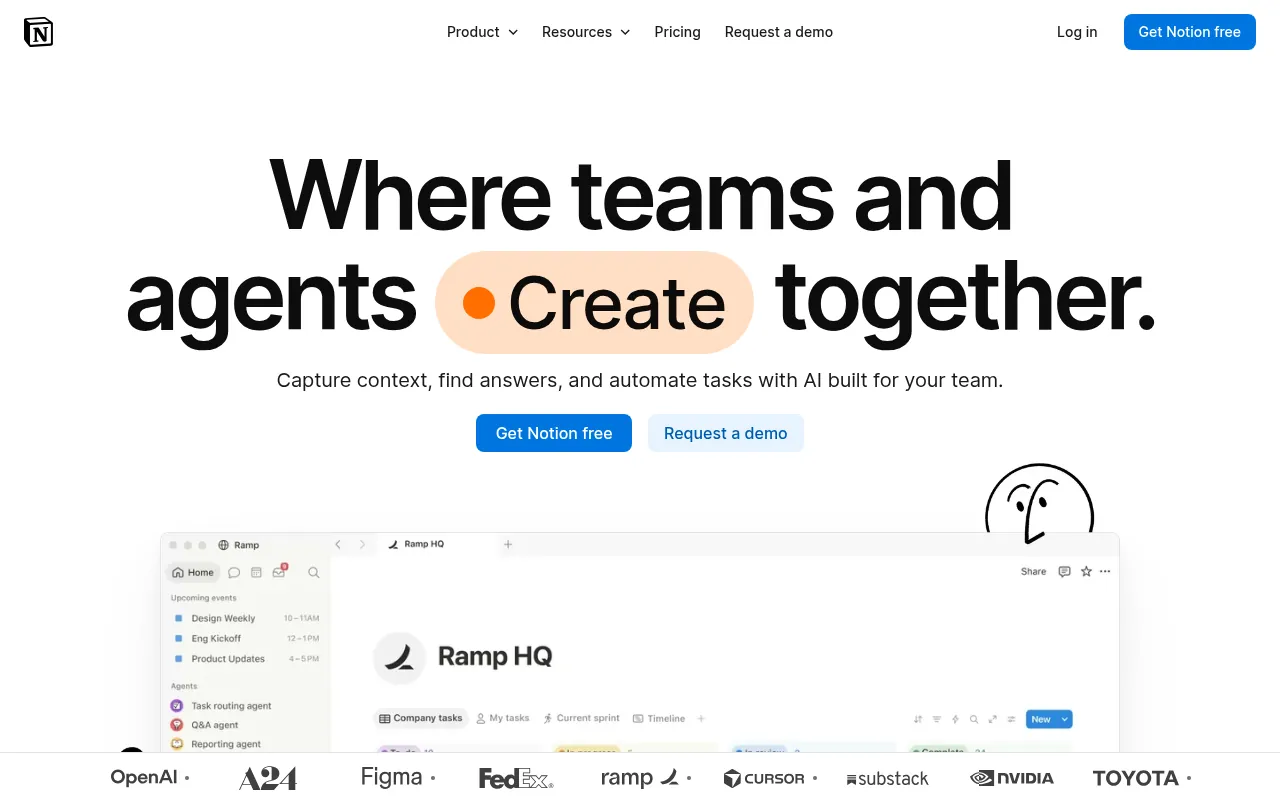
If your second brain is Notion, clip pages straight into databases instead of losing them in a downloads folder. Use the official Notion Web Clipper or a Save to Notion style helper depending on your workflow preference, and confirm publisher authenticity on the Chrome Web Store.
My verdict: best productivity extensions for chrome users who already organise work in Notion.
Best Chrome Extensions for Reading, Accessibility and Learning
16) Speechify: Best Listen-to-the-Page Extension
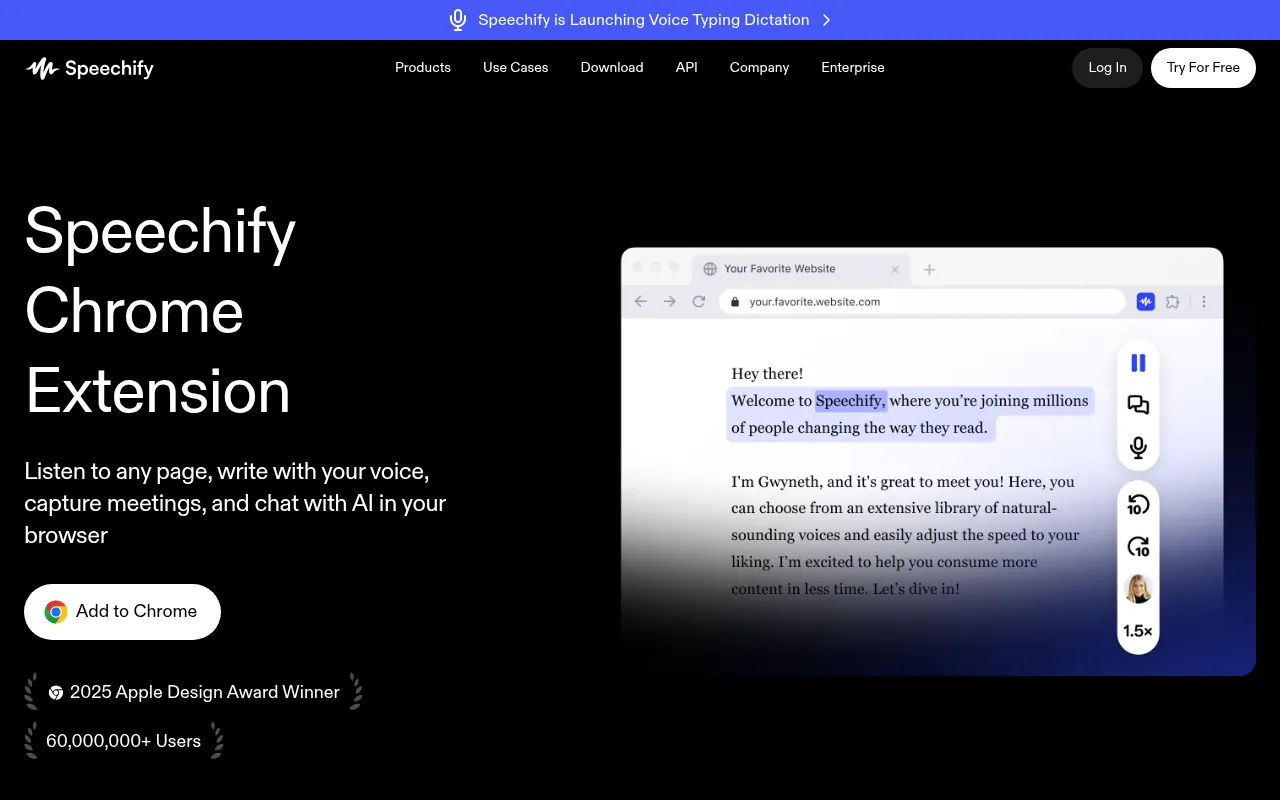
Speechify reads pages and documents aloud. It is useful on long reports, PDFs and research when your eyes are tired but you still need to absorb information.
What to watch out for: premium voices and limits. Free may be enough for light use.
17) Video Speed Controller: Best for Faster Course Videos
Video Speed Controller lets you speed up HTML5 video beyond the default player controls. For course-heavy weeks, this is a quiet productivity cheat code.
My verdict: free, tiny, high leverage for learners.
18) PrintFriendly: Best Clean Print and PDF Capture
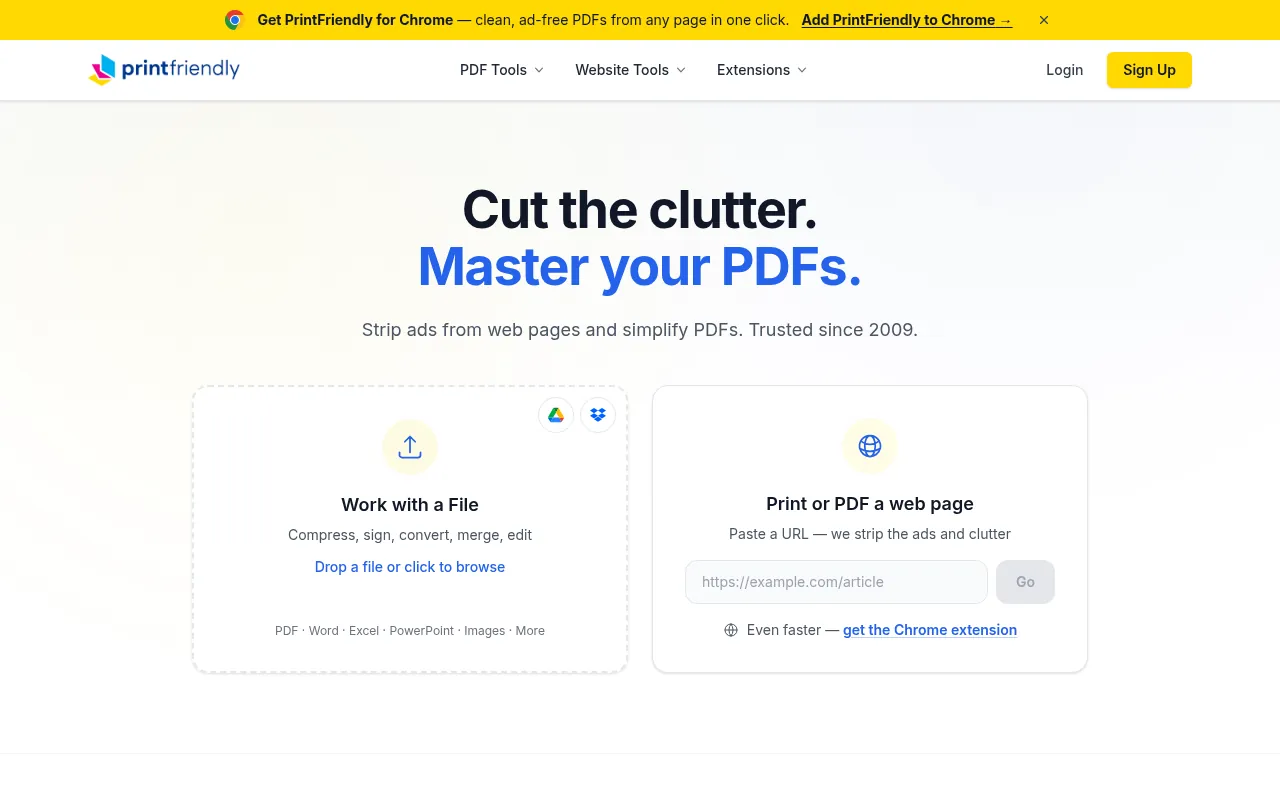
PrintFriendly strips clutter so you can print or save a readable PDF of an article. Handy for offline reading and annotated research packs.
19) Dark Reader: Best Comfort Extension for Night Work
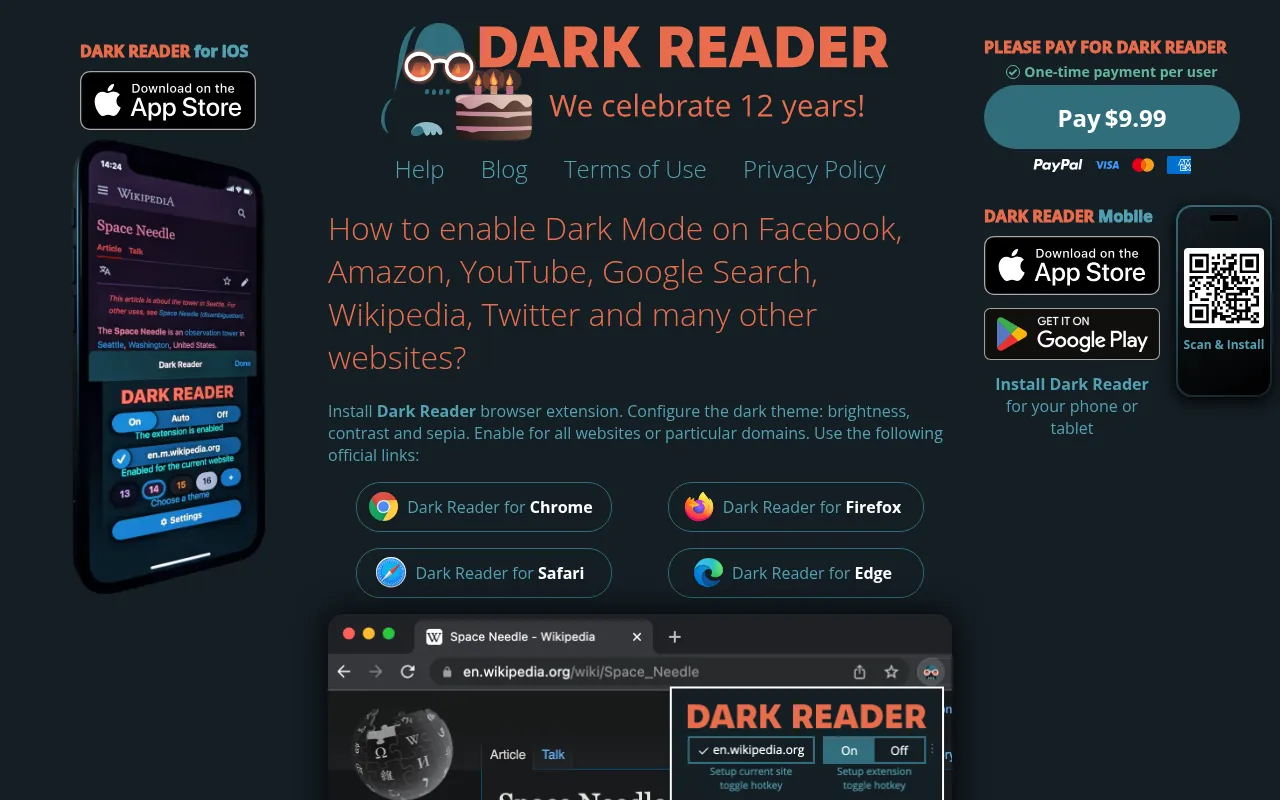
Dark Reader applies dark mode across sites that do not offer one. It is not a task manager, but eye comfort at 1 a.m. is a productivity feature for night-owl creators.
Starter Stacks (Install These First)
Starter stack for most professionals (6)
- uBlock Origin Lite
- Bitwarden
- Todoist
- Grammarly
- OneTab
- Momentum
Starter stack for students (6)
- uBlock Origin Lite
- Forest or Unhook
- Todoist
- Speechify
- Video Speed Controller
- Notion Web Clipper or Glasp
Starter stack for freelancers / remote workers (7)
- Bitwarden
- Todoist
- Clockify
- Loom
- Calendly
- Grammarly
- OneTab
Do not install all 19. Pick a stack, live with it for two weeks, then add one tool only if a real job is still broken.
Free vs Paid Productivity Chrome Extensions
Most of the best chrome extensions for productivity have usable free tiers. Pay when:
- You need team sharing (Todoist Business, Bitwarden org plans, Calendly team).
- You hit hard free caps weekly (Loom minutes, Grammarly rewrite limits).
- Your job depends on advanced features (Clockify reports, Raindrop Pro search).
| Job | Free-first pick | Paid when |
|---|---|---|
| Writing | Grammarly Free | You need advanced tone/rewrites daily |
| Tasks | Todoist Free | Reminders/projects feel capped |
| Passwords | Bitwarden Free | Family/org features needed |
| Tabs | OneTab | You need paid sync extras |
| Time | Clockify Free | Advanced reporting for clients |
| Meetings | Calendly Free | Routing and team features |
How to Choose the Best Productivity Extensions for Chrome
Answer these questions:
1. What is the actual bottleneck? Tabs, writing, passwords, meetings, focus or research? Fix that job first.
2. How many extensions do you already run? If you already have 25, remove five before adding one.
3. What permissions does it demand? Be suspicious of broad “read and change all data” asks when the feature does not need them.
4. Is the publisher identifiable? Prefer official vendor listings.
5. Will this still matter in 30 days? Novelty extensions die. Core jobs remain.
For AI-specific browser tools, I keep a separate roundup planned around AI Chrome extensions. For general free AI apps beyond the browser, see best free AI apps. For research workflows, see best AI tools for research.
Are Chrome Extensions Safe?
They can be, if you are careful:
- Install from the official Chrome Web Store link on the vendor site.
- Check recent reviews and last update date.
- Remove extensions you no longer use.
- Avoid random “free VPN” and crack-style add-ons.
- Use Bitwarden (or another manager) so a phished login page is less fatal.
- Separate a work Chrome profile from a chaotic personal profile if needed.
No extension list can make a reckless permission click safe. Your judgment is part of the stack.
Do Productivity Extensions Slow Down Chrome?
Yes, if you install dozens. Each extension uses memory and may run scripts on page load. Keep a lean set. Disable unused ones instead of leaving them half-configured. OneTab plus fewer open tabs often recovers more speed than any “RAM cleaner” gimmick.
Common Mistakes
- Installing 20 extensions after reading one listicle.
- Keeping abandoned extensions with powerful permissions.
- Using a password extension but recycling the master password.
- Capturing tasks in Todoist and also three other apps.
- Blocking so many scripts that banking or admin sites break, then blaming Chrome.
- Recording Loom videos of confidential dashboards into the wrong workspace.
India and Remote-Work Notes
Most of these tools bill in USD if you upgrade. Convert roughly, watch forex and GST, and prefer annual billing only after a month of real use. For Google account storage and AI entitlements that sit beside your browser work, see Google One plans in India. If your productivity stack includes VPN needs for travel or public Wi-Fi, see best VPN in India.
A Weekly Hygiene Routine for Your Extension Bar
- Once a week, open
chrome://extensionsand remove anything unused. - Pin only daily drivers; hide the rest.
- Export or back up critical snippet libraries and bookmark collections.
- Review Todoist and Clockify for zombie projects.
- Update Chrome itself; stale browsers plus stale extensions are a bad mix.
Deep Dive: Building a Chrome Profile That Does Not Fight You
Most people treat Chrome like a junk drawer. A better approach is to design a work profile:
- Create a dedicated work Chrome profile with only productivity extensions.
- Keep a personal profile for shopping, YouTube rabbit holes and random installs.
- Sync bookmarks carefully. Sync is not a substitute for Raindrop or Notion when research matters.
- Pin five extensions max on the toolbar. Everything else stays hidden until needed.
- Name your profiles clearly (“Client Work”, “Personal”) so you stop mixing cookies and logins.
This single habit often beats installing another “productivity” tool.
Extension Permissions Explained in Plain English
When Chrome asks for permissions, translate them:
- Read and change site data: the extension can see what is on the page. Needed for Grammarly, clippers and blockers. Dangerous for unknown publishers.
- Display notifications: fine for Todoist reminders; annoying if abused.
- Manage apps, extensions and themes: rare; scrutinise heavily.
- Access your tabs / browsing activity: needed for tab managers; still trust the publisher.
If a simple wallpaper extension wants to read every form field on every site, skip it.
How I Use Todoist + Calendar + Email Without Chaos
A practical capture system:
- Anything actionable from a webpage goes to Todoist via the extension within 10 seconds.
- Anything time-bound with another human goes to Calendly or a calendar hold.
- Anything reference-only goes to Raindrop or Notion, not Todoist.
- Once a day, I clear Todoist Inbox to zero.
- Once a week, I archive completed projects so the list stays short.
The extension is only as good as the weekly review. Without the review, Todoist becomes another pile.
Tab Management Playbook for SEO Research
SEO and content research creates unique tab pain:
- Open a research burst without cleaning as you go.
- When you hit about 20 tabs, OneTab the whole window into a named list (“Competitor SERP – keyword”).
- Restore only the three pages you will annotate now.
- Clip keepers to Raindrop or Notion.
- Delete the OneTab group when the article ships.
This beats both extremes: 60 live tabs, or closing everything and losing the trail.
Writing Faster With Grammarly and Text Blaze Together
Grammarly improves quality. Text Blaze improves speed. Use them for different jobs:
- Grammarly: final pass on client-facing writing.
- Text Blaze: first draft of repetitive replies, proposals and FAQs.
- Your brain: strategy, offers and opinions.
Do not let either tool write your unique positioning. Readers can smell generic AI-and-grammar mush.
Meeting-Heavy Weeks: Loom vs Live Calls
Default rule I give my team:
- If the update is one-way, send a Loom.
- If a decision needs debate, book Calendly for a short call.
- If the topic is sensitive, prefer a live call over an async video that can be forwarded forever.
Loom is a productivity extension. It is also a communication choice. Use it deliberately.
Focus Systems: Momentum vs Forest vs Unhook
These three solve different focus problems:
- Momentum helps when your new tab is chaotic and you need a daily priority reminder.
- Forest helps when you need a timed focus session with a game layer.
- Unhook helps when YouTube itself is the addiction loop.
You rarely need all three. Pick the one that matches your failure mode.
Password Manager Migration Notes
If you are leaving browser-saved passwords for Bitwarden:
- Export from the browser carefully and store the export encrypted offline only as long as needed.
- Import into Bitwarden.
- Delete the export file.
- Enable 2FA on Bitwarden.
- Install the extension only from Bitwarden’s official instructions.
- Practice unlocking and autofill on two low-risk sites before changing banking logins.
Rushing this process is how people lock themselves out.
Measuring Whether an Extension Actually Helped
Give each new extension a two-week trial with one metric:
- Todoist: Inbox zero days per week.
- Clockify: hours tagged vs untagged.
- OneTab: peak live tab count.
- Grammarly: obvious typos that escaped to clients (should fall).
- Loom: number of meetings replaced.
If the metric does not move, remove the extension. Productivity tools must earn their toolbar slot.
Accessibility and Inclusive Browsing
Productivity is not only speed. Speechify helps auditory learners and eye-fatigue days. Dark Reader helps night work. PrintFriendly helps offline annotation. Video Speed Controller helps when course platforms lock the speed UI. Building an inclusive stack makes the same browser usable across energy levels and contexts.
Team Rollout Tips for Agencies
If you manage a small team:
- Publish an approved extension list.
- Ban random installs on client admin profiles.
- Prefer Bitwarden org sharing over shared spreadsheet passwords.
- Standardise on Todoist or another single task tool.
- Record a 5-minute Loom onboarding instead of a 40-page wiki nobody reads.
Chaos compounds when every hire invents a personal stack on day one.
What I Explicitly Skip (and Why)
I am not recommending:
- Unknown “RAM cleaner” extensions that do little besides permissions theatre.
- Abandoned tab suspender forks with unclear maintainers.
- Coupon injectors that rewrite shopping pages aggressively.
- Random AI wrappers with no identifiable company.
- Duplicate password managers installed side by side.
Skipping bad tools is part of choosing the best chrome extensions for productivity.
Connecting Browser Productivity to Content Ops
A browser stack supports content work only when it connects to a publishing system:
- Research with Glasp / Raindrop.
- Outline tasks in Todoist.
- Draft in your CMS or Docs with Grammarly.
- Record walkthroughs with Loom when stakeholders need video.
- Track writing time in Clockify if you care about margins.
For the AI side of research and drafting, see best AI tools for research and best free AI apps. For video editing after a Loom-style capture, see best free online video editors and best screen recorders.
Sample Day Using Only the Core Stack
09:30 Open Chrome work profile. Momentum shows today’s focus: finish a draft outline. 09:35 uBlock Origin Lite keeps research pages readable. 09:40 Capture three follow-ups into Todoist from Gmail. 10:00 Collapse 18 research tabs with OneTab after the SERP check. 11:00 Grammarly pass on client email. 13:00 Bitwarden unlock for Search Console and analytics. 16:00 Clear Todoist Inbox. Pin tomorrow’s top three.
No twenty-extension circus. Just a calm browser.
Troubleshooting: When Extensions Misbehave
- Site broken: disable extensions one by one, or use a clean profile window.
- Autofill wrong: check Bitwarden URI match settings.
- Grammarly not loading: refresh the tab; confirm the site is supported.
- OneTab list missing: check you did not clear extension data.
- Loom recorder blocked: check camera/mic permissions in Chrome site settings.
Know these fixes before you uninstall a good tool in panic.
- Best free AI apps
- Best AI tools for research
- Best screen recorders
- Best free online video editors
- Best VPN in India
- Google One plans in India
Category Map: Match the Extension to the Job
Use this map when you feel overwhelmed by options:
| If your pain is… | Install | Avoid for now |
|---|---|---|
| Slow, noisy pages | uBlock Origin Lite | Random cleaner tools |
| Forgotten tasks | Todoist | A second task app |
| Password chaos | Bitwarden | Spreadsheet passwords |
| Tab piles | OneTab | Ten tab extensions at once |
| Weak writing | Grammarly | Three competing writing tools |
| Meeting scheduling | Calendly | Manual email tennis |
| Async updates | Loom | Recording everything as meetings |
| Research notes | Glasp or Raindrop | 200 unsorted bookmarks |
| YouTube addiction | Unhook | More “motivation” wallpaper extensions |
| Billable hours | Clockify | Guessing timesheets on Friday |
The point of the best chrome extensions for productivity is matching tools to pains, not collecting badges.
Manifest V3 and Why Your Old Blocker May Have Changed
Chrome’s extension platform changes forced many ad blockers and automation tools to adapt. That is why you see “Lite” variants and new store listings. Practical takeaways:
- Prefer actively maintained extensions.
- Read the store listing date of the last update.
- Do not cling to abandoned Manifest V2 tools that stop working after Chrome updates.
- For blocking, uBlock Origin Lite is the commonly recommended MV3-friendly path discussed across 2026 roundups.
- Re-test critical sites after any blocker update.
You do not need to become a browser engineer. You do need to stop depending on dead extensions.
Freelancer Billing Stack: Clockify + Todoist + Bitwarden
A lean freelancer setup that works in India and globally:
- Todoist holds deliverables and client follow-ups.
- Clockify tracks time against those projects.
- Bitwarden stores client portal logins shared carefully.
- Calendly books discovery calls.
- Loom sends progress updates between payments.
This stack covers money, trust and communication without enterprise software.
Student Exam-Week Stack
During exams or assignment crunches:
- Unhook YouTube distractions.
- Forest for timed study blocks.
- Speechify for long readings.
- Video Speed Controller for recorded lectures.
- Todoist for assignment deadlines.
- PrintFriendly for offline PDF packs.
Delete shopping and social extensions from the school profile until the term ends. Temporary ruthlessness is a feature.
Content Team Stack for SEO Blogs
For a content team shipping posts weekly:
- Glasp / Raindrop for source gathering.
- Todoist for editorial calendar tasks.
- Grammarly for draft hygiene.
- OneTab for SERP research bursts.
- Loom for editor feedback on page layout.
- Bitwarden for CMS and Search Console access.
Pair this with your CMS workflow and AI research tools from best AI tools for research. Browser extensions support the process; they do not replace an editorial calendar.
Privacy-Minded Productivity
Productivity and privacy can coexist:
- Prefer Bitwarden over reusing passwords.
- Prefer local-first habits where possible (for example, careful clipping instead of sending every page to unknown AI summarizers).
- Review extension privacy policies for tools that read page content.
- Use separate profiles for banking.
- Keep Chrome updated.
A fast browser that leaks credentials is not productive.
When to Replace an Extension
Replace a tool when:
- The publisher stops updating it.
- Permissions suddenly expand without a clear reason.
- A core job fails weekly.
- Your team standardises on something else.
- You discover you installed two tools for the same job.
Do not replace tools because a new listicle said so.
Keyboard-First Habits That Beat New Extensions
Before installing anything else, try:
- Ctrl/Cmd + Shift + T to reopen closed tabs.
- Ctrl/Cmd + L to jump to the omnibox.
- Pinning three core tabs (mail, tasks, docs).
- Search inside page with Ctrl/Cmd + F before clipping everything.
- Closing the window when a research burst ends, after OneTab backup.
Extensions amplify good habits. They cannot invent them.
Comparing Free vs Paid Across the Whole Stack
A realistic monthly spend ladder:
- ₹0: uBlock Origin Lite, Bitwarden Free, Todoist Free, OneTab, Clockify Free, Unhook, Video Speed Controller, PrintFriendly, Dark Reader.
- Small paid: Grammarly Pro or Todoist Pro if free caps hurt weekly.
- Team paid: Bitwarden org, Calendly team, Loom business, Raindrop Pro.
Most individuals should stay on rung 1 for a month before spending. The best productivity chrome extensions are often free enough.
Internal Linking Between Browser Work and Site Tools
If your productivity goal is publishing on jitendra.co-style content ops:
- Research: best AI tools for research
- Writing AI assists: best free AI apps
- Video tutorials: best screen recorders
- Editing those recordings: best free online video editors
- Secure browsing on public Wi-Fi: best VPN in India
Extensions are the browser layer of that system.
Final Pre-Install Checklist
Before you click Add to Chrome:
- I can name the job in one sentence.
- I do not already have an extension for that job.
- The publisher is identifiable.
- The permissions make sense.
- I will review it in 14 days and remove it if unused.
If you cannot tick all five, do not install it.
Case Study Style: Cutting a 35-Extension Profile Down to 8
A typical overloaded profile I see:
- 4 writing tools
- 3 tab managers
- 2 password managers
- 5 shopping coupon injectors
- 6 abandoned AI experiments
- assorted screenshot tools
A cleanup sequence that works:
- Export bookmarks and passwords first.
- Disable everything.
- Enable only Bitwarden, Todoist, uBlock Origin Lite, Grammarly, OneTab.
- Work for three days.
- Re-enable only tools that caused real pain by their absence.
- Delete the rest.
Most people end around six to eight extensions. That is the real goal of any best chrome extensions for productivity guide.
Gmail-Heavy Days
If email is the job:
- Grammarly for clearer replies.
- Text Blaze for templates.
- Todoist for actions extracted from threads.
- Calendly links in your signature for booking.
- Bitwarden for the dozen tools linked from email.
Avoid installing five different Gmail overlays that each rewrite the inbox UI. One clean inbox beats a franken-inbox.
Research Sprint Checklist (90 Minutes)
- Create a Todoist task for the article outcome.
- Open a fresh window for SERP tabs.
- Clip keepers to Raindrop or Glasp as you go.
- OneTab the window when the 90 minutes end.
- Outline from clips, not from memory.
- Close the research window.
This prevents the classic all-day research spiral.
Teaching Your Team One Stack
Write a one-page internal note:
- Approved extensions list
- Forbidden categories (unknown AI wrappers, coupon injectors on client profiles)
- How to request an exception
- Who owns Bitwarden org seats
- Where Loom videos should be stored
Then record a Loom walking through install steps. New hires should not invent a browser from scratch.
Seasonal Attention Traps
During IPL seasons, elections, sales events and major product launches, Unhook + uBlock Origin Lite + Forest matter more. Temporary focus rules beat permanent guilt.
Backup and Exit Plans
- Export Raindrop / bookmarks monthly.
- Export Todoist data periodically.
- Keep Bitwarden emergency kit printed offline.
- Know how to disable all extensions quickly (
chrome://extensions). - Keep a second browser installed for break-glass admin tasks.
Productivity includes the ability to recover when Chrome misbehaves on deadline day.
The 15-Minute Friday Shutdown
Every Friday:
- Inbox zero in Todoist or schedule weekend tasks.
- OneTab leftover research windows.
- Clear downloads folder of random PDFs.
- Remove one unused extension.
- Pin next week’s top three priorities in Momentum or a sticky note.
Small shutdown rituals compound more than new tools.
Detailed Picks by Role
SEO specialists
Need: OneTab, Bitwarden, Grammarly, Glasp/Raindrop, Todoist, uBlock Origin Lite. Why: research bursts, portal logins, clean writing, task capture.
Podcast hosts and guests coordinators
Need: Calendly, Loom, Bitwarden, Todoist, Grammarly. Why: booking, async prep, guest portal passwords, follow-ups.
Ecommerce operators
Need: Bitwarden, Clockify, Todoist, OneTab, Grammarly. Why: vendor portals, time on listing work, task hygiene, fewer typos on product copy.
Students
Need: Unhook, Forest, Speechify, Video Speed Controller, Todoist, Notion clipper. Why: attention, listening, faster lectures, deadlines, notes.
Agency managers
Need: Bitwarden org habits, Todoist, Loom, Calendly, Clockify, Grammarly. Why: shared access discipline, async updates, meetings, billing honesty, client-ready writing.
Cost Reality in INR Terms (Approximate)
I am not inventing FX-locked prices. As a planning habit:
- List tools you might pay for.
- Convert USD list prices roughly to INR with your bank’s rate.
- Add a buffer for forex and taxes.
- Cap voluntary software spend as a percentage of monthly revenue.
- Prefer annual only after 30 days of paid-monthly proof.
Free tiers of the best chrome extensions for productivity should cover most solo creators for months.
Avoiding Extension Overlap Matrix
| Job | Pick one | Do not also install |
|---|---|---|
| Passwords | Bitwarden | Second vault extension |
| Tasks | Todoist | Three other to-do extensions |
| Tabs | OneTab | Five tab managers |
| Writing | Grammarly | Multiple rewrite overlays on the same forms |
| Bookmarks | Raindrop | Notion clipper AND three bookmark tools unless roles differ |
| Focus | Momentum or Forest | Both plus three blockers on day one |
Overlap is how tool stacks rot.
Security Incident Mini-Playbook
If an extension looks compromised or Chrome warns you:
- Remove the extension immediately.
- Change the Bitwarden master password only from a clean device if the vault may be affected.
- Change passwords for critical sites (email first).
- Review recent login activity on Google account.
- Reinstall only from official vendor links after the scare passes.
Speed matters more than writing a post-mortem first.
Long-Term Maintenance Calendar
- Weekly: remove unused tabs with OneTab; Todoist review.
- Monthly: extension audit; Raindrop cleanup.
- Quarterly: paid plan review; cancel seats you do not use.
- After every Chrome major update: smoke-test blocker, password autofill and Grammarly.
Why Should You Trust Me?

I am Jitendra Vaswani, an SEO consultant with 12 years in search. I founded Digiexe and AffiliateBooster, and I am an author and international speaker.
I spend most workdays in Chrome across audits, content ops and client communication. For this guide, product positioning and plan notes come from each extension’s official website or Chrome Web Store listing (October 2026). I have not invented speed benchmarks or fake ranking scores.
FAQs
What are the best Chrome extensions for productivity in 2026?
Start with uBlock Origin Lite, Todoist, Bitwarden, Grammarly and OneTab. Add Momentum or Forest for focus, Loom for async video, and Clockify if you track billable time.
What is the best free Chrome extension for productivity?
There is no single winner. uBlock Origin Lite, Bitwarden Free, Todoist Free, OneTab and Clockify Free are the highest-value free starting points for most people.
How many Chrome extensions should I install?
Usually five to ten active productivity extensions is plenty. More than fifteen is a smell that you are collecting tools instead of finishing work.
Are Chrome extensions safe to use for productivity?
They are reasonably safe if you stick to reputable publishers, review permissions, keep Chrome updated and remove unused add-ons. Avoid unknown freebie extensions that ask for broad access.
What Chrome extensions do students need?
uBlock Origin Lite, Forest or Unhook, Todoist, Speechify, Video Speed Controller and a clipper (Notion or Glasp) cover most student bottlenecks.
What Chrome extensions do remote workers need?
Bitwarden, Todoist, Loom, Calendly, Grammarly, Clockify and OneTab are a strong remote stack.
Do productivity Chrome extensions slow down your browser?
They can. Keep the set small, close tab piles with OneTab, and remove extensions you do not use weekly.
Is Grammarly worth it as a productivity extension?
The free extension is worth it for most writers. Paid Grammarly is worth testing only after free corrections feel insufficient for your daily volume.
What is better for passwords: Bitwarden or a browser’s built-in manager?
Bitwarden is better if you need cross-browser and cross-device control with a dedicated vault. Built-in managers are better than nothing, but a real password manager scales further.
Should I use AI Chrome extensions instead of these?
AI extensions help with writing and summaries, but they do not replace passwords, tab cleanup, blockers or schedulers. Use both categories with a clear job for each.
What are useful extensions for Chrome that are not AI tools?
Useful non-AI productivity extensions include Bitwarden, Todoist, OneTab, uBlock Origin Lite, Clockify, Calendly, Raindrop.io and PrintFriendly. AI helpers are optional extras, not replacements for these jobs.
Can I use the same productivity extensions on Edge?
Many Chrome Web Store extensions also run on Microsoft Edge. Confirm each publisher’s Edge support page, and still review permissions on Edge separately.
Should marketers install SEO extensions in the same profile?
You can, but keep SEO crawler or overlay tools separate from a clean client-admin profile when possible. Overlays are useful for audits and noisy for everyday email and Docs work.
What is the best Google Chrome extension for productivity for beginners?
Install Bitwarden, Todoist and uBlock Origin Lite first. Add Grammarly and OneTab in week two. That sequence teaches security, capture and focus before advanced tools.
How often should I audit my Chrome extensions?
Monthly is enough for most people. Weekly is better if you test many tools. Remove anything you did not click in the last 30 days.
Extended FAQ Scenarios
I already use Notion. Do I still need Todoist?
Maybe not. If Notion databases are truly your task system and you open them daily, clip with Notion and skip Todoist. If Notion is a wiki you ignore, use Todoist for actions and Notion for notes.
I already use Google Tasks. Is Todoist mandatory?
No. Google Tasks is fine for light needs. Todoist wins when you need richer filters, project trees and cross-platform capture habits. Choose one task home.
Can Dark Reader replace website dark modes?
Sometimes. Site-native dark modes are usually cleaner. Dark Reader is the fallback when a site blinds you at night and offers no theme.
Is PrintFriendly still useful in 2026?
Yes for cluttered articles and offline PDF packs. It is not a full research stack by itself.
Should I install both Save to Notion and Notion Web Clipper?
Pick one clipping path. Two clippers create duplicate databases and confusion.
Hardware and Performance Notes
Extensions cannot fix an 8 GB RAM laptop with 80 tabs. Practical order of operations:
- Close or OneTab tabs.
- Remove unused extensions.
- Then consider hardware upgrades.
People blame Chrome for extension hoarding. Fix the hoarding first.
Cross-Browser Strategy
- Chrome / Edge for the main productivity stack.
- Firefox for testing site layouts and occasional privacy browsing.
- Keep Bitwarden available in both so passwords travel.
You do not need identical extensions everywhere. You need identical passwords and tasks.
Onboarding Script for a New Hire (Day One)
- Create work Chrome profile.
- Install Bitwarden and join the org (if any).
- Install Todoist and accept project invites.
- Install Grammarly Free.
- Install uBlock Origin Lite.
- Install Loom if the team uses async video.
- Watch the 5-minute Loom on norms.
- Do not install anything else in week one.
This prevents the classic new-hire extension shopping spree.
Closing Reminder
The best chrome extensions for productivity are boring on purpose. They capture tasks, protect logins, clean pages, reduce tabs and sharpen writing. If a tool feels magical but does not move a weekly metric, uninstall it.
Final Verdict: Which Productivity Chrome Extensions Should You Use?
After years of living in Chrome for SEO and agency work, my 2026 advice is simple:
- Best core stack: uBlock Origin Lite + Bitwarden + Todoist + Grammarly + OneTab.
- Best focus add-ons: Momentum, Forest, Unhook.
- Best freelancer add-ons: Clockify, Loom, Calendly.
- Best research add-ons: Glasp, Raindrop.io, Notion clipper.
- Best learning add-ons: Speechify, Video Speed Controller, PrintFriendly.
Install the core stack today. Add one more tool only when a real job stays broken for a week. That is how the best chrome extensions for productivity actually make you more productive.
One Last Word on Minimalism
If you remember one sentence from this guide, remember this: five extensions you use daily beat twenty extensions you forget. The best productivity chrome extensions are the ones that disappear into muscle memory.
Appendix: Suggested Pin Order on the Toolbar
Pin from left to right:
- Bitwarden
- Todoist
- Grammarly
- OneTab
- Loom (if you record weekly)
Everything else can stay unpinned. A clean toolbar is part of the productivity win.
Remember the Metric
Every extension should move a metric: fewer lost tasks, fewer breached logins, fewer open tabs, fewer typos, fewer unnecessary meetings. If it does not, it is decoration.
Sources
Facts in this article were checked in October 2026 against the official sites and Chrome Web Store listings for Grammarly, Text Blaze, Todoist, Clockify, Momentum, Forest, uBlock Origin Lite, Unhook, OneTab, Bitwarden, Loom, Calendly, Glasp, Raindrop.io, Notion, Speechify, Video Speed Controller, PrintFriendly and Dark Reader. Plan names and free limits can change; confirm on the vendor site before you pay.

Jitendra Vaswani is a globally recognized expert in SEO and AI-driven digital marketing. He has spoken at leading international events and is the founder of Digiexe, a results-driven digital marketing agency; Venuelabs, a platform that helps brands amplify their voice with expert PR and marketing solutions; and AffiliateBooster, an affiliate marketing news site. With over a decade of hands-on experience, Jitendra has empowered countless businesses to thrive online. His bestselling book, Inside A Hustler’s Brain: In Pursuit of Financial Freedom, has sold more than 20,000 copies worldwide, reflecting his influence and dedication to helping digital marketers achieve success. Follow Jitendra on Instagram, X/Twitter, Facebook, and LinkedIn.